How to Change App Icons on iPhone
There are two ways to change app icons on iPhone. To restyle every icon at once, touch and hold the Home Screen, tap the brush button, then Customize and pick Dark, Clear or Tinted. To give a single app a new icon, create an Open App shortcut in the Shortcuts app and add it to the Home Screen with your own picture. Both are built in, free and need no jailbreak.
A custom icon for one app: Shortcuts → + → Open App → pick the app → share → Add to Home Screen → choose a photo → Add.
Before you start
- Check your iOS version in Settings → General → About. The Customize menu needs iOS 18; Clear icons need iOS 26. Shortcuts icons work on any recent iOS.
- Decide on the scope. Restyling everything takes a minute. Custom pictures take two or three minutes per app, so start with the apps on your first page and the Dock.
- Prepare your images first and save them to Photos, so you aren’t switching apps for every icon.
- Build on an empty page. Add a new Home Screen page for the custom icons, then hide the old page in Edit Pages when you’re happy. Nothing is lost if you change your mind.
Which method do you need?
| Method | What changes | Best for |
|---|---|---|
| Customize menu | The style of every icon and widget together | A darker, tinted or see-through Home Screen in seconds |
| Shortcuts | One app at a time, with any picture you choose | A fully themed Home Screen with your own icons |
| The app’s own settings | That app’s icon, from a set its developer made | Apps that offer an “App Icon” option |
Customize vs Shortcuts: what still works
| Customize menu | Shortcuts icon | |
|---|---|---|
| Your own picture | No, recolors the existing icons | Yes, any image |
| Notification badges | Yes | No |
| Long-press quick actions | Yes | No |
| Opens the app | Directly | Directly, with a brief banner at times |
| Changes widgets too | Yes | No |
| Time to set up | About a minute for all icons | A few minutes per app |
If an app’s badge matters to you, such as Messages or Mail, keep its real icon and restyle it with Customize instead.
How to change all app icons at once
Available on iOS 18 and later. These steps are for iOS 27.
- Touch and hold an empty area of the Home ScreenPress the wallpaper, not an app, until the icons jiggle.
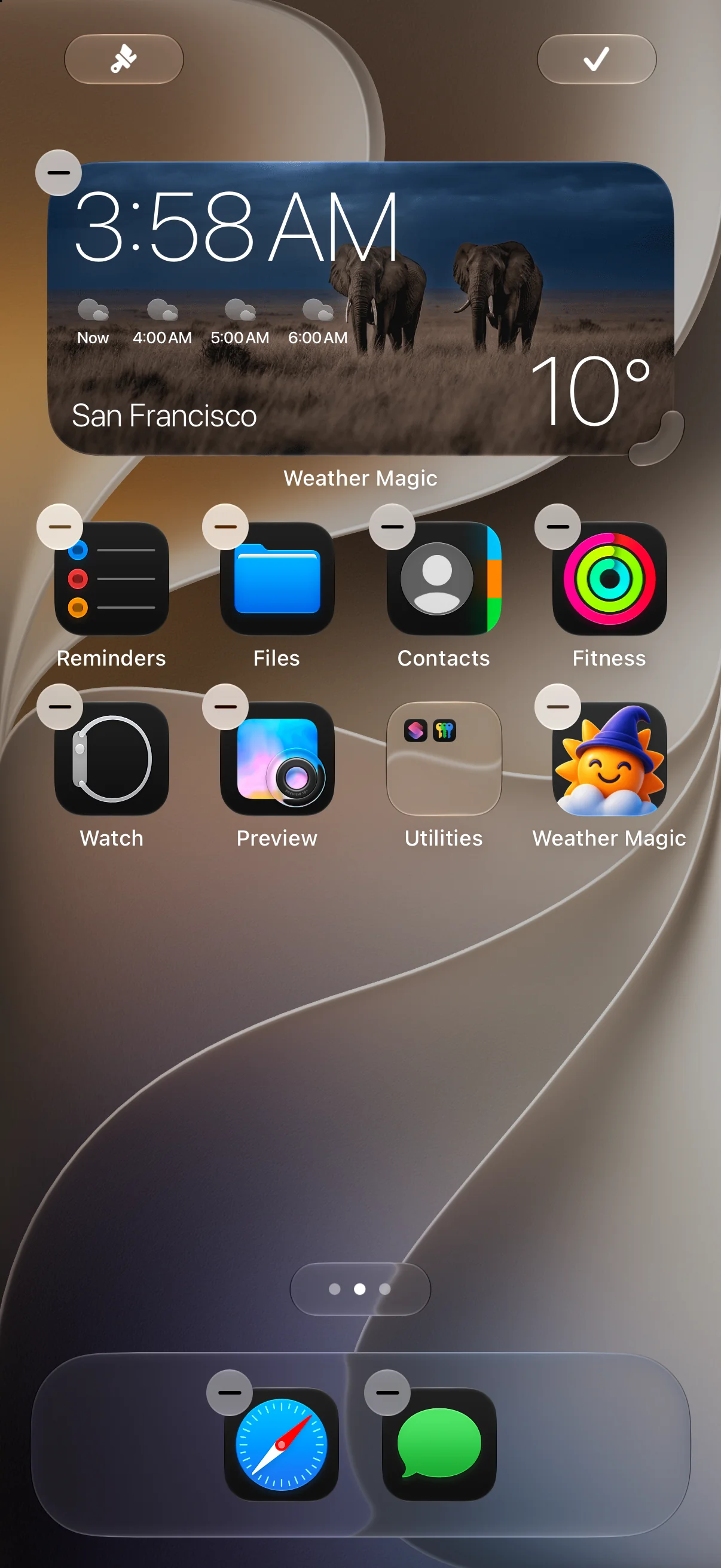
Hold the wallpaper until the icons jiggle. - Tap the brush button, then CustomizeThe brush button is in the top-left corner. On iOS 18 to 26 it reads Edit.
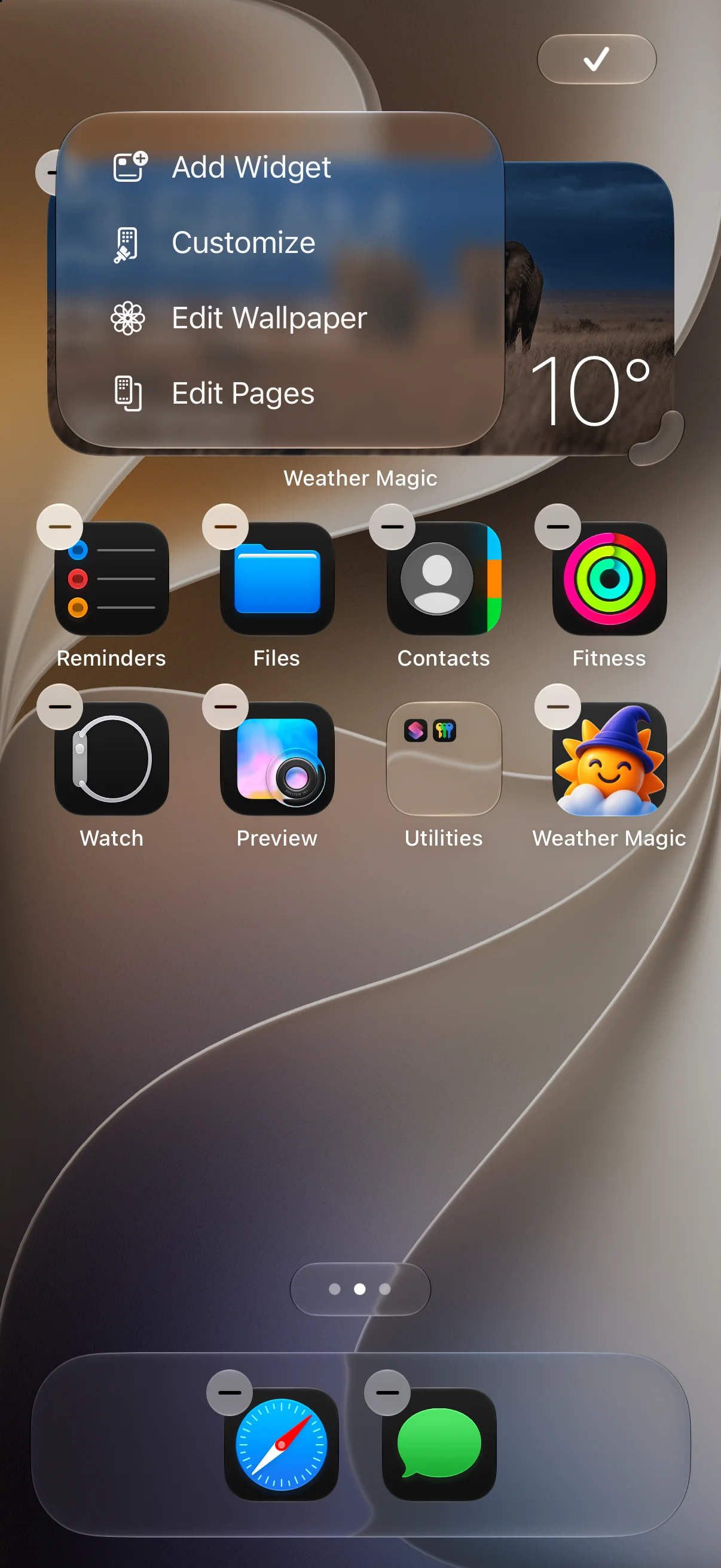
Customize sits under Add Widget. - Choose a styleDefault, Dark, Clear (iOS 26 and later) or Tinted. The button next to them switches between small icons with names and large icons without names.
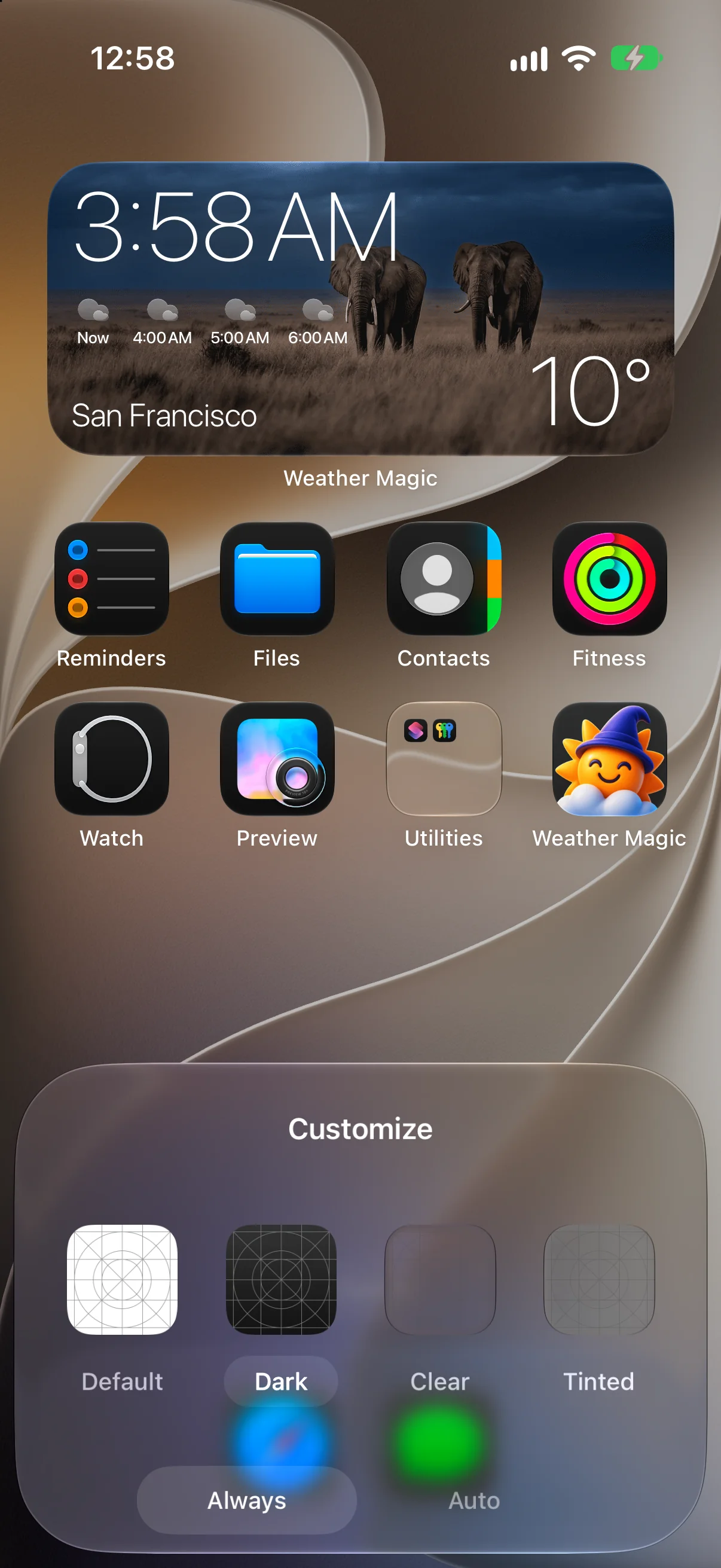
The four icon styles. - Pick Light, Dark or AutoDark can be set to Always or Auto, which follows the iPhone’s Light or Dark Mode. Clear and Tinted have their own light and dark versions. Tinted also shows a color slider and a saturation slider.
- Tap an empty area to saveEvery icon and widget on every Home Screen page changes together.
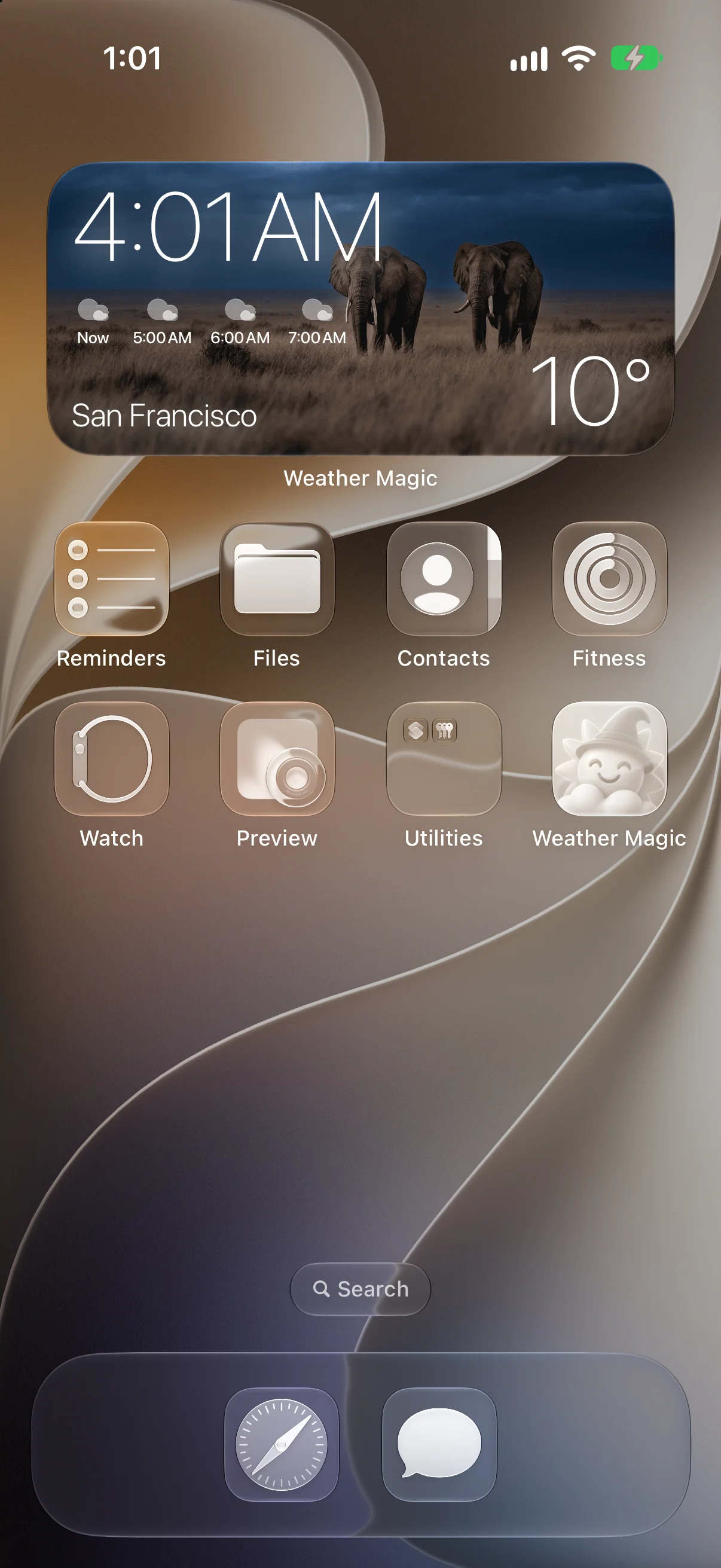
All icons restyled in one go.
Want a specific color? The app icon color guide covers the tint sliders, matching your wallpaper and black and white icons.
Make app icons bigger
In the Customize panel, the size button switches to Large icons. They fill more of the grid and hide the app names, which suits a clean, minimal Home Screen. Tap it again for small icons with names.
How to change an app icon with Shortcuts
Shortcuts can’t replace an app’s real icon, but it can add a launcher with any picture that opens the app. Repeat these steps for each app you want to change.
- Open Shortcuts and tap +Shortcuts comes with every iPhone and often sits in a folder such as Utilities. Can’t find it? Swipe down on the Home Screen and search “Shortcuts”. If you deleted it, download it again from the App Store. In the app, tap + at the bottom to start a new shortcut.
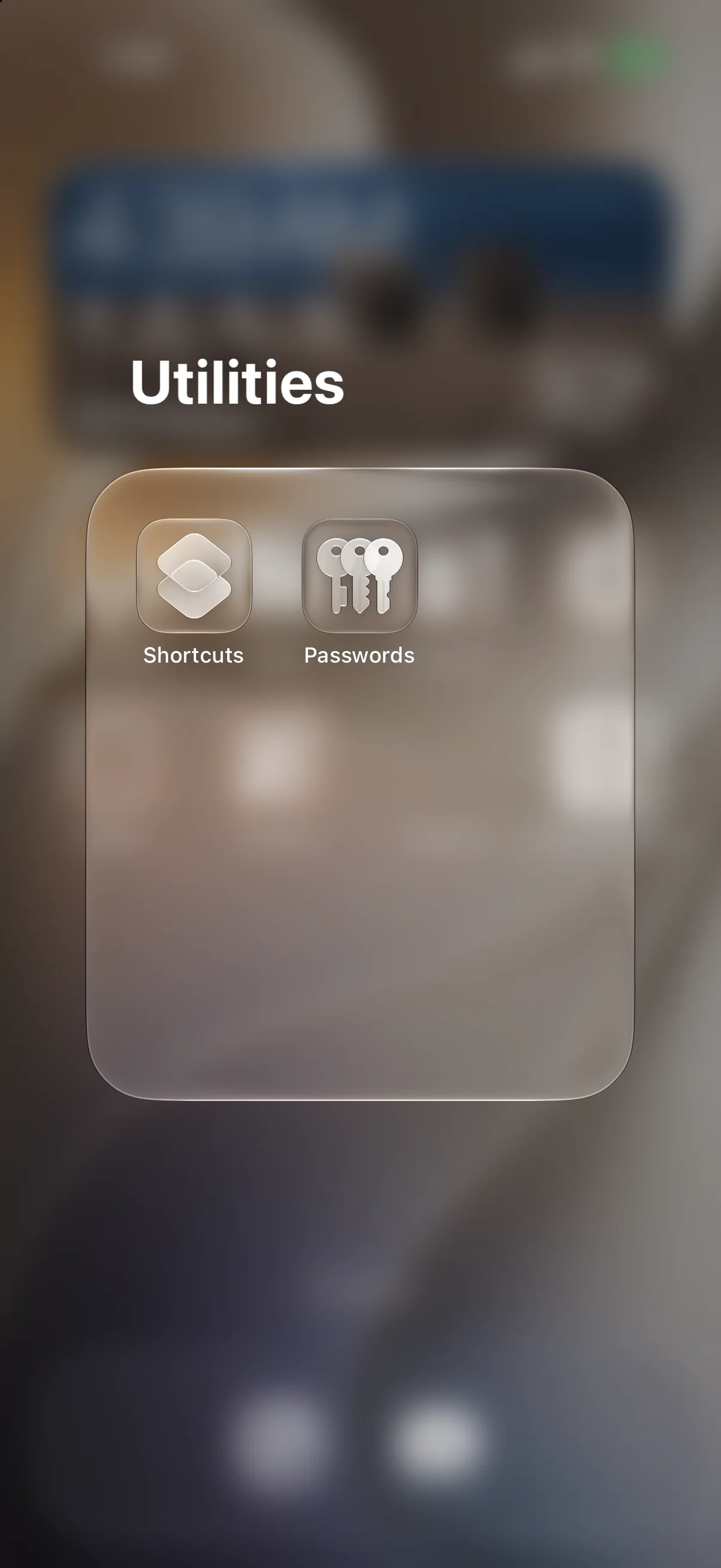
Shortcuts is often in the Utilities folder. 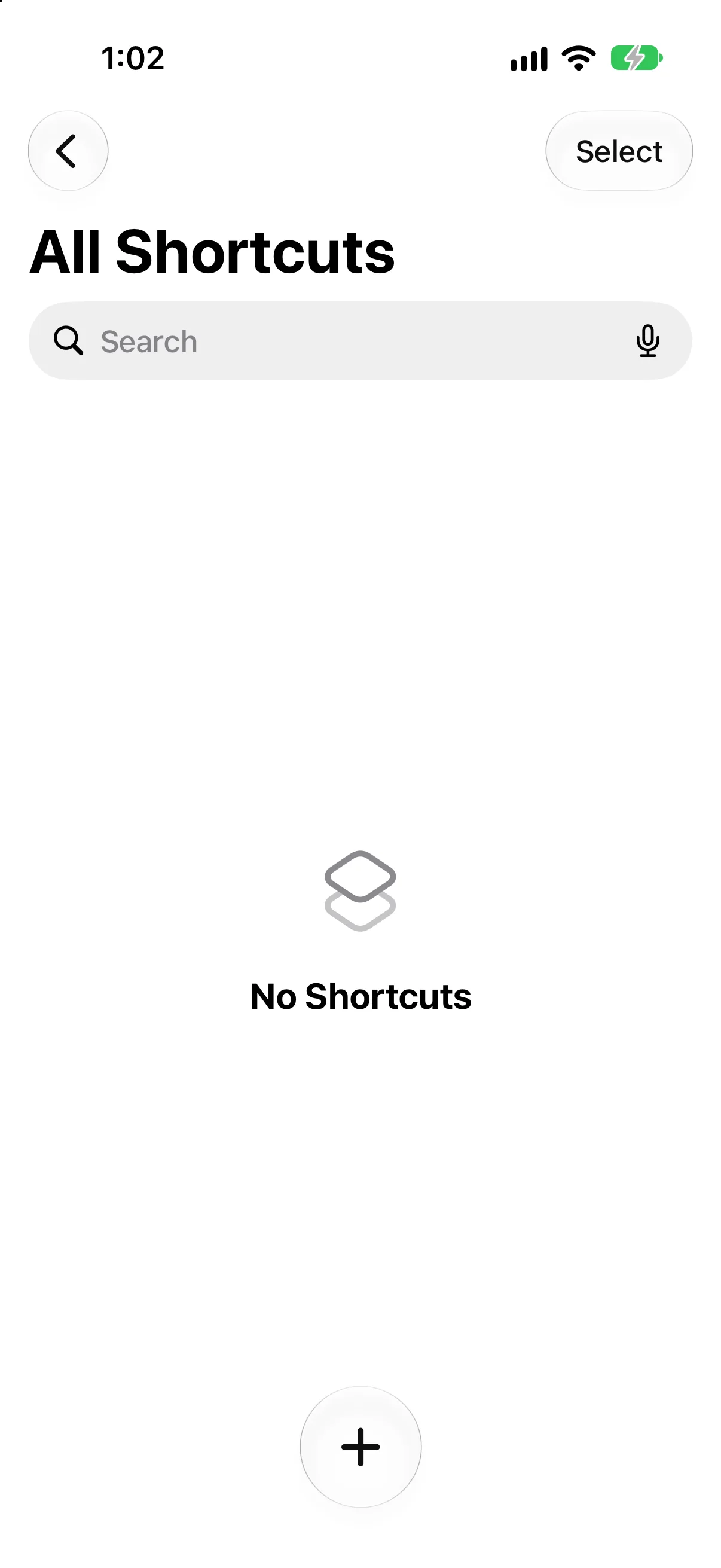
Start a new shortcut. - Add the Open App actionSearch for Open App and tap it.
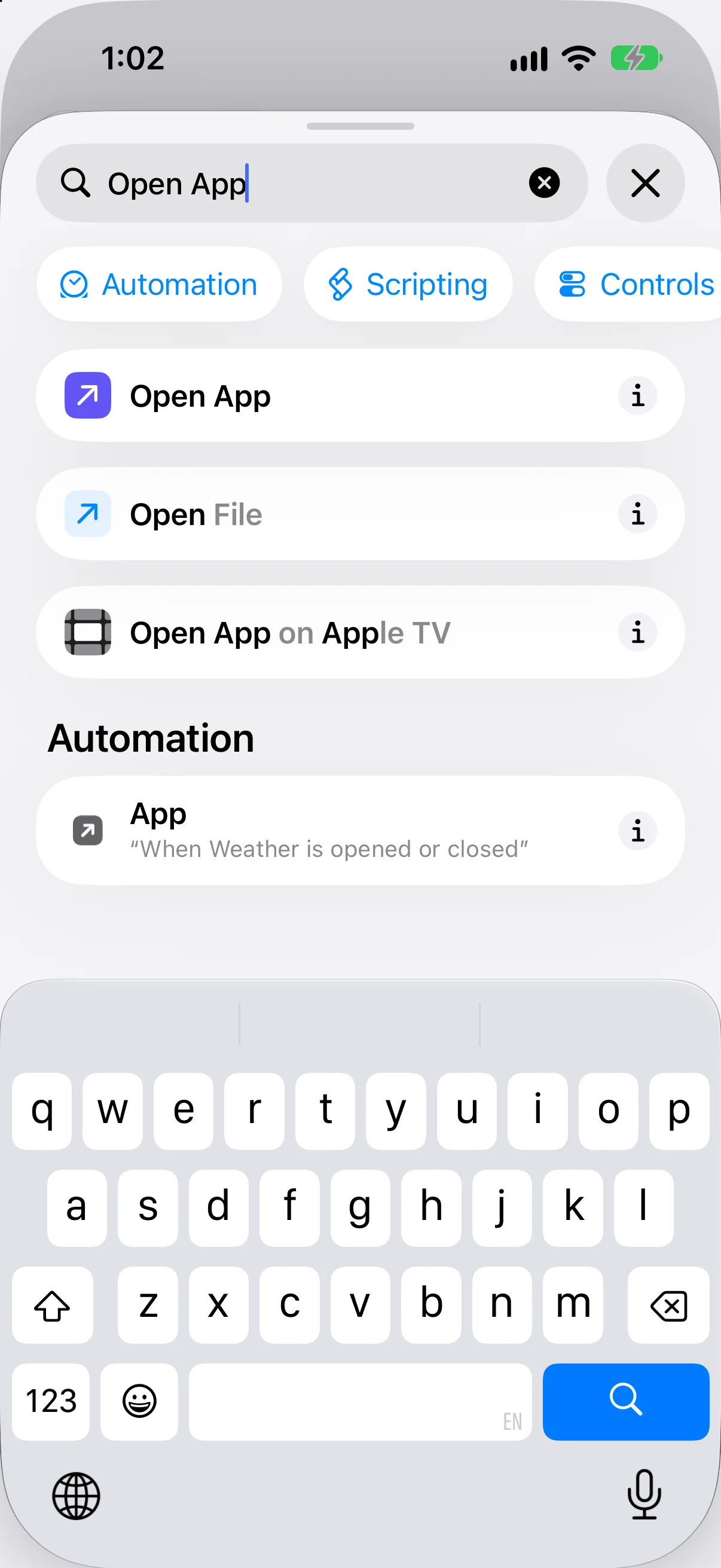
Search Open App. - Choose the appTap the blue App word in the action and pick the app whose icon you want to change.
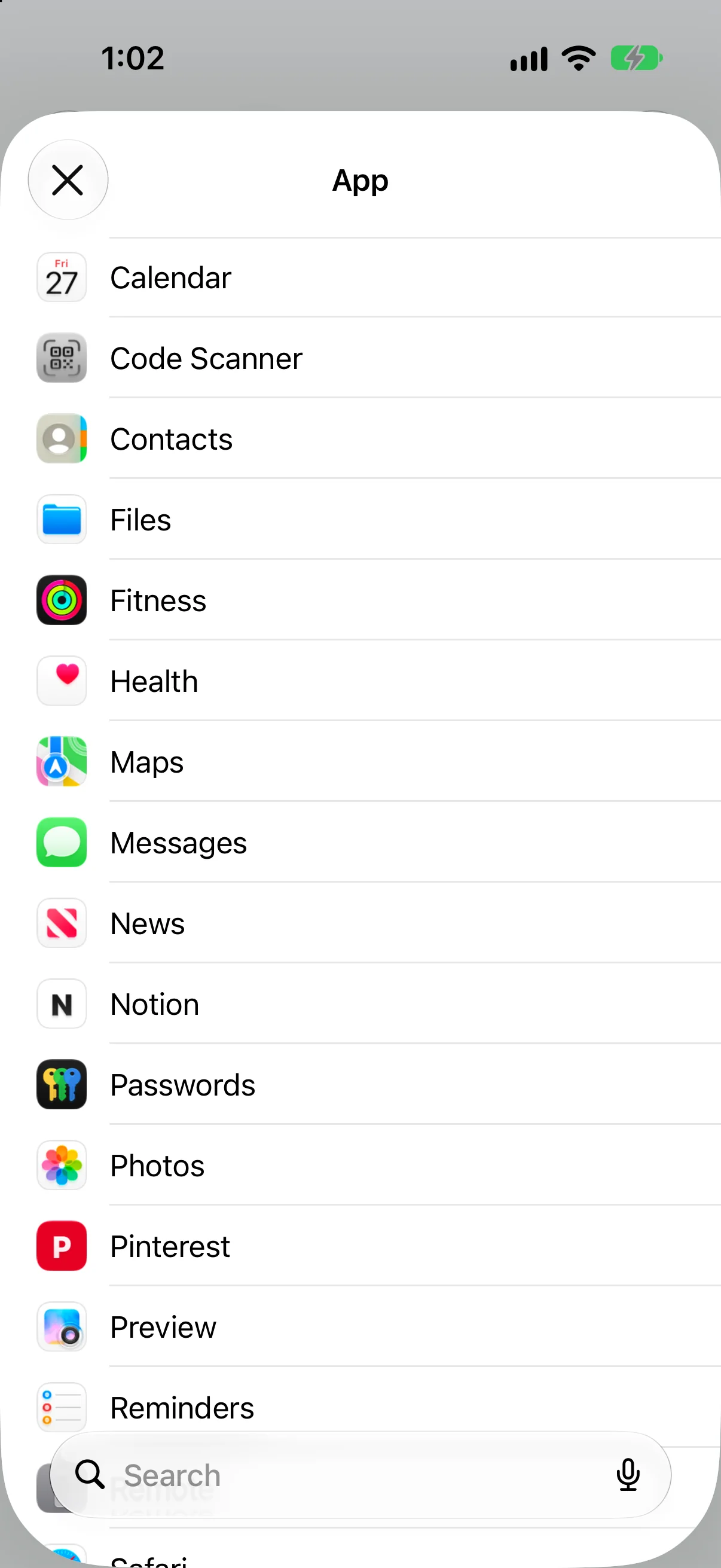
Pick the app to open. - Open the share menu, then Add to Home ScreenTap the shortcut’s name at the top of the editor (or the share button) and choose Add to Home Screen.
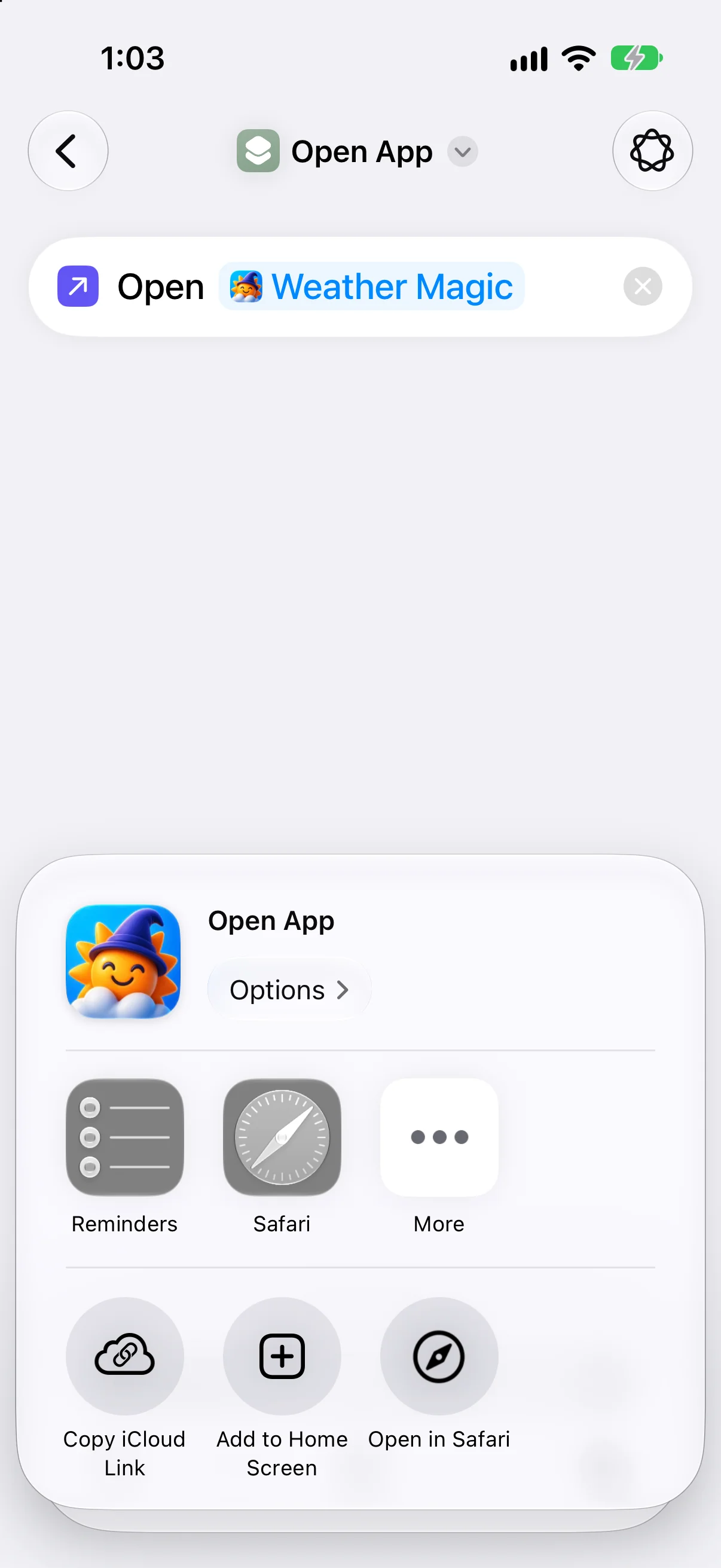
Add to Home Screen. - Tap the icon and choose your pictureTap the icon in the preview and stay on the Image tab, then pick Choose Photo, Take Photo or Choose File. Move and scale the image to fit the square.
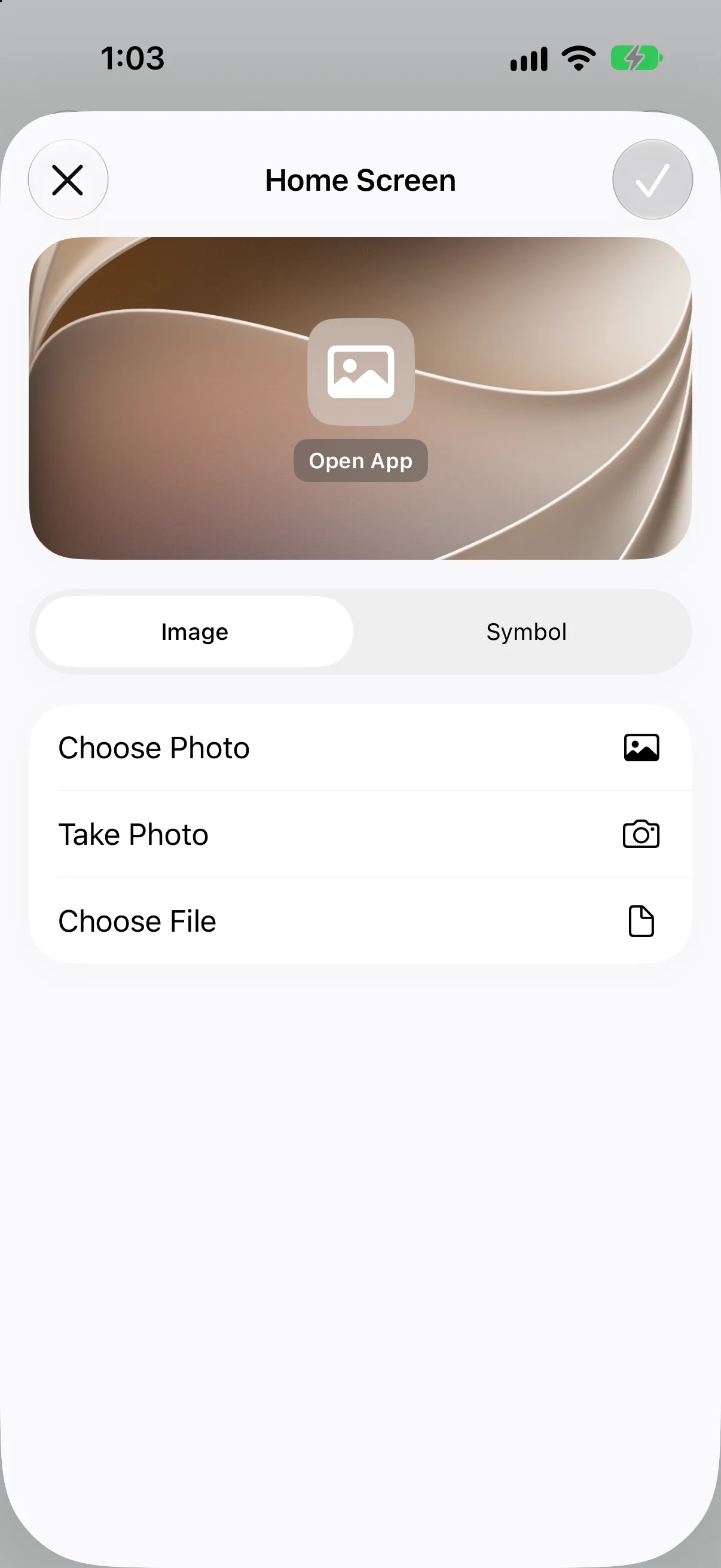
Use any image as the icon. - Name it and tap the checkmarkType the name you want under the icon, usually the app’s name, then tap the checkmark in the top-right corner.
- Hide the original iconTouch and hold the original app, tap Remove App, then Remove from Home Screen. The app stays installed in the App Library; only the old icon disappears.
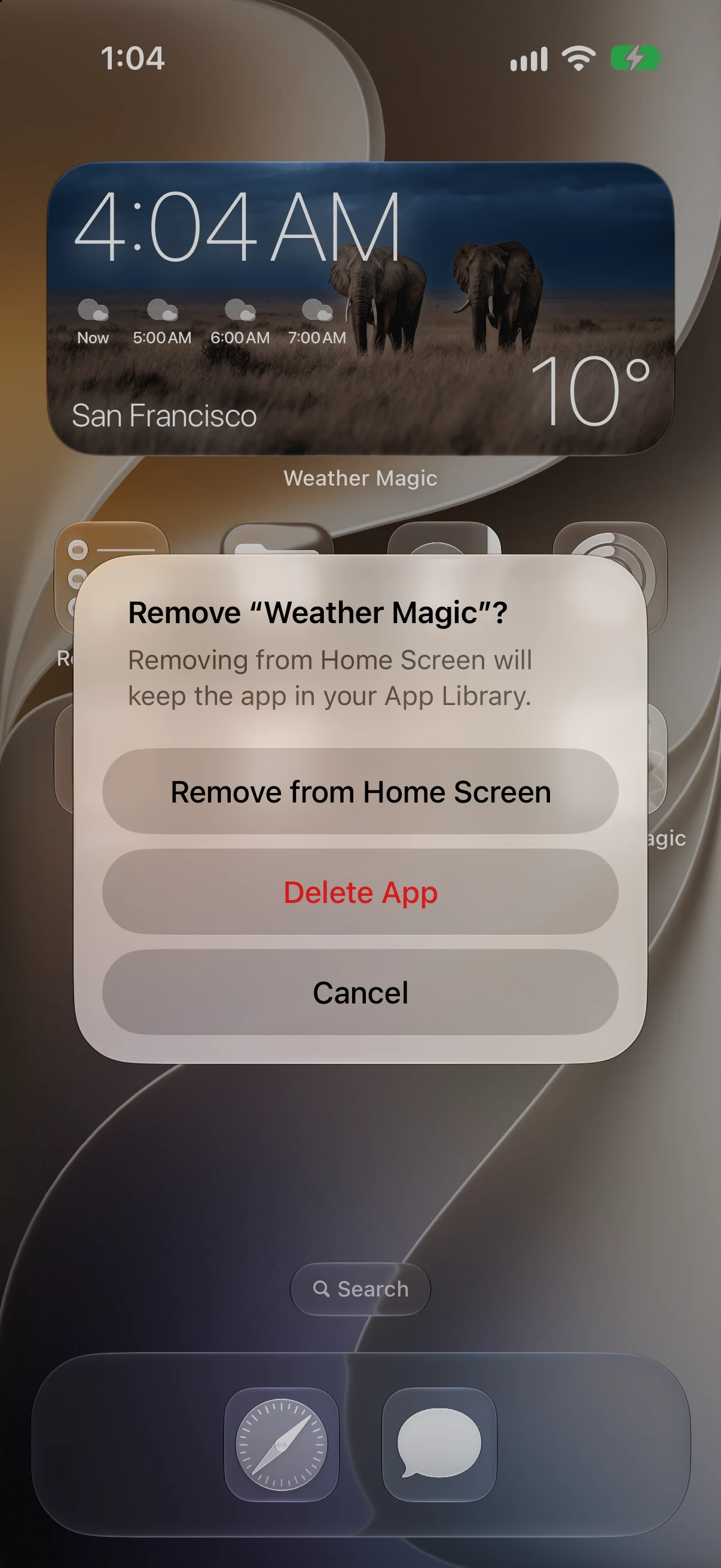
Keep the app, hide the icon.
Since iOS 14.3, tapping a Shortcuts icon opens the app straight away instead of opening Shortcuts first. A short banner can still appear at the top of the screen.
How to make custom app icons
- Make it square. 1024 × 1024 pixels is plenty and stays sharp on every iPhone. iOS rounds the corners, so leave a little space around the edges.
- Keep it simple. One symbol or letter on a plain background is easier to read at icon size than a detailed picture.
- Use one palette for the whole set. Two or three colors taken from your wallpaper make the Home Screen look designed, not random.
- Save the icons to Photos so they’re ready when Shortcuts asks you to choose an image.
Ready-made icon packs are another option: many theme apps sell them and can create the shortcuts for you. Check that a pack covers the apps you actually use before you buy.
How to change shortcut icons
You can’t edit a Home Screen icon after you add it. To change it, touch and hold the icon, tap Delete Bookmark, and add the shortcut to the Home Screen again with the new picture.
Inside the Shortcuts app each shortcut also has a color and symbol. Open the shortcut, tap its name at the top, then Choose Icon. Those colors are what you see in the Shortcuts app and the Shortcuts widget.
How to change the iPhone theme
iOS has no single theme switch, but four settings together give the Home Screen a complete new look. Work through them in this order, because each one depends on the one before:
- Wallpaper. Touch and hold the Lock Screen → Customize, or go to Settings → Wallpaper. Pick it first: every other color comes from it.
- Icon style. Customize → Dark, Clear or Tinted. Use the eyedropper to take the tint from the wallpaper.
- Custom icons for the apps you open most, with the Shortcuts method above, in two or three colors from the same wallpaper.
- Widgets. One or two widgets you actually check, on the first page. They follow the icon style. See how to add widgets on iPhone.
Icon style ideas
- Wallpaper first: leave the top half of the first page empty so the photo shows, with icons and a widget below.
- Glass: Clear Dark icons with transparent widgets on a bright photo.
- Monochrome: Tinted at low saturation in one color pulled from the wallpaper.
- Minimal: Large icons without names, one page, the rest in the App Library.
More complete setups, with screenshots, are in 6 iPhone home screen layout ideas.
App icons not changing?
- There is no Customize option — Customize arrived in iOS 18. Update the iPhone in Settings → General → Software Update.
- Some icons keep their colors — Dark and Tinted look best on apps whose developers made dark and tinted versions. Other apps may look different from the rest.
- The custom icon looks blurry — the picture was too small. Use a square image of at least 1024 × 1024 pixels.
- Add to Home Screen is missing — make sure you opened the shortcut editor, not the Shortcuts gallery, then tap the share button.
- The original app disappeared — it’s in the App Library. Swipe left past the last Home Screen page and search for it.
How to go back to the original icons
Customize styles: touch and hold the Home Screen, tap the brush button → Customize → Default.
Shortcuts icons: touch and hold each custom icon and delete it, then drag the original app back from the App Library.
Frequently asked questions
How do I change app icons on iPhone?
To restyle every icon, touch and hold the Home Screen, tap the brush button, then Customize and choose Dark, Clear or Tinted. To give one app a custom icon, create an Open App shortcut in Shortcuts, tap Add to Home Screen and choose a picture as the icon.
Can I change app icons without Shortcuts?
Yes for all icons at once: the Customize menu changes the style of every icon without Shortcuts. A different picture for one app needs Shortcuts, unless the app offers alternate icons in its own settings.
Does changing an app icon delete the app?
No. The Customize menu restyles the real icons. A Shortcuts icon is an extra launcher; the original app stays installed even after you remove its icon from the Home Screen.
Is it free and safe to change app icons?
Yes. Both methods are built into iOS, cost nothing and need no jailbreak.
Do custom app icons show notification badges?
No. Badges and long-press quick actions only appear on the real app icon. If you need them for an app, keep its original icon.
How do I make custom app icons?
Create a square image of at least 1024 × 1024 pixels with the symbol centered, then set it as the icon of an Open App shortcut. iOS rounds the corners for you.
How do I get my original icons back?
Open Customize and tap Default. For Shortcuts icons, delete the shortcut and drag the original app back from the App Library.
How do I change my iPhone theme?
Change the wallpaper first, then pick an icon style in Customize (Dark, Clear or Tinted), add custom Shortcuts icons for the apps you use most, and finish with one or two matching widgets.
Can I change app icons on iPad?
Yes. iPad has the same Customize menu and the same Shortcuts method.