How to Make Widgets Transparent on iPhone
Since iOS 26, iPhone can make widgets and app icons see-through with a setting called Clear. It takes four taps and needs no extra app. Here is how to turn it on, which version to pick, and what to do when a transparent widget turns out grey or hard to read.
Touch and hold an empty area of the Home Screen, tap Edit (top left) → Customize, then choose Clear. Pick Light for the most transparent look or Dark for easier reading. Works on iOS 26 and later.
How to make widgets transparent on iPhone
You need iOS 26 or later. Check in Settings → General → About. The steps below are from an iPhone on iOS 26.
Enter edit mode
Touch and hold an empty area of the Home Screen until the icons start to jiggle. A small minus appears on every icon and widget.
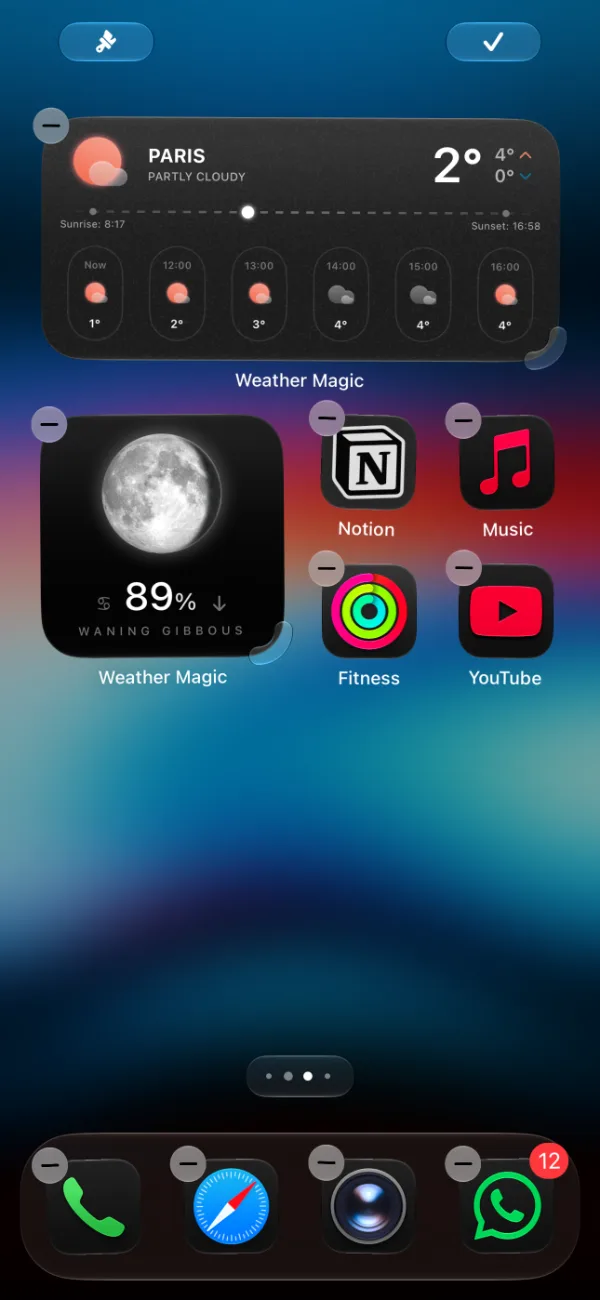
Edit mode: the Edit button is the brush at the top left. Tap Edit, then Customize
Tap the Edit button at the top left. In the menu that opens, choose Customize.
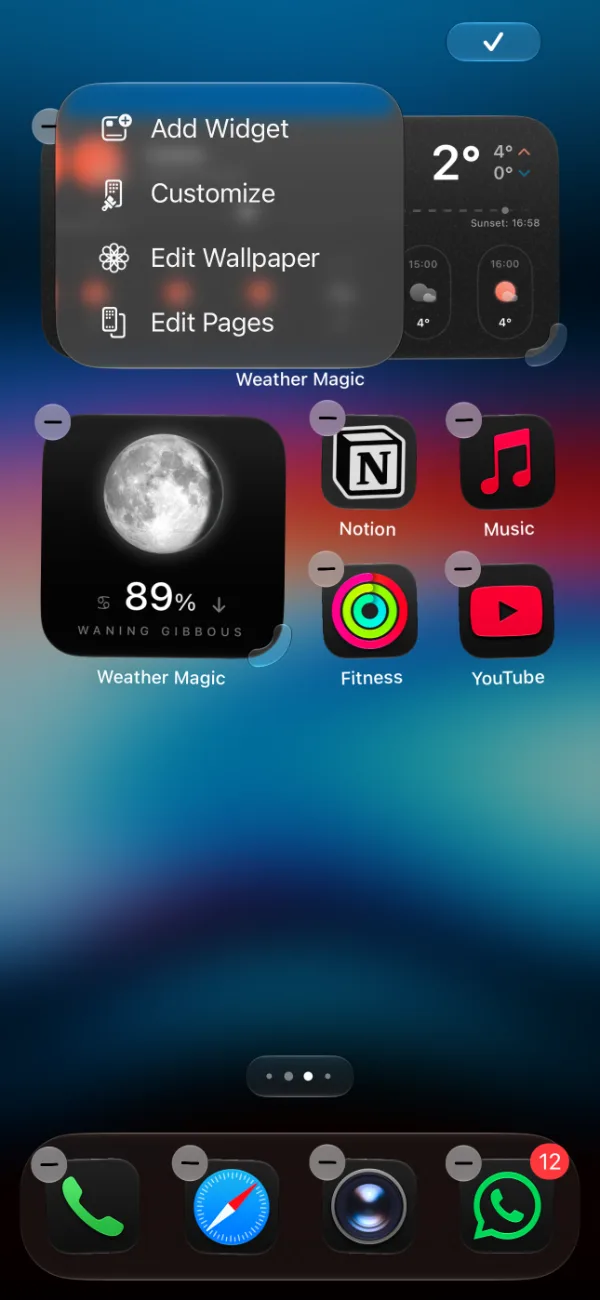
The Edit menu: Add Widget, Customize, Edit Wallpaper, Edit Pages. Choose Clear
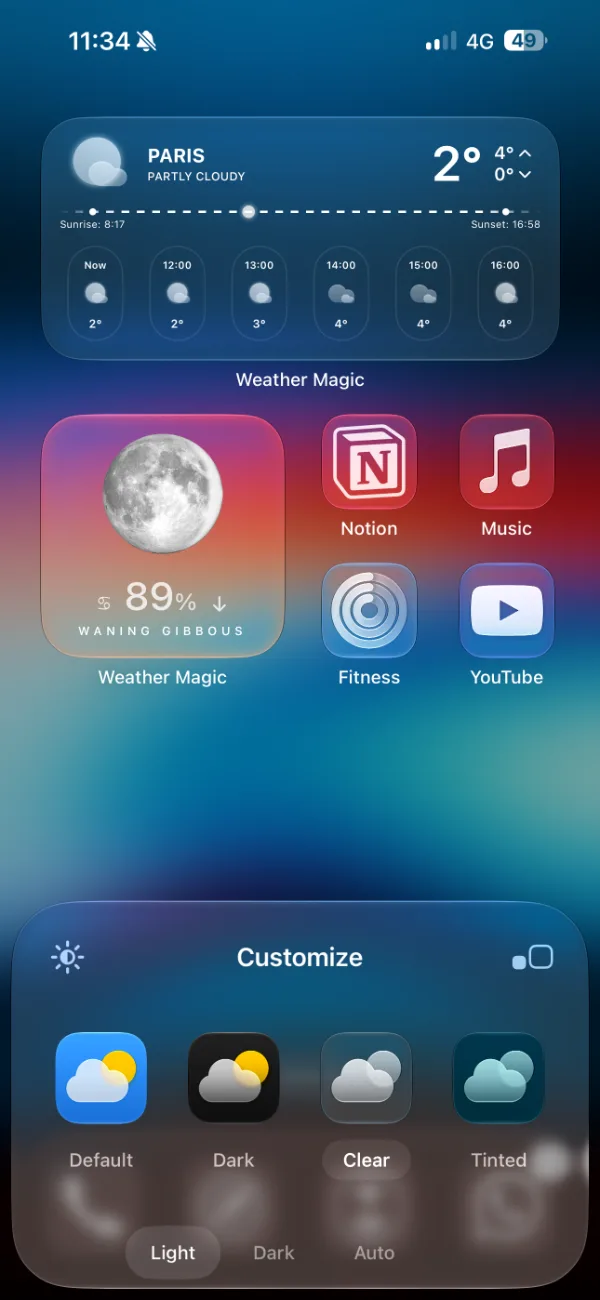
A panel slides up with four styles: Default, Dark, Clear and Tinted. Tap Clear. Widgets and icons turn to glass straight away, so you can see the result before saving.
Clear selected: widgets and icons become glass. Pick Light, Dark or Auto, then close
Under the styles, choose Light, Dark or Auto. Tap anywhere outside the panel, then tap the check mark at the top right to leave edit mode.
Clear Light vs Clear Dark vs Auto
| Option | How it looks | Best for |
|---|---|---|
| Light | Most see-through; the wallpaper is only lightly shaded | Dark or colourful wallpapers |
| Dark | Still transparent, with a darker base behind each widget | Bright wallpapers and readability |
| Auto | Switches between Light and Dark with your iPhone’s appearance | Using Dark Mode at night |
Light gives the effect most people are after. If the wallpaper is pale, white text on Light glass loses contrast, and Dark is the better choice.
What Clear mode does to your widgets
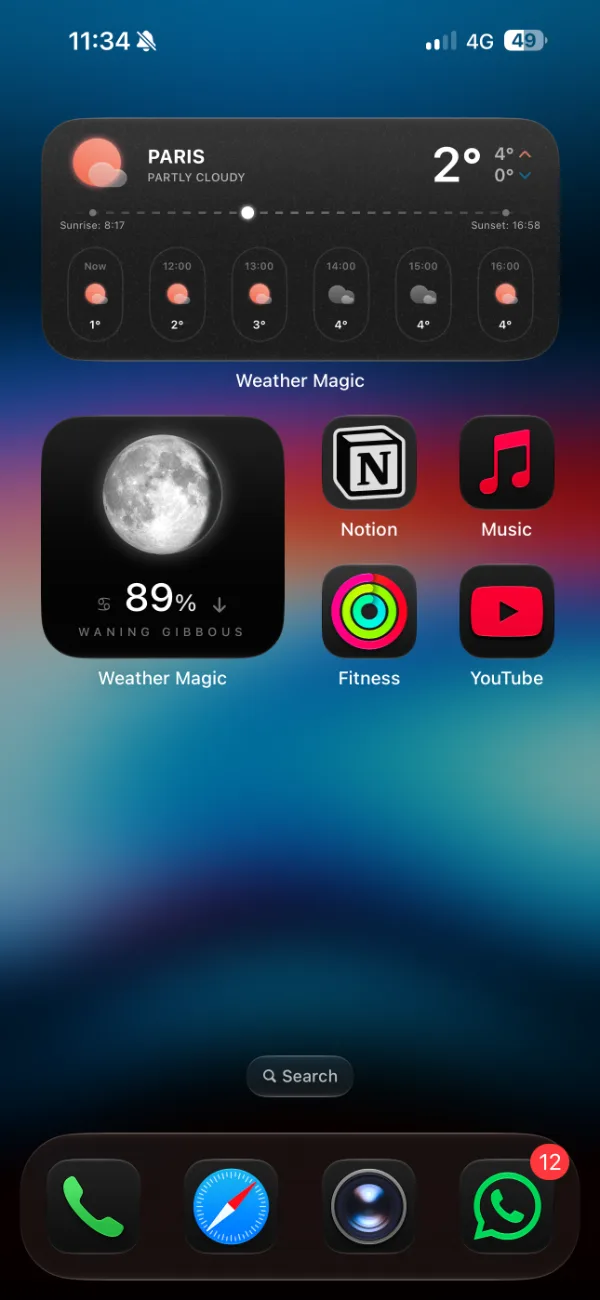
Clear does more than remove the background. iOS also takes the colour out of most of the widget, so a coloured design becomes white and grey glass. Compare the screenshots above: the orange sun icons in the Paris forecast turn white, while the wallpaper shows through every panel.
- Every widget changes at once. Clear applies to the whole Home Screen, the Today View and the App Library, not to a single widget.
- Colour is mostly removed. Apps can keep some images in full colour, but icons and accents usually turn white or tinted.
- Your design choices are hidden. If you built a custom weather widget with your own colours, Clear overrides them. Default or Dark keep them.
- It survives wallpaper changes. Changing to another wallpaper pair can switch you back to that pair’s style, so check after a swap.
Can you make just one widget transparent?
Not with Clear. To keep colourful icons and have one widget that looks transparent, you have two options:
- Background matching. Some widget apps ask for a screenshot of your empty Home Screen and cut out the exact piece behind the widget. It looks transparent, but breaks when you change the wallpaper or move the widget.
- A matching colour. Pick a widget background in the same tone as the wallpaper area it covers. On plain and gradient wallpapers it looks almost invisible, and nothing breaks when you move it.
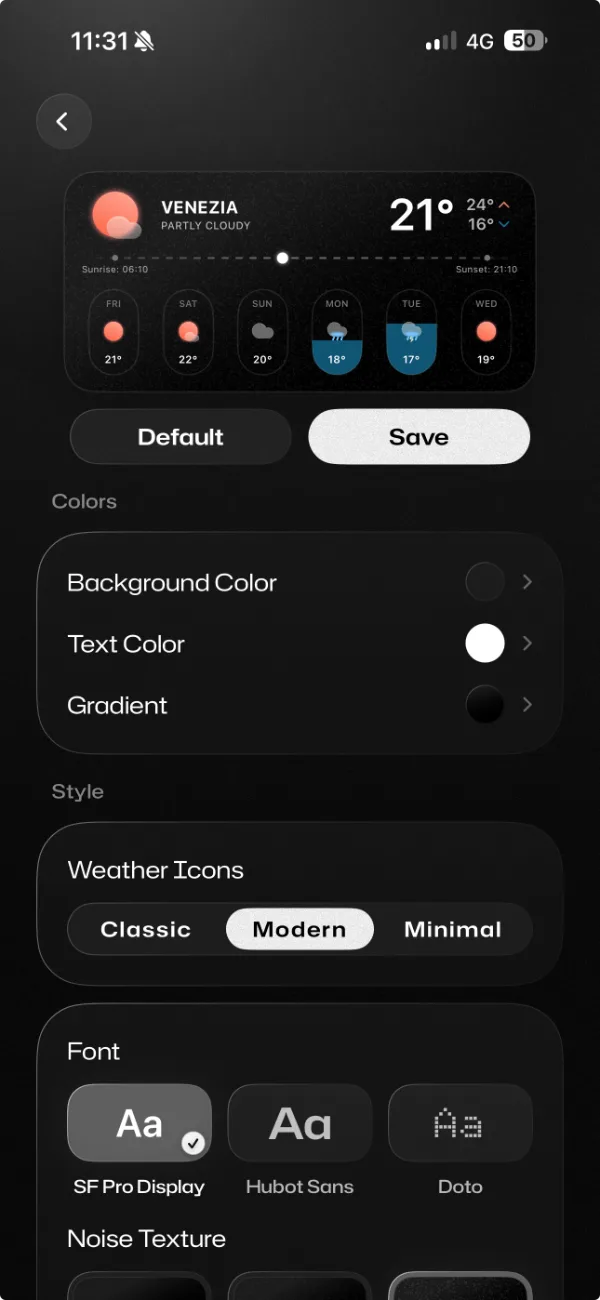
More ways to make a widget blend in: aesthetic weather widgets for iPhone.
Transparent widgets on the Lock Screen
Lock Screen widgets are transparent already. They have no background and are drawn in one tint over the wallpaper, in the same colour as the clock. To change their look, change the clock colour while customizing the Lock Screen. Full steps are in how to add a weather widget to the Lock Screen.
Transparent widgets not working?
- There is no Clear option. Your iPhone is on iOS 18 or earlier. Update in Settings → General → Software Update.
- Widgets look grey or opaque. You are on Clear Dark. Switch to Light in the Customize panel.
- Text is hard to read. Tap the sun icon in the Customize panel to dim the wallpaper, or choose a calmer wallpaper.
- Widget images turned white. The app hasn’t marked those images to keep their colour. Use Default or Dark, or ask the developer.
- It changed back after a wallpaper swap. Wallpaper pairs keep their own style. Open Customize again and choose Clear.
- You want the colours back. Edit → Customize → Default.
Frequently asked questions
Can you make widgets transparent on iPhone?
Yes, on iOS 26 and later. Touch and hold the Home Screen, tap Edit → Customize and choose Clear. Widgets and app icons turn into see-through glass over the wallpaper.
Can I make only one widget transparent?
Not with Clear mode: it applies to every icon and widget on the Home Screen. For a single transparent-looking widget you need an app that matches its background to your wallpaper, or a widget whose background colour you can set to the wallpaper’s tone.
What is the difference between Clear Light and Clear Dark?
Light is the most see-through and only slightly shades the wallpaper. Dark adds a darker base behind each widget, which makes text easier to read on bright wallpapers. Auto switches with your iPhone’s appearance.
Why do my transparent widgets look grey?
You are probably on Clear Dark, or the wallpaper behind the widget is very bright. Switch to Light in the Customize panel, or tap the sun icon to dim the wallpaper.
Why did the colours in my widget disappear?
Clear mode removes colour from widgets unless the app chooses to keep full colour for certain images. Icons and accents often turn white or grey. Go back to Default or Dark if colour matters to you.
How do I turn transparent widgets off?
Touch and hold the Home Screen, tap Edit → Customize and choose Default.
Are Lock Screen widgets transparent?
Yes, always. Lock Screen widgets have no background of their own and are drawn in one tint over the wallpaper, following the clock colour.