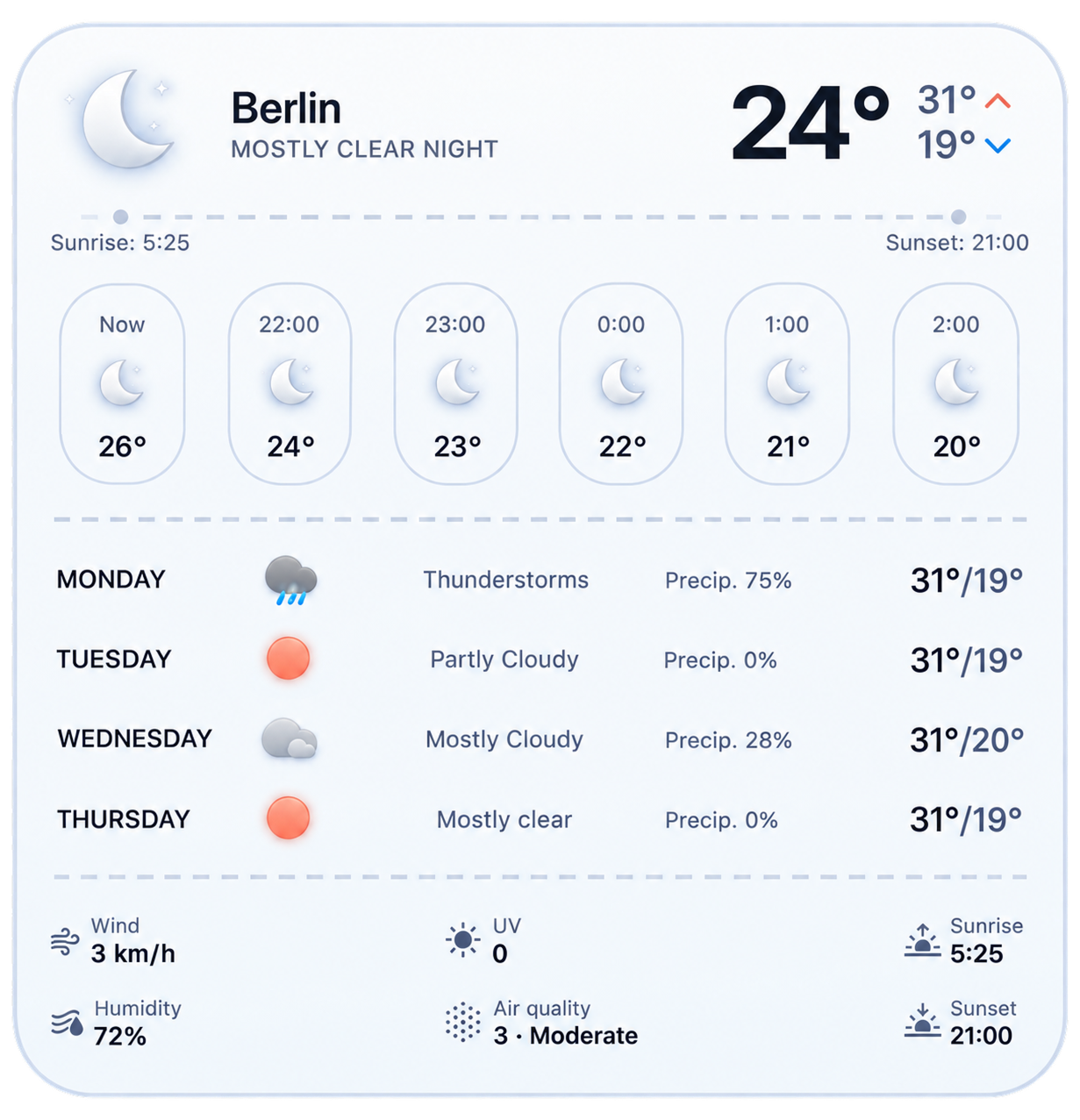
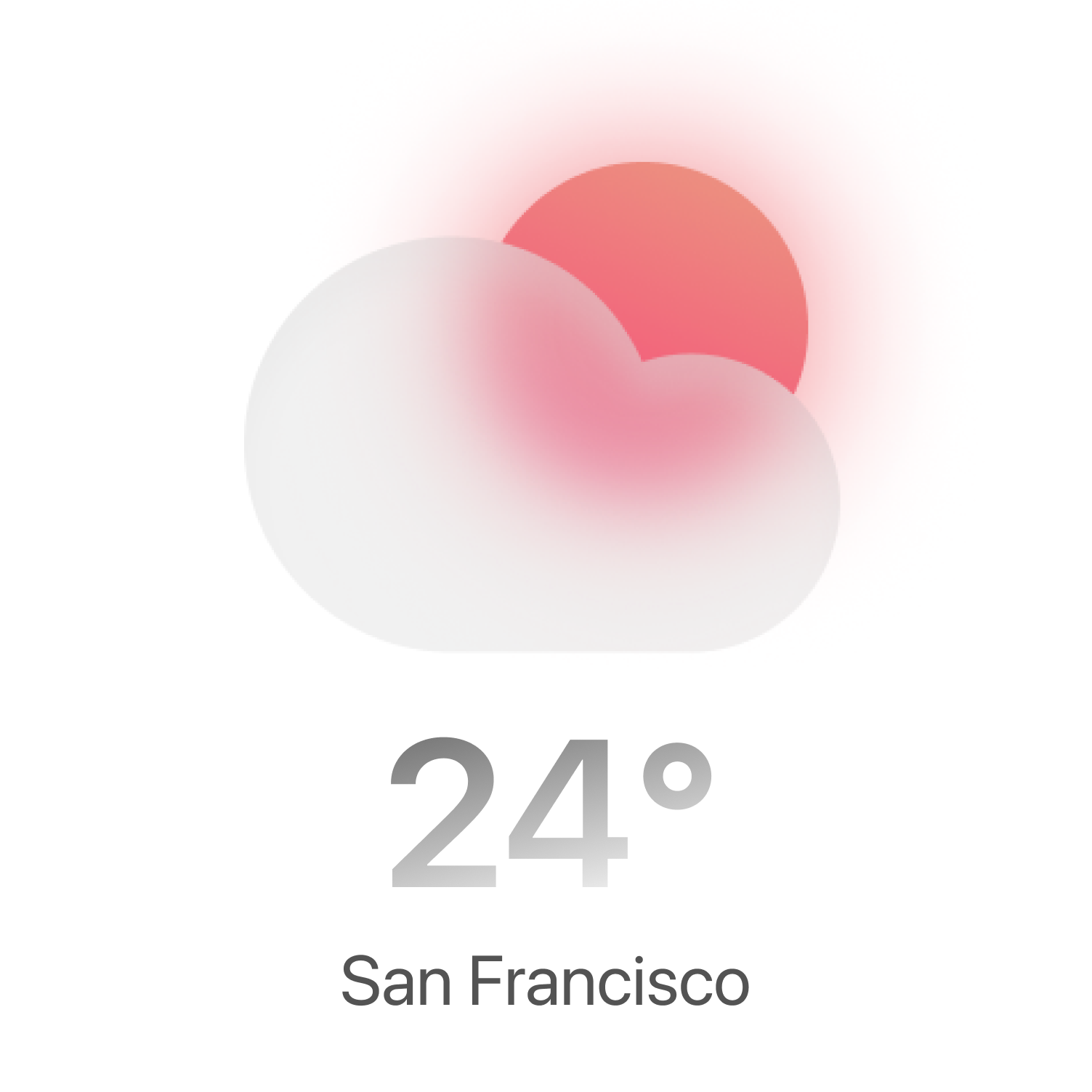
How to Add a Weather Widget to Your iPhone
To add a weather widget to your iPhone, touch and hold an empty area of the Home Screen until the apps jiggle, tap the brush button in the top-left corner, then Add Widget. Search for Weather, pick a size, tap Add Widget and drag it into place, then tap the checkmark. It takes under a minute on any iPhone running iOS 14 or later. Below: every step with screenshots, how to change the city, and the Lock Screen version.
Lock Screen: touch and hold the Lock Screen → Customize → Lock Screen → Add Widgets → Weather → Done.
Before you start
- iOS 14 or later for Home Screen widgets, iOS 16 for the Lock Screen. The steps below are for iOS 27; older versions differ only where noted.
- The Weather app is installed. If you deleted it, the widget disappears from the gallery too. Reinstall it from the App Store.
- For a third-party widget, open the app once so iOS lists it in the widget gallery.
How to add a weather widget to the iPhone Home Screen
- Find a page with roomSwipe to a Home Screen page with free space. A small widget takes the space of four app icons, a medium one eight, a large one sixteen.
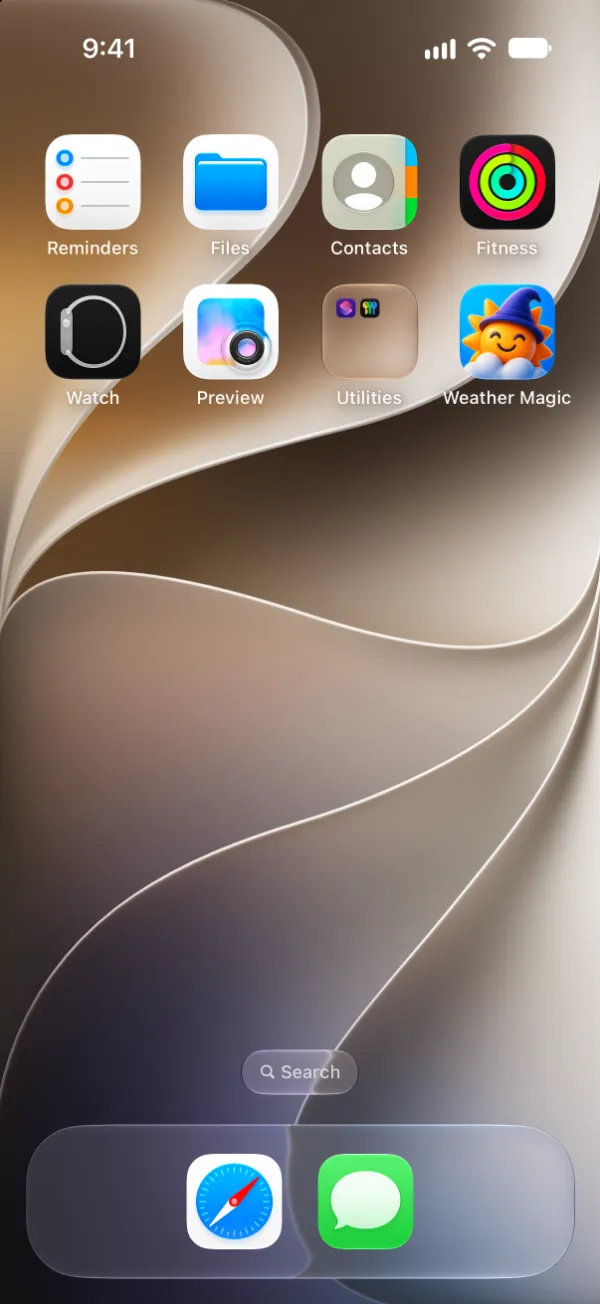
Start from a page with free space. - Touch and hold an empty areaPress the wallpaper, not an app, until the icons start to jiggle and a minus badge appears on each app. Pressing an icon opens its quick menu instead; if that happens, tap Edit Home Screen.
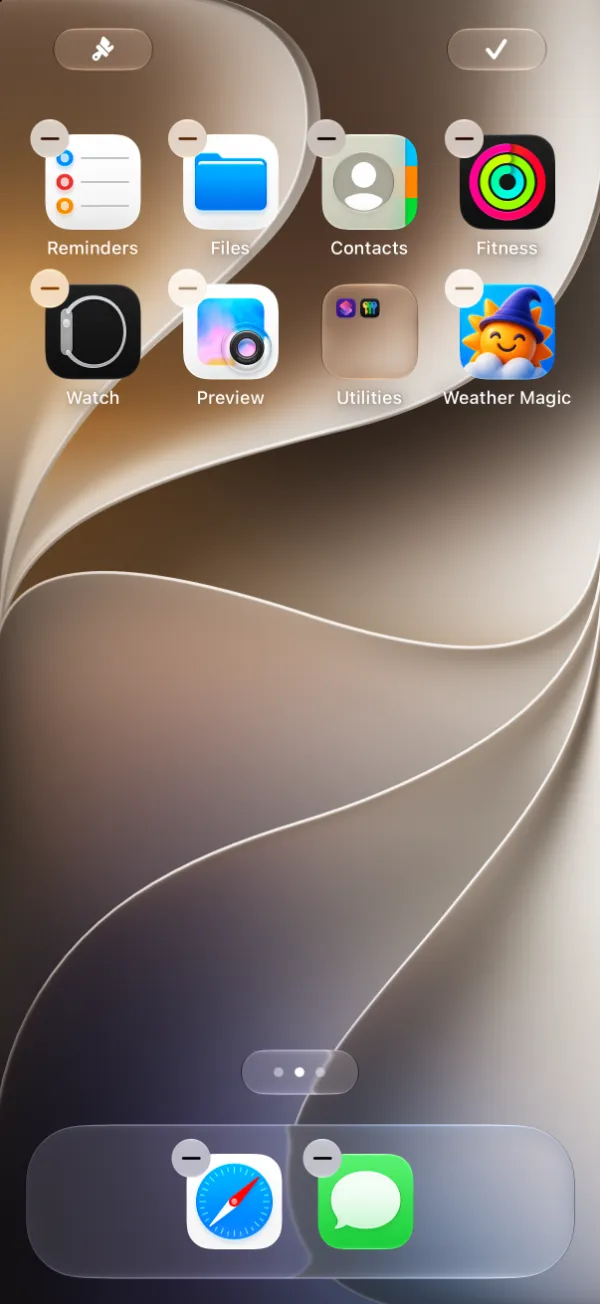
Edit mode: brush button top left, checkmark top right. - Tap the brush button, then Add WidgetThe brush button sits in the top-left corner and opens a menu with Add Widget, Customize, Edit Wallpaper and Edit Pages. On iOS 18 to 26 the button reads Edit; on iOS 17 and earlier it is a + that opens the gallery directly.
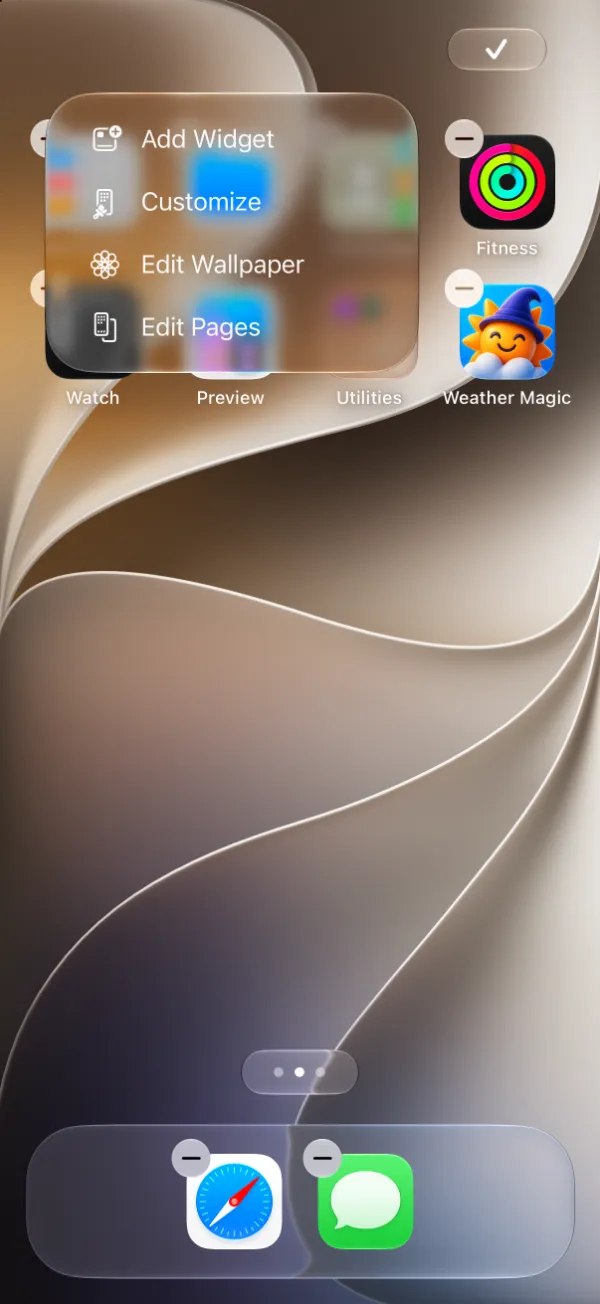
Add Widget, the first item in the menu. - Search for WeatherType Weather in the search field at the top of the gallery, or scroll the app list. Choose Apple Weather or your weather app; Weather Widget Magic is listed as Weather Magic.
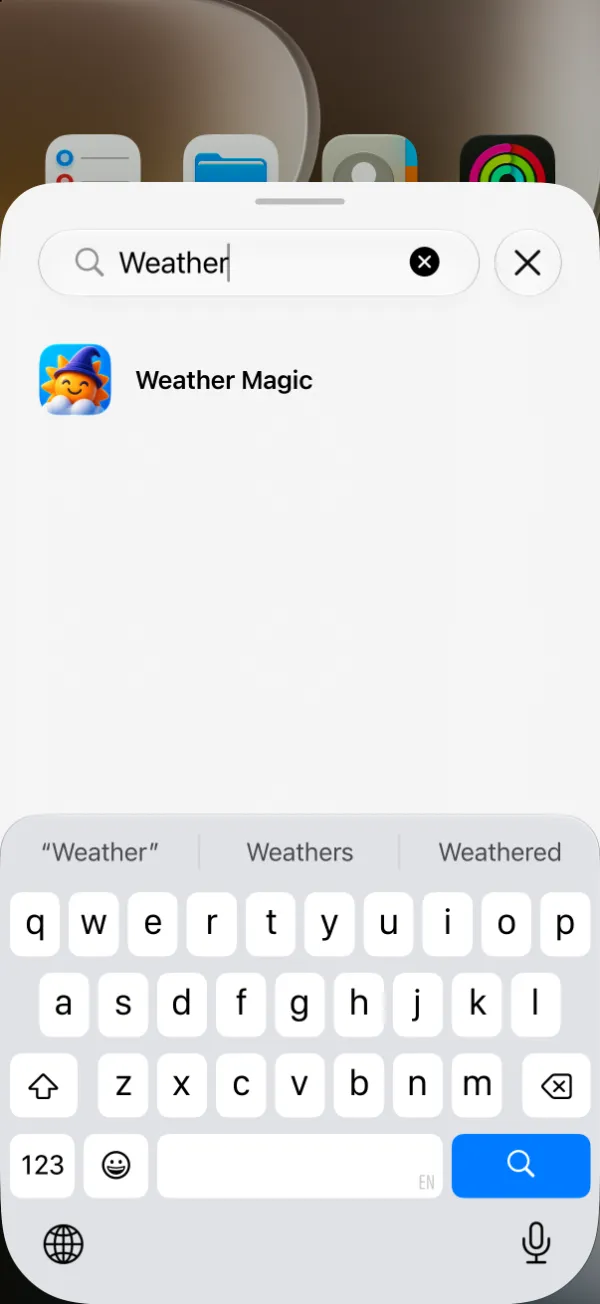
Search the gallery for Weather. - Pick a size and styleSwipe left and right to see every size and style the app offers. The dots under the preview show how many there are.
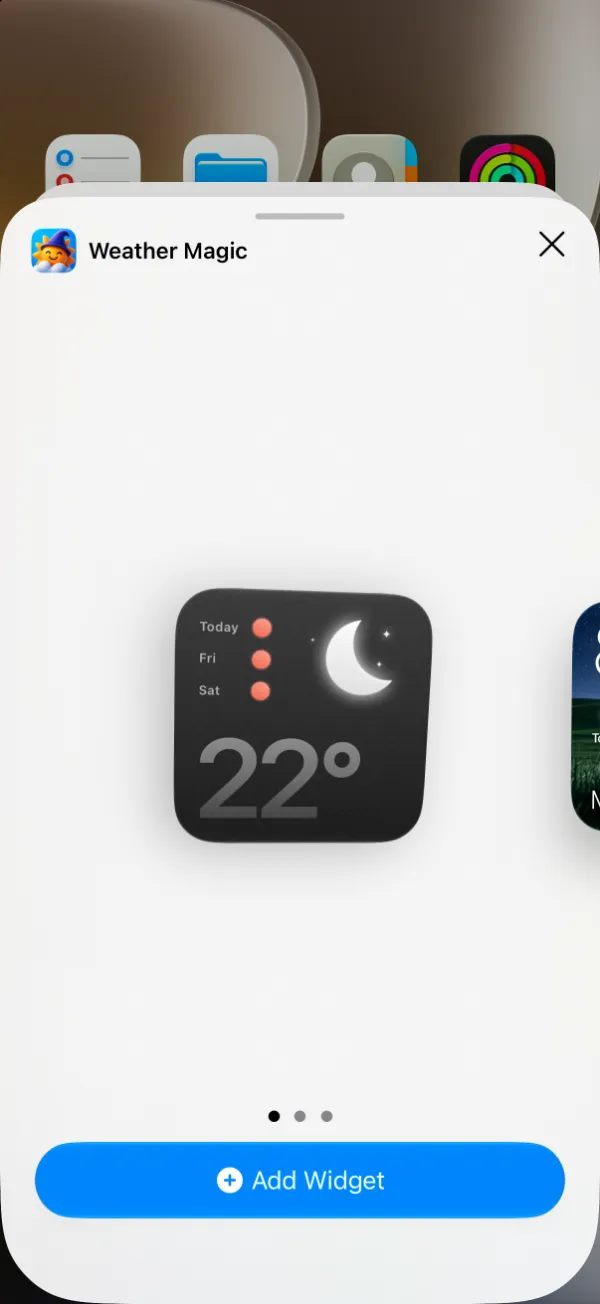
Swipe to compare sizes. - Tap Add Widget and place itThe widget lands at the top of the page. Drag it where you want it; the app icons move aside to make room.
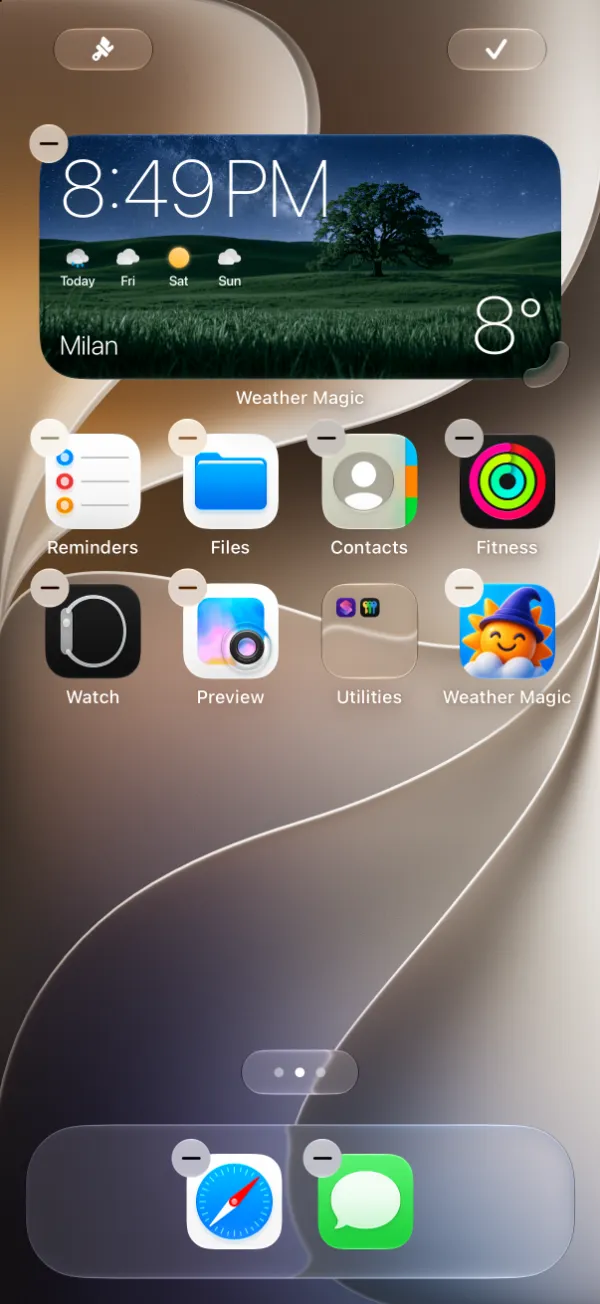
Drag the widget into place. - Tap the checkmarkTap the checkmark in the top-right corner, or an empty area of the wallpaper, to leave edit mode.
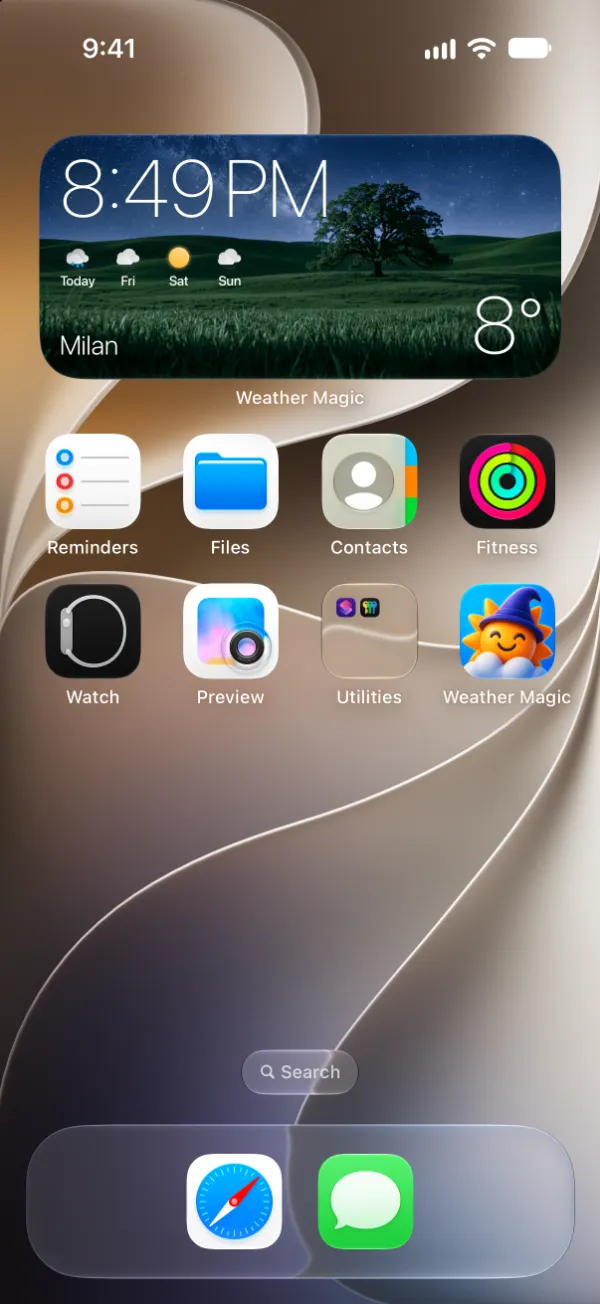
Tap the widget to open the full forecast in its app. To move it later, touch and hold it until it jiggles and drag it. Adding other widgets too? See how to add widgets on iPhone.
How to change the city on the weather widget
Each weather widget shows one city. To change it:
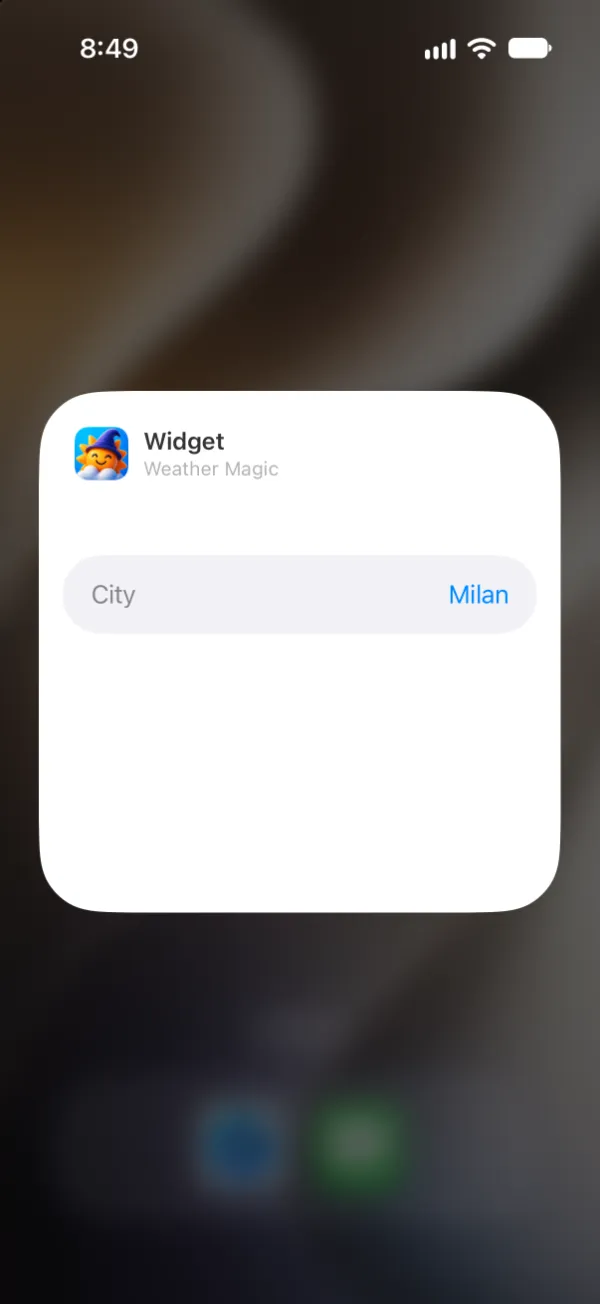
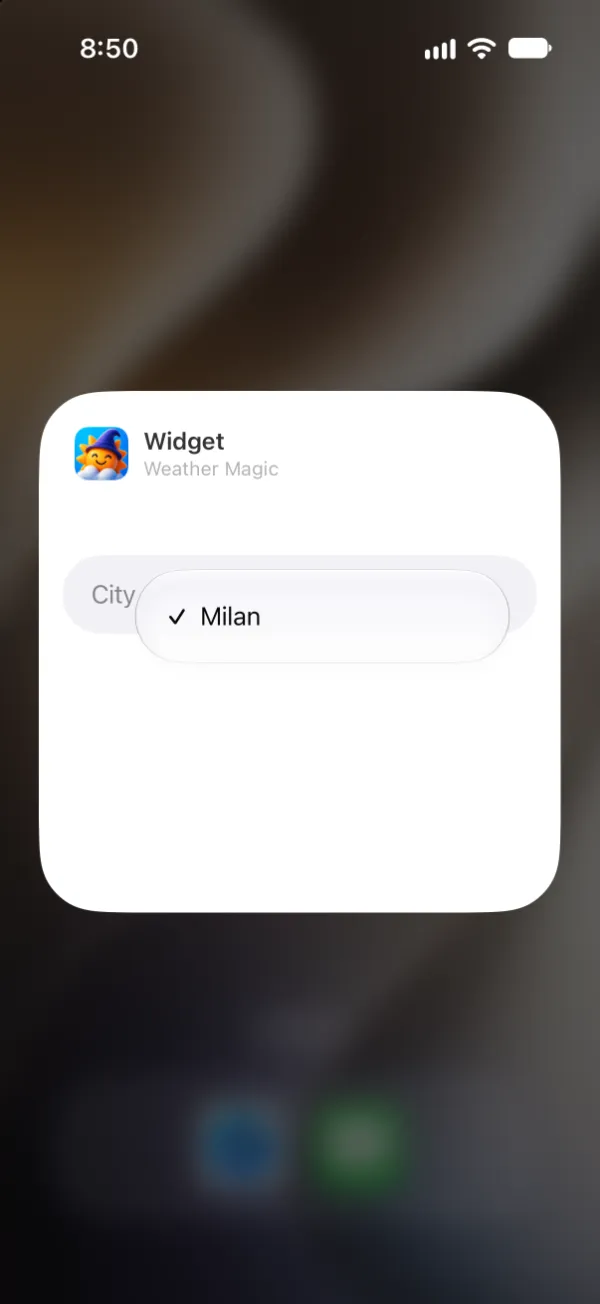
Want two cities side by side? Add the widget twice and give each one its own location.
Which weather widget size to choose
| Size | Space | Best for |
|---|---|---|
| Small | 2 × 2 icons | Current temperature, condition, high and low |
| Medium | 2 × 4 icons | Now plus the next five or six hours |
| Large | 4 × 4 icons | Hourly forecast plus the week ahead |
| Extra large | iPad only | The whole day and week in one view |
On iOS 18 and later you can resize a widget without removing it: in jiggle mode, drag the handle in its bottom-right corner. The brush menu also has Customize, which switches widgets to dark or tinted. For looks that go further, see aesthetic weather widgets for iPhone.
Put the weather in a Smart Stack
A Smart Stack holds several widgets of the same size in one spot. In jiggle mode, drag one widget onto another to stack them, then swipe up and down to switch. With Smart Rotate on, iOS can bring the weather to the top when rain is on its way.
How to add a weather widget to the iPhone Lock Screen
Touch and hold the Lock Screen, tap Customize, choose Lock Screen, tap the widget area below the clock and pick a weather widget, then tap Done. The line above the clock takes a weather widget too.
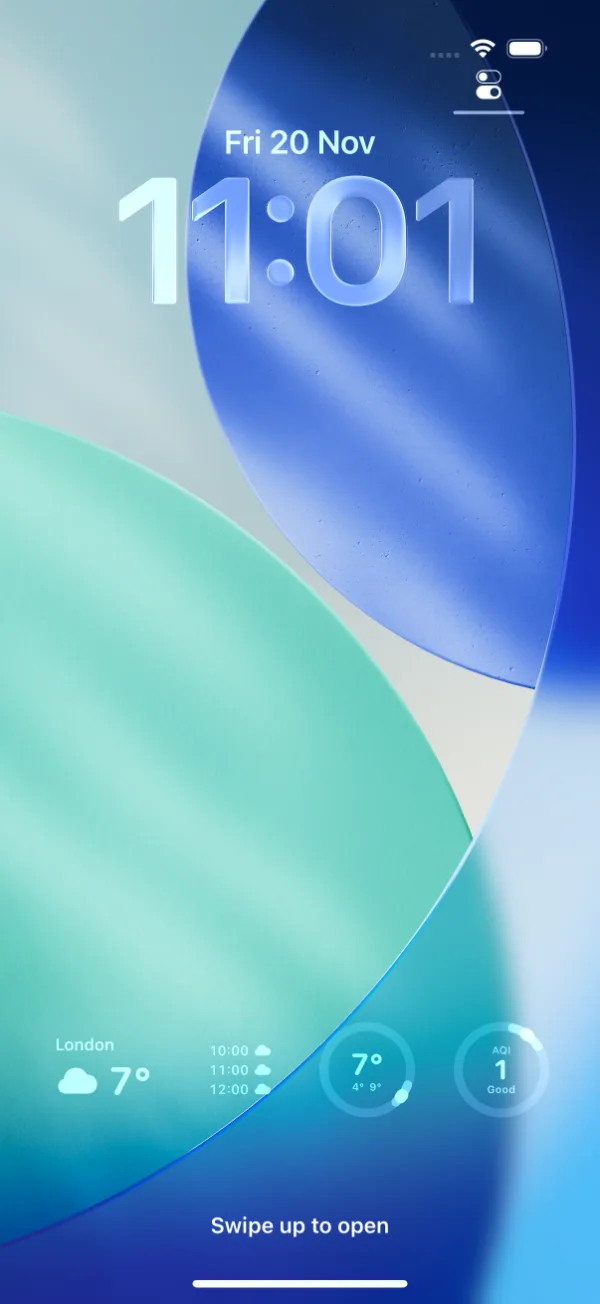
Every step with screenshots, plus the three widget shapes, is in how to add a weather widget to your iPhone Lock Screen.
How to add a weather widget to Today View
Swipe right on the first Home Screen page or on the Lock Screen to open Today View. Touch and hold an empty area until the widgets jiggle, then follow steps 3 to 7 above. Widgets here are reachable without unlocking the iPhone.
How to add a widget from another weather app
- Install the app and open it once, so iOS registers its widgets.
- Allow location access “While Using the App or Widgets”, so the widget can show your local forecast.
- Repeat the steps above and choose the app in the gallery instead of Weather.
Weather Widget Magic (shown as Weather Magic on the iPhone) offers small, medium and large Home Screen widgets whose background changes with the sky, plus Lock Screen widgets. For how it compares with Apple Weather and the rest, read the best weather widgets for iPhone.
Weather widget not working on iPhone?
- Weather is missing from the gallery — the app was deleted or never opened. Reinstall or open it, then reopen the gallery. Still missing? Restart the iPhone.
- The widget shows the wrong city — touch and hold it, tap Edit Widget and change City.
- The widget is blank or shows dashes — go to Settings → Privacy & Security → Location Services → your weather app and choose While Using the App or Widgets.
- The numbers look old — turn on Background App Refresh for the app and switch off Low Power Mode, which pauses most widget updates.
- There is no room for it — move a few apps to another page, or add the widget to an empty page.
How to remove a weather widget
Touch and hold the widget, tap Remove Widget and confirm with Remove. The Weather app itself stays installed.
Not sure which app to use? See the best iOS weather apps, tested side by side.
Frequently asked questions
How do I add a weather widget to my iPhone?
Touch and hold an empty area of the Home Screen until the apps jiggle, tap the brush button, then Add Widget. Search for Weather, pick a size, tap Add Widget, drag it into place and tap the checkmark. It works on any iPhone running iOS 14 or later.
Why is there no Weather widget in my widget gallery?
The Weather app has probably been deleted. Reinstall Apple Weather from the App Store, open it once, then reopen the gallery. For a third-party app, open the app once so iOS registers its widgets.
How do I change the location on my iPhone weather widget?
Touch and hold the widget, tap Edit Widget, tap City and choose the city you want.
Can I have weather widgets for more than one city?
Yes. Add the weather widget twice and set a different location on each, or stack them in a Smart Stack and swipe between cities.
Why is my weather widget not updating?
iOS refreshes widgets on a budget, so a few minutes of delay is normal. If it stays stale, turn off Low Power Mode, turn on Background App Refresh for the app and check that location access is set to While Using the App or Widgets.
Is there a free weather widget for iPhone?
Yes. Apple Weather ships with every iPhone and its widgets are free. Weather Widget Magic is free on the App Store too, with Premium for the full widget library.
Can I add a weather widget on iPad?
Yes, with the same steps. iPad also offers an extra-large widget size that fits a full day and week forecast.