iPhone Home Screen Layout Ideas
The best iPhone home screen layout puts one or two widgets at the top, the apps you open every day below them and your four essentials in the Dock. Here are 6 iPhone home screen layout ideas for iOS 27, all real home screens: clear glass, fractal background, modern, retro, dark glass and clock + calendar, each with the wallpaper, icon style and widgets that make it work.
Layout that works: one wide widget on top, 4–8 daily apps below, empty space, four apps in the Dock.
Leave gaps: since iOS 18 apps stay where you drop them, so empty rows are fine.
All 6 layouts at a glance
| Layout | Icon style | Widgets | Best for |
|---|---|---|---|
| 1. Clear glass | Clear | Medium + small | The full iOS 27 Liquid Glass look |
| 2. Fractal background | Dark | Three | Colorful wallpapers that stay readable |
| 3. Modern | Default / Dark | Three | Time and weather at a glance |
| 4. Retro | Dark / Default | Three | Nostalgic photo wallpapers |
| 5. Dark glass | Clear (Dark) / Dark | Medium + small | Night use, moody gradients |
| 6. Clock + calendar | Default | Two | A minimal, half-empty page |
6 iPhone home screen layout ideas
Every layout below is a real iOS 27 home screen. Under each one: the wallpaper, icon style and widgets to copy it.
1. Clear glass layout
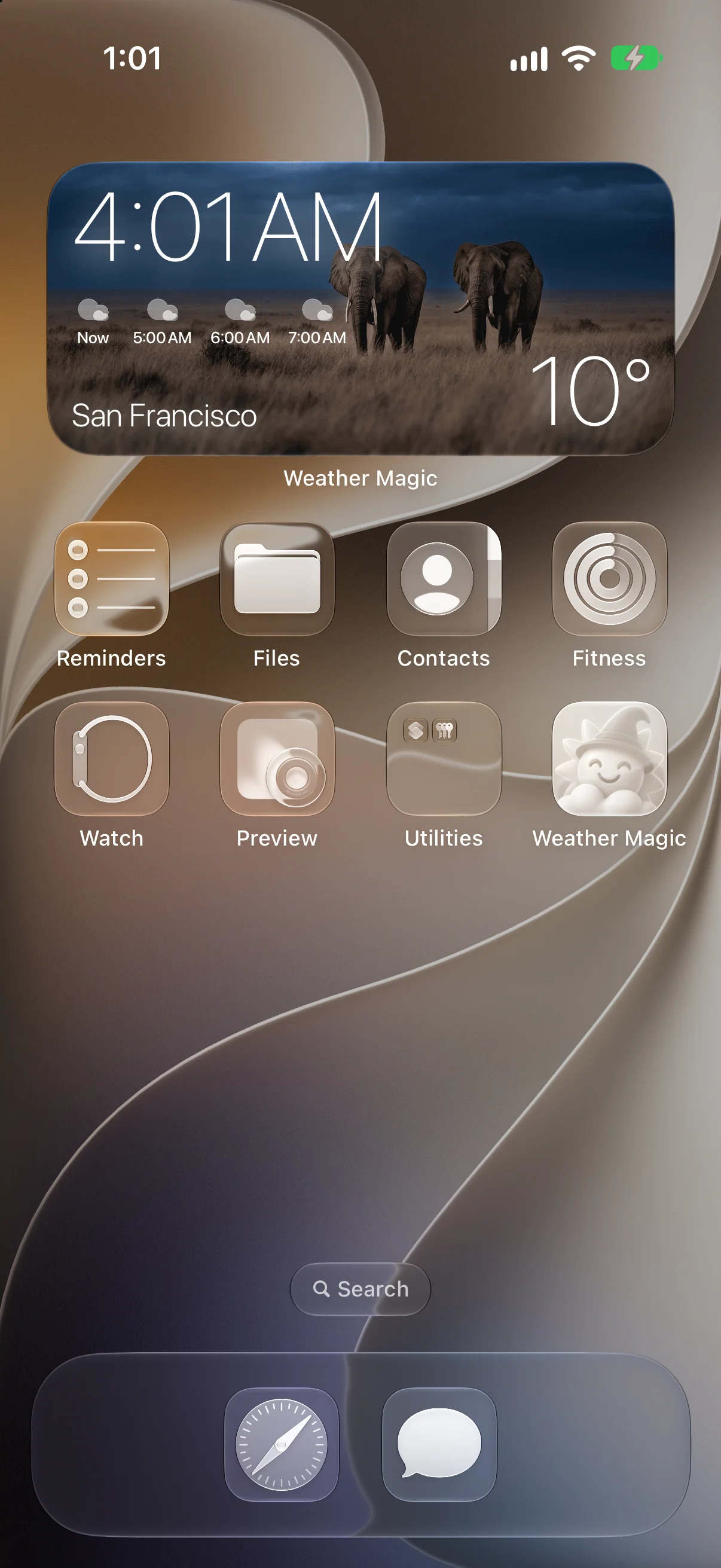
The most iOS 27 layout you can build. With the Clear icon style every icon, widget and the Dock become Liquid Glass, so the wallpaper does all the color work. Pick a dark wallpaper with bright lines or light streaks: the glass edges catch the light and the icons stay readable.
Layout: a wide hourly weather widget across the top, four apps in a 2 × 2 block on the left and a 2 × 2 calendar widget on the right. Everything below stays empty so the wallpaper shows. Full steps in our guide to transparent widgets on iPhone.
2. Fractal background layout
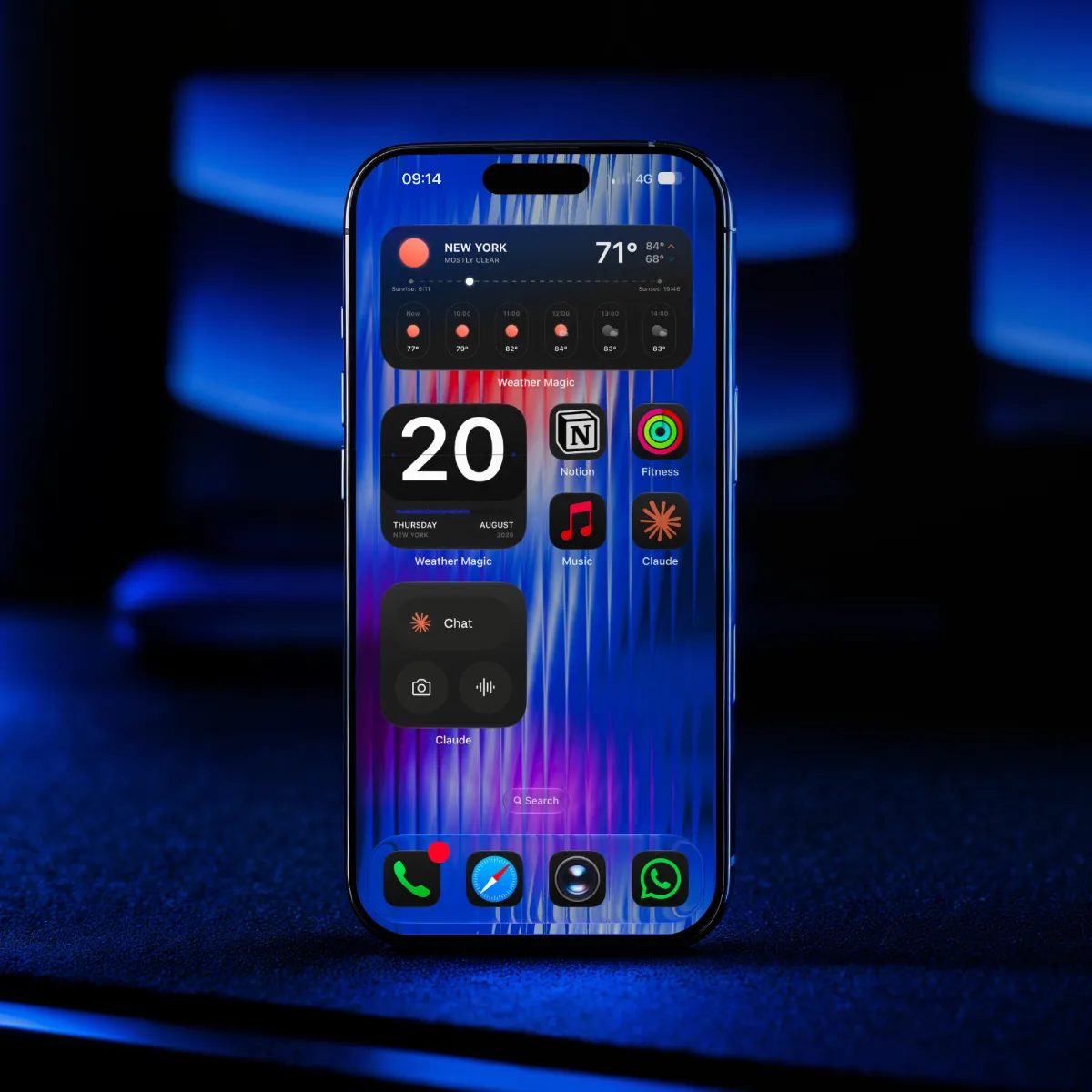
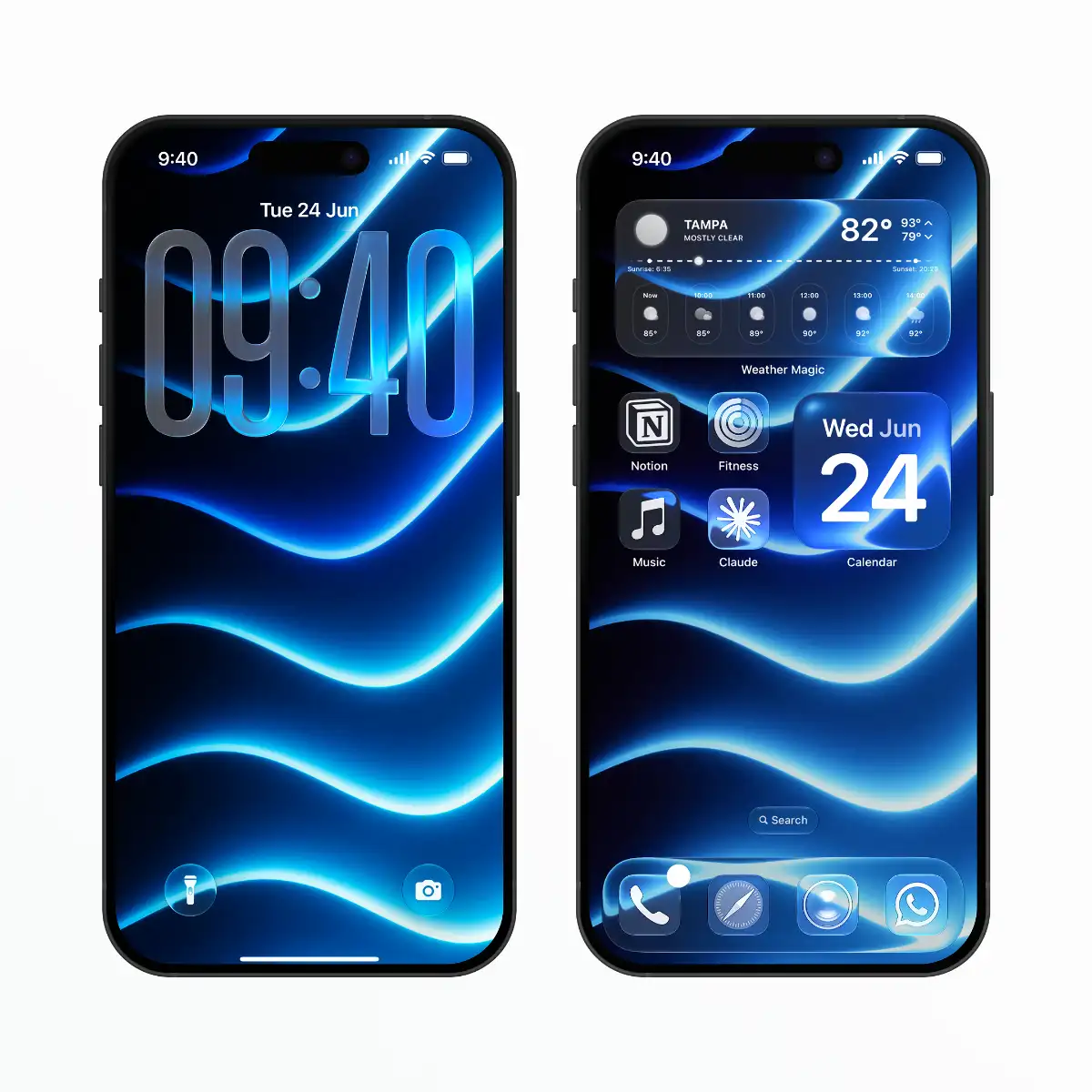
A fractal background is full of color and motion, so everything on top of it should be dark. Dark icons and dark widgets read clearly on the bright streaks, and the fractal shows in every gap between them.
The layout: a wide hourly forecast on top, a big date widget with four apps on its right, and one small widget below. Keep every widget dark; a light widget on a fractal wallpaper is where busy home screens start to look messy.
3. Modern layout
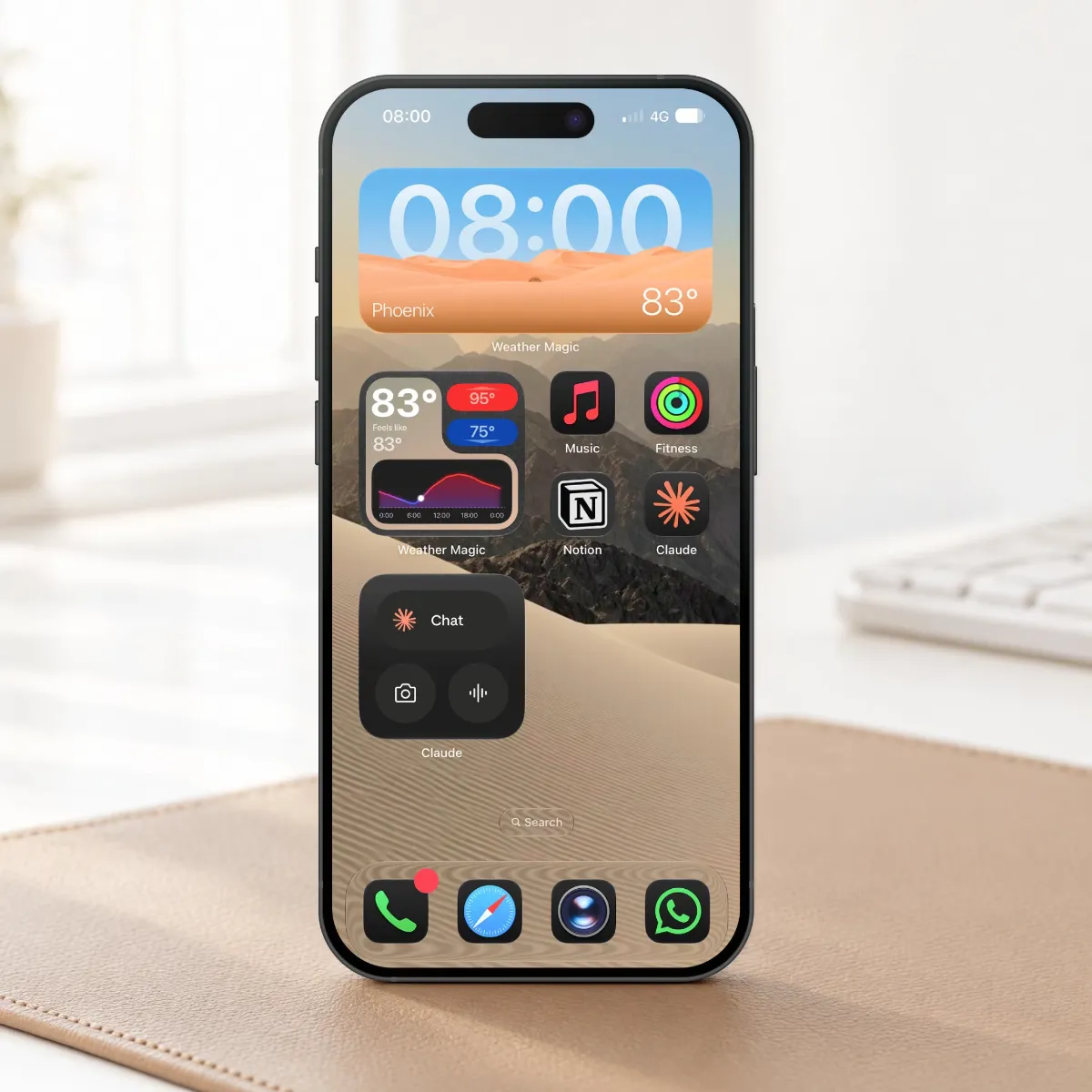
A modern iPhone layout is built around information instead of icons. A wide clock-and-weather widget is the hero, then a small widget next to four apps, then one more small widget for the app you use most (here a chat widget with camera and voice buttons).
A warm desert wallpaper ties it together when the hero widget uses a matching photo. It’s the most practical setup in this list: the first page tells you the time, the weather and what’s next without opening an app.
4. Retro layout
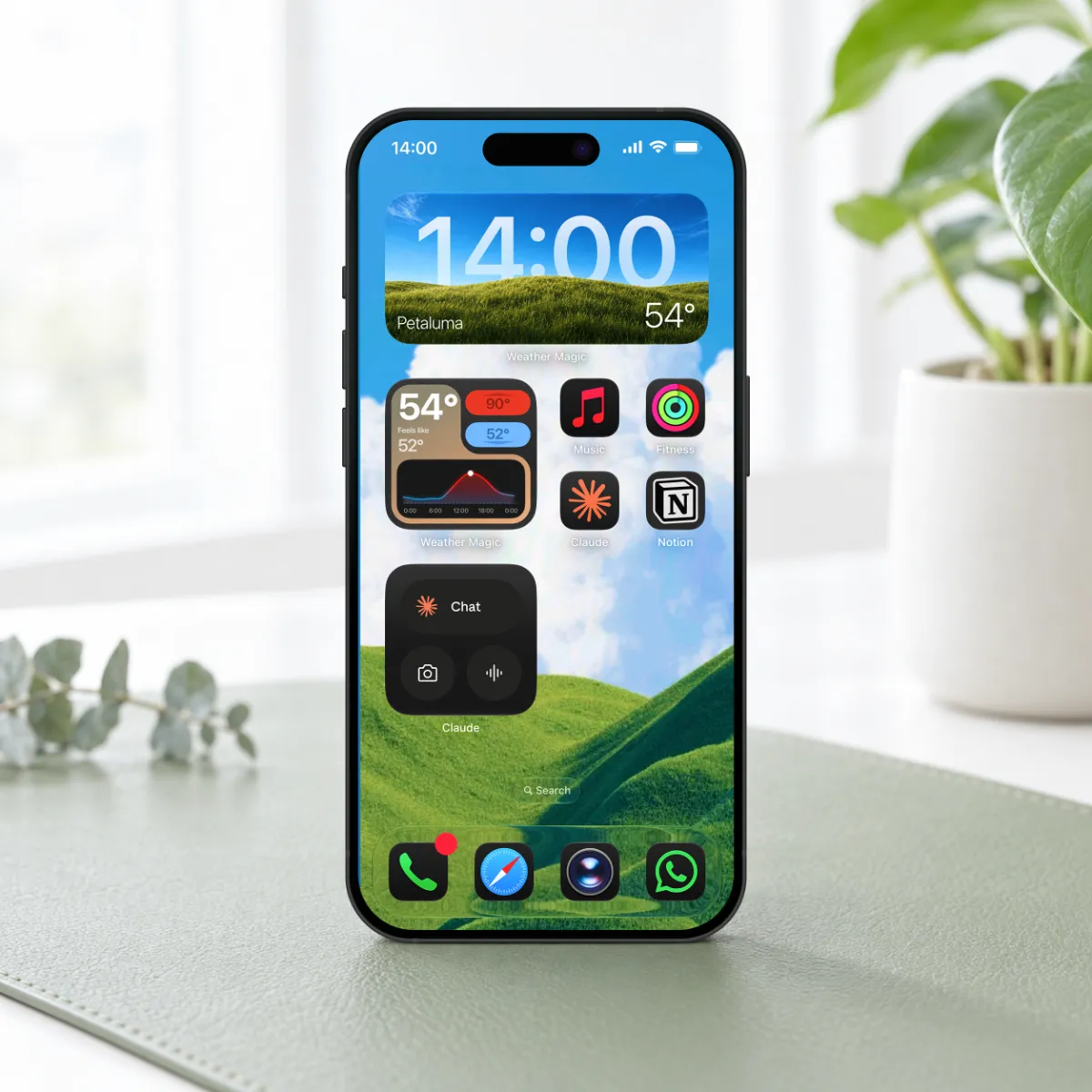
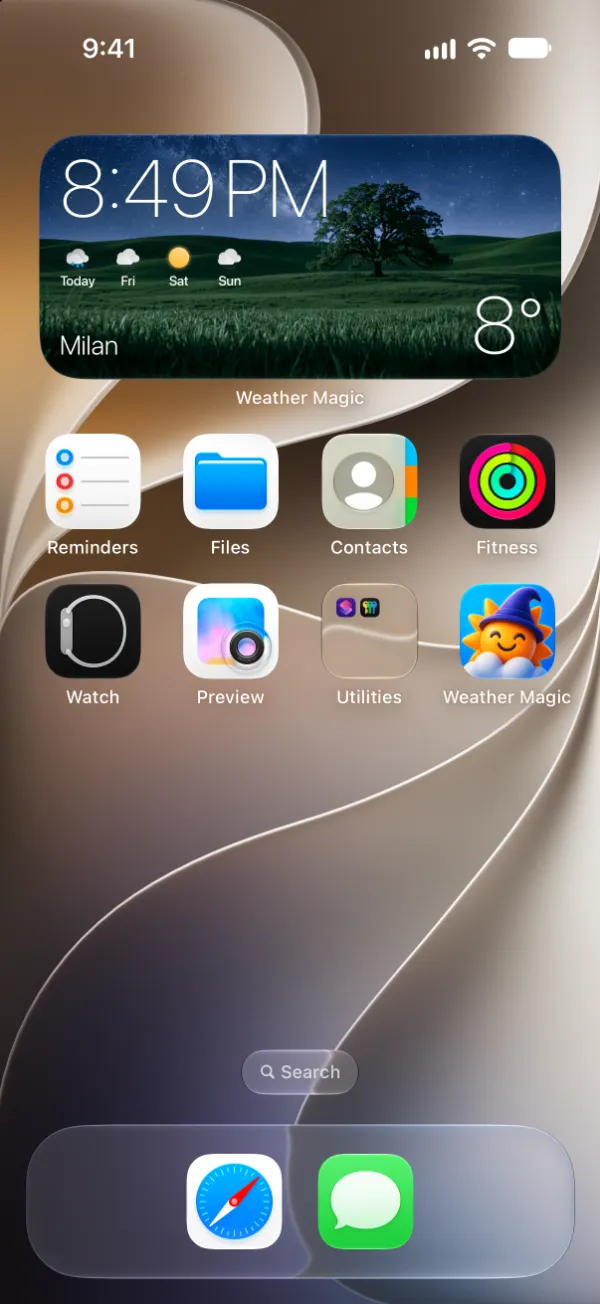
Green hills under a blue sky feel instantly retro, like an early-2000s desktop. Keep the nostalgia in the wallpaper and the rest modern: dark icons, a clock widget that shows the same hills, and a small temperature chart beside four apps.
Repeating the wallpaper inside the widget is the trick that makes this layout look designed. More photo-style widgets in aesthetic weather widgets.
5. Dark glass layout
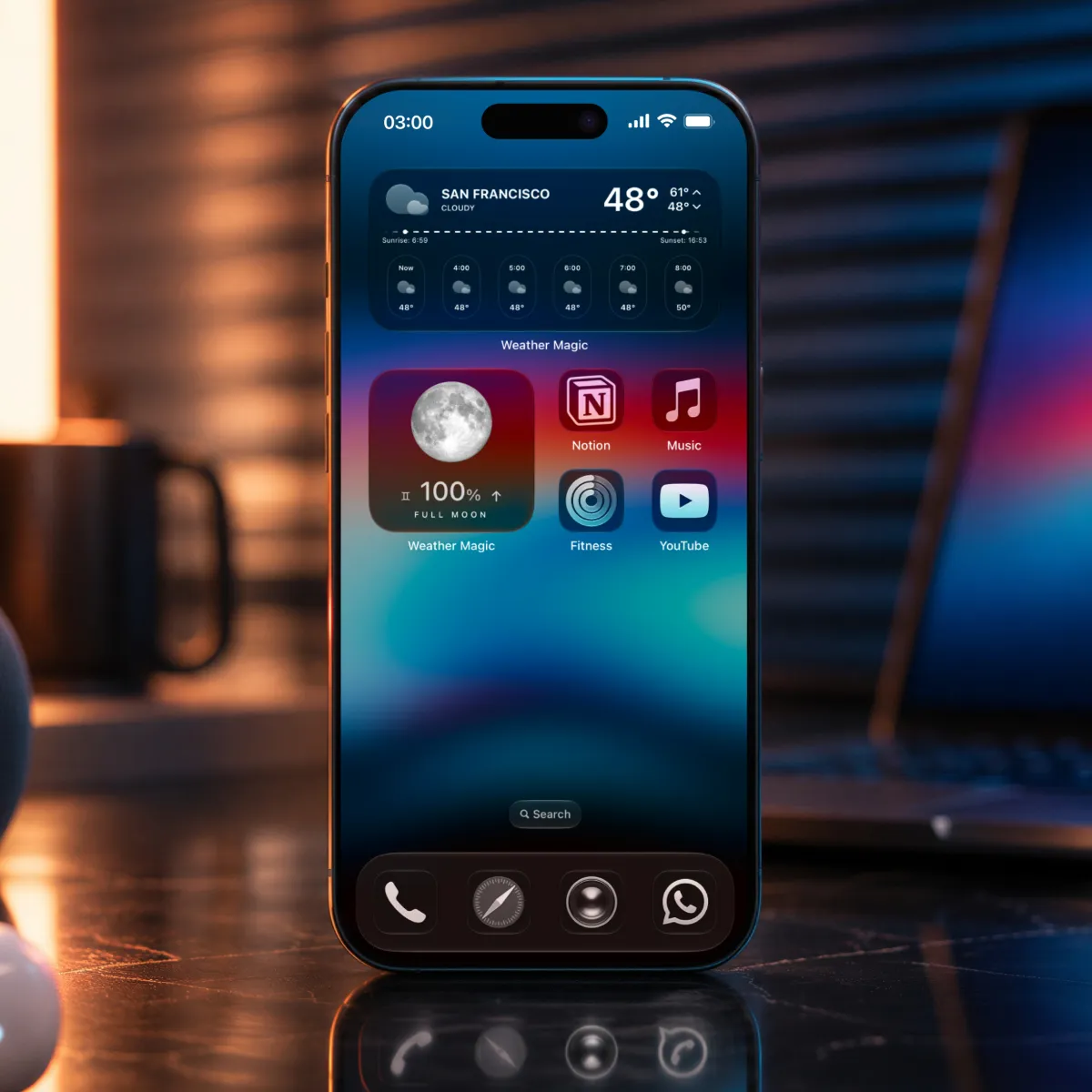
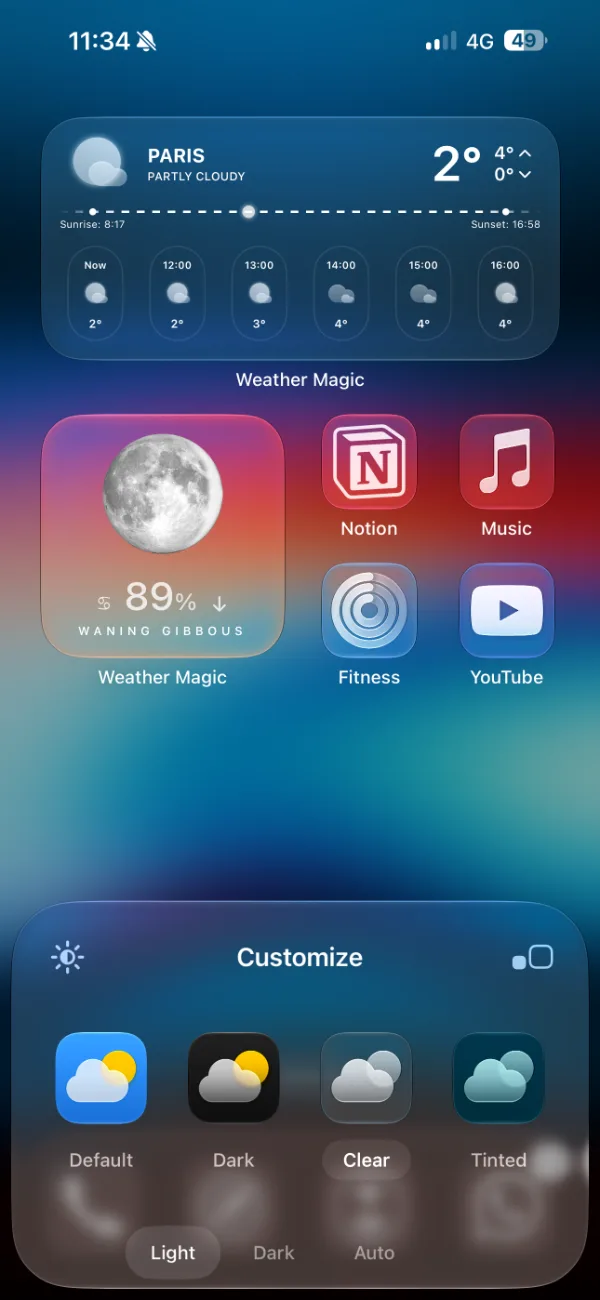
The night version of the clear layout. Use Clear or Dark icons on a deep gradient wallpaper with two or three saturated colors. Icons and the Dock turn dark and glassy, the widgets keep their content bright, and the screen stays easy on the eyes at night.
A wide weather widget sits on top, a moon phase widget on the left of the second row and four apps on its right. The lower half is wallpaper only, so your thumb reaches Search and the Dock without clutter.
6. Clock widget + calendar layout
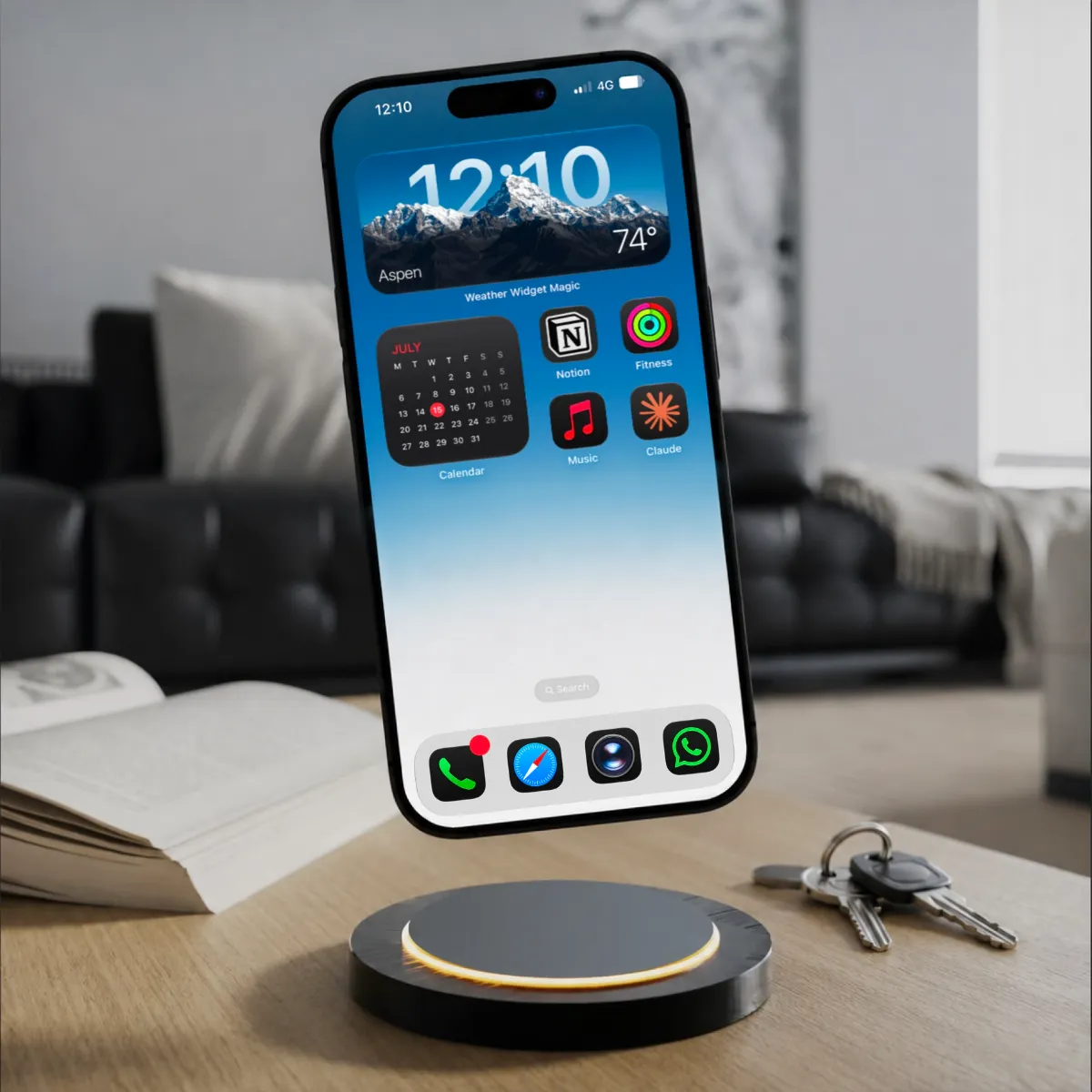
Two widgets you check every day, and that’s it. A wide clock widget with a mountain photo sits on top, a monthly calendar widget sits on the left of the next row with four apps beside it, and the rest of the screen is empty down to Search and the Dock.
It works best with a wallpaper that fades from color to white or light gray, so the empty half looks intentional. Since iOS 18 apps and widgets stay where you drop them, so leaving rows empty is easy.
What is the best iPhone home screen layout?
There is no single best iPhone home screen layout, but the ones people keep for months share the same structure:
- One or two widgets, not five. A widget you check every day earns its space; the rest go to page two or a Smart Stack.
- 8 to 12 apps on page one, including the Dock. If you haven’t opened an app this week, it belongs in the App Library.
- Daily apps within thumb reach. The bottom half of the screen is the easiest to tap on any iPhone, especially Pro Max and Plus models.
- Empty space on purpose. A few empty rows let the wallpaper breathe and make the icons easier to find.
- One icon style for everything. Clear, Dark or Tinted: pick one and let the wallpaper set the color.
Our pick for most people is the modern layout: it’s useful, it works with any wallpaper and it stays tidy. If you’re on iOS 26 or 27 and want the newest look, go with clear glass by day or dark glass by night.
How to set up your iPhone home screen layout
Work in this order: each step depends on the one before.
- Choose the wallpaperTouch and hold the Lock Screen → Customize → Home Screen, or Settings → Wallpaper. Pick it first: every other color comes from it. Calm images work best behind icons; save busy artwork for the Lock Screen.
- Pick an icon styleTouch and hold an empty area of the Home Screen, tap the brush button (Edit on iOS 18 to 26) → Customize. Choose Default, Dark, Clear or Tinted, and small or large icons.
- Add one or two widgetsBrush button → Add Widget, pick a widget and a size, then drag it to the top of the page.
- Place your daily appsDrag apps into position. Since iOS 18 they stay where you drop them, so you can leave empty rows and gaps.
- Set the DockDrag your four most-used apps into the Dock. They stay on every page.
- Hide the pages you don’t needIn jiggle mode tap the page dots above the Dock and uncheck the extra pages. Apps stay in the App Library and the pages come back with one tap.
iOS 27, iOS 26 and iOS 18 home screen ideas
Which layouts you can build depends on your iOS version. Check it in Settings → General → About.
| Feature | iOS 18 | iOS 26 | iOS 27 |
|---|---|---|---|
| Place apps anywhere, leave gaps | Yes | Yes | Yes |
| Dark and Tinted icons | Yes | Yes | Yes |
| Large icons without names | Yes | Yes | Yes |
| Clear (Liquid Glass) icons and widgets | No | Yes | Yes |
| Customize button | Edit → Customize | Edit → Customize | Brush button → Customize |
iPhone home screen layout ideas for iOS 26 and 27: all six layouts work, including clear glass and dark glass. iOS 18 home screen ideas: the fractal, modern, retro and clock + calendar layouts work as shown; for a glassy feel on iOS 18 use Dark icons with widgets that have a dark, semi-transparent background.
iPhone XR home screen layout ideas
The iPhone XR stops at iOS 18, so it has free placement, Dark, Tinted and large icons, but not the Clear glass style. The layouts that work best on it:
- Fractal background: Dark icons on a colorful wallpaper look sharp on the XR’s LCD screen.
- Clock + calendar: the XR’s 6.1-inch screen fits fewer rows than newer models, so two widgets and a few apps look cleaner.
- Modern with Dark icons instead of glass.
- Skip true-black wallpapers for battery: the XR has an LCD, so black pixels still use the backlight. Choose black only if you like the look.
Frequently asked questions
What is the best iPhone home screen layout?
One or two widgets at the top, 8 to 12 daily apps below, empty space in between and four essentials in the Dock. Everything else goes to the App Library.
How do I make my iPhone home screen look aesthetic?
Start with a calm wallpaper, use one icon style for everything (Clear, Dark or Tinted), take your colors from the wallpaper and keep only one or two widgets on the first page.
How do I get the clear glass home screen on iPhone?
Touch and hold the Home Screen, tap the brush button (Edit on iOS 26), then Customize and choose Clear. It needs iOS 26 or later. For dark glass, choose the dark version of Clear.
Can I leave empty spaces on my iPhone home screen?
Yes. Since iOS 18 apps and widgets stay where you drop them, so you can leave empty rows or move every app to the bottom of the screen.
How do I change my iPhone home screen layout?
Touch and hold an empty area until the icons jiggle, then drag apps and widgets where you want them. Use the brush button to add widgets and change the icon style.
Can I have different home screen layouts for work and home?
Yes. Build one page for each, then in Settings → Focus choose which pages each Focus shows.
How do I reset my iPhone home screen layout?
Settings → General → Transfer or Reset iPhone → Reset → Reset Home Screen Layout. Apps return to their original positions; your apps and data are not deleted.
Do these layouts work on iPad?
Yes. iPad has the same Customize menu, icon styles and widgets, with more space for widgets.