How to Add Widgets on iPhone
To add widgets on your iPhone, touch and hold an empty area of the Home Screen until the apps jiggle, tap the brush button in the top-left corner, then Add Widget. Pick an app, choose a size, tap Add Widget, drag it into place and tap the checkmark. It works on any iPhone running iOS 14 or later. Below: every step with screenshots, the Lock Screen and Today View, where missing widgets go, and how to make your own.
Lock Screen: touch and hold the Lock Screen → Customize → Lock Screen → tap below the clock → pick widgets → Done.
Today View: swipe right on the first Home Screen page → touch and hold → brush button → Add Widget.
Before you start
- iOS 14 or later for Home Screen widgets, iOS 16 for the Lock Screen. The steps are for iOS 27; older versions differ only where noted.
- Open a new app once after installing it, so iOS lists its widgets in the gallery.
- Make some room. Widgets push app icons aside, so a nearly empty page is the easiest place to start.
How to add a widget to the iPhone Home Screen
- Find a page with roomSwipe to a Home Screen page with free space. A small widget takes the space of four app icons, a medium one eight, a large one sixteen.
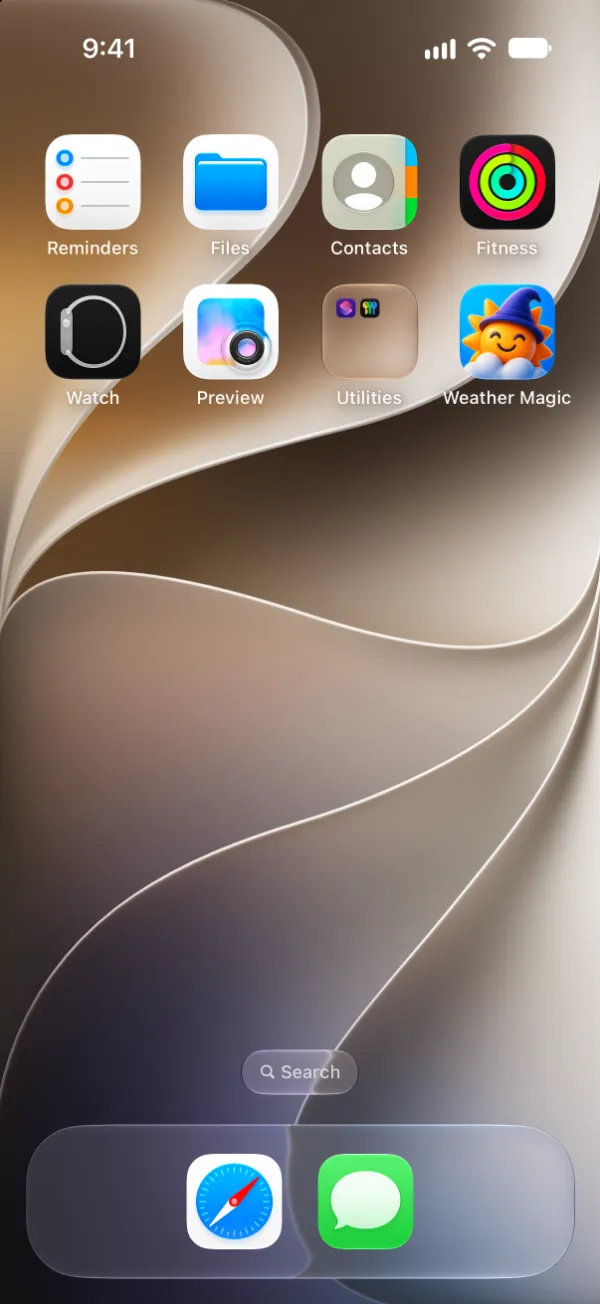
Start from a page with free space. - Touch and hold an empty areaPress the wallpaper, not an app, until the icons start to jiggle. Pressing an icon opens its quick menu instead; if that happens, tap Edit Home Screen.
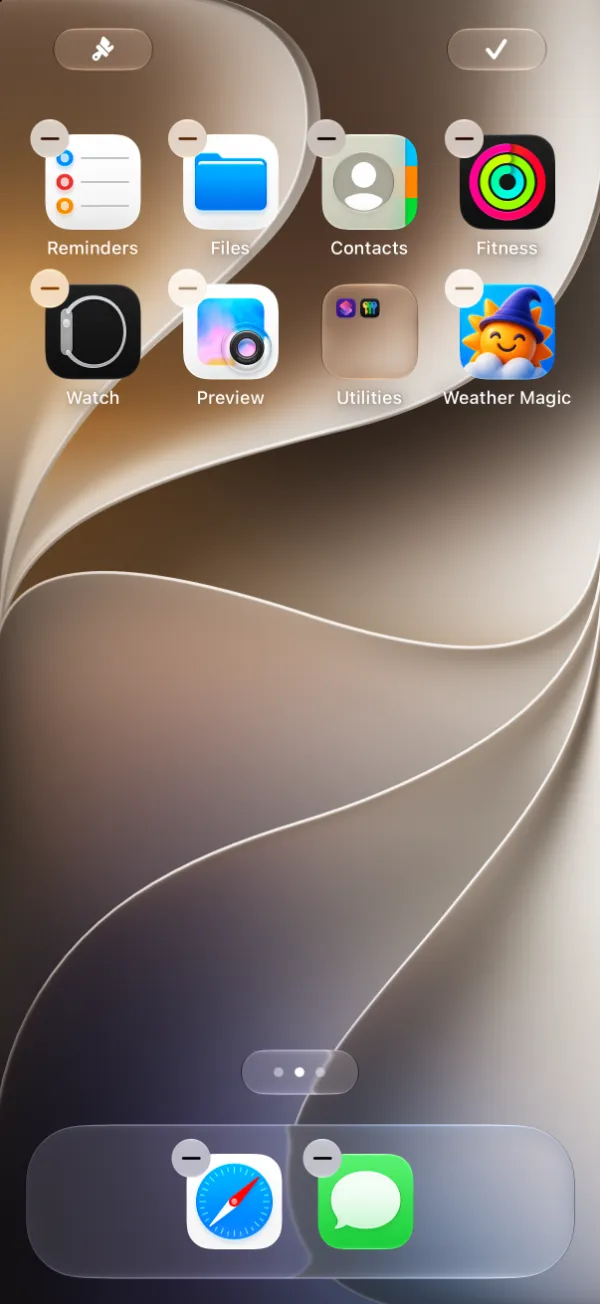
Edit mode: brush button top left, checkmark top right. - Tap the brush button, then Add WidgetThe brush button sits in the top-left corner and opens a menu with Add Widget, Customize, Edit Wallpaper and Edit Pages. On iOS 18 to 26 the button reads Edit; on iOS 17 and earlier it is a + that opens the widget gallery directly.
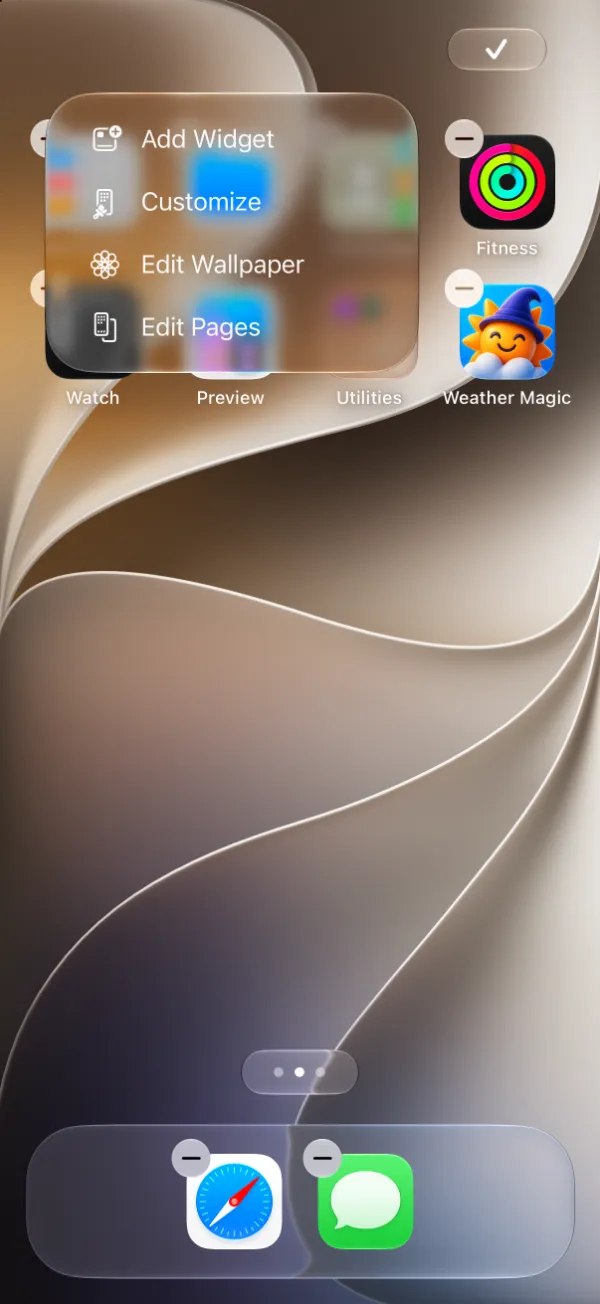
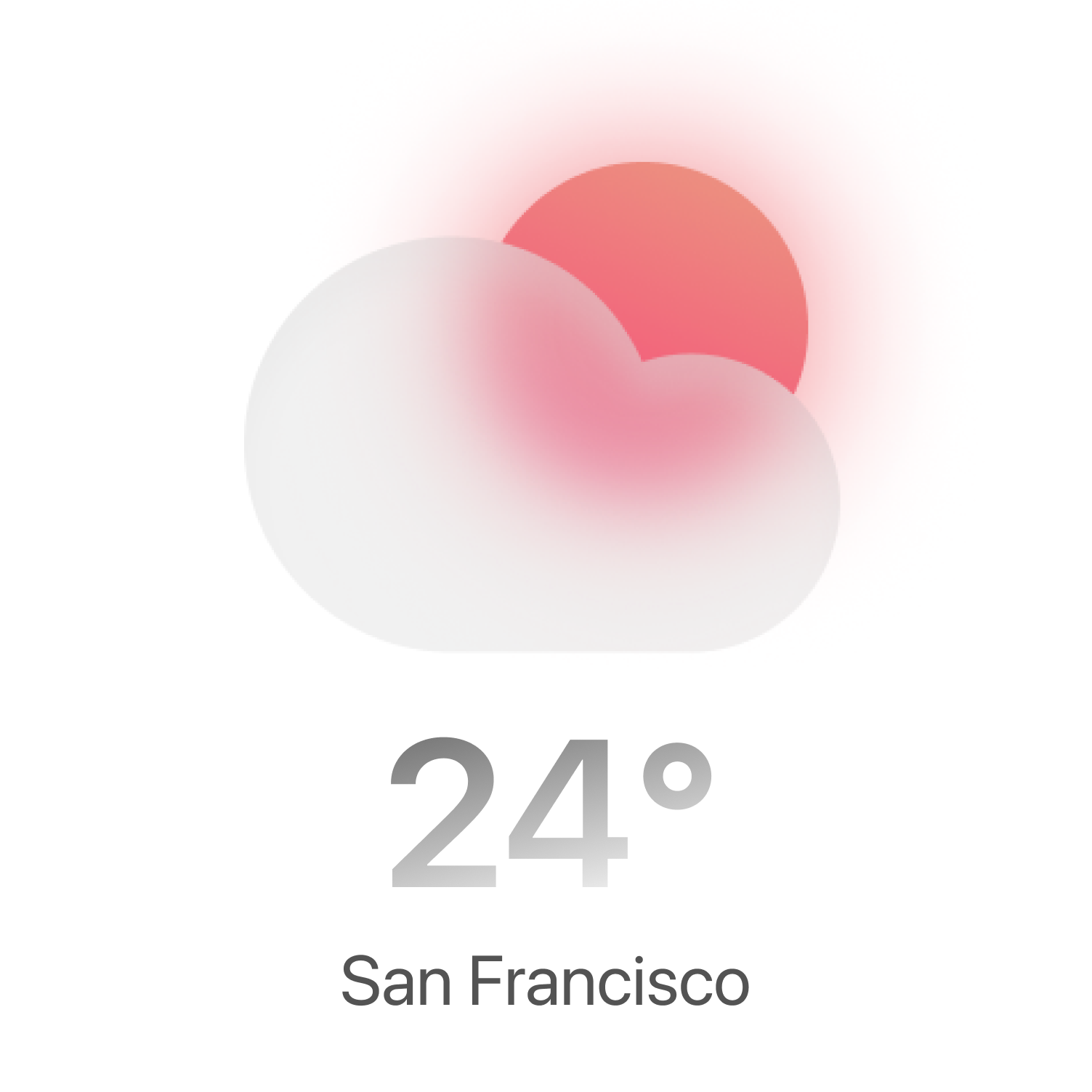
Add Widget, the first item in the menu. - Find the app in the widget gallerySuggested widgets appear at the top, followed by every app that offers one. Type the app name in the search field, or scroll the list. Here we search for Weather; Weather Widget Magic is listed as Weather Magic.
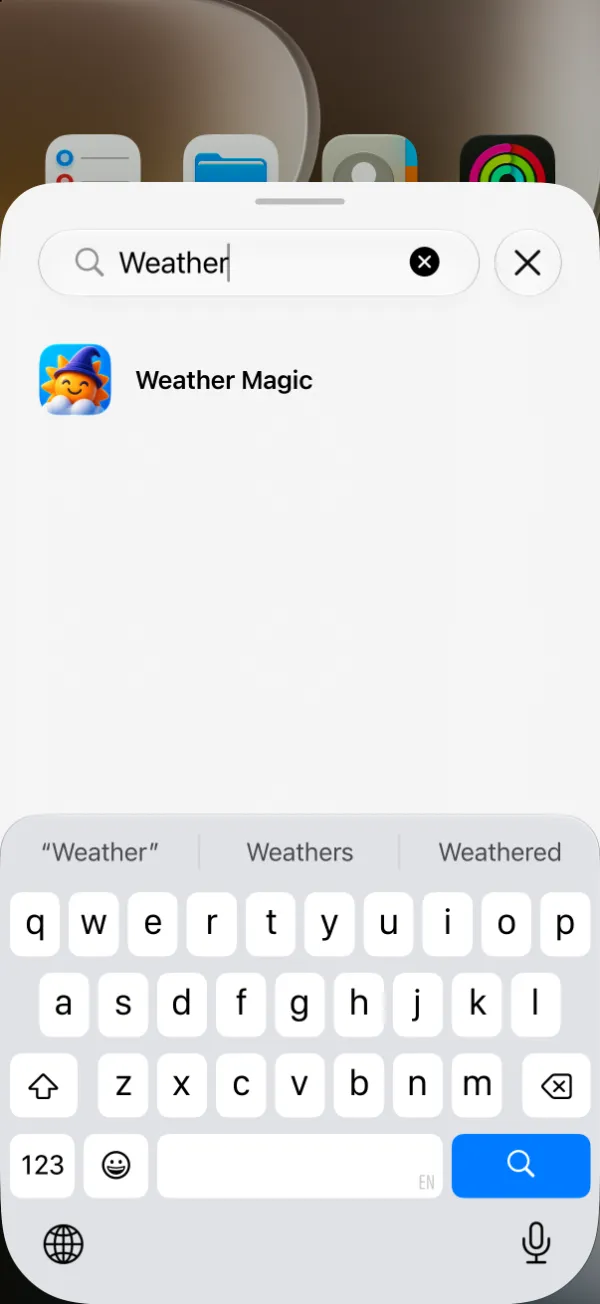
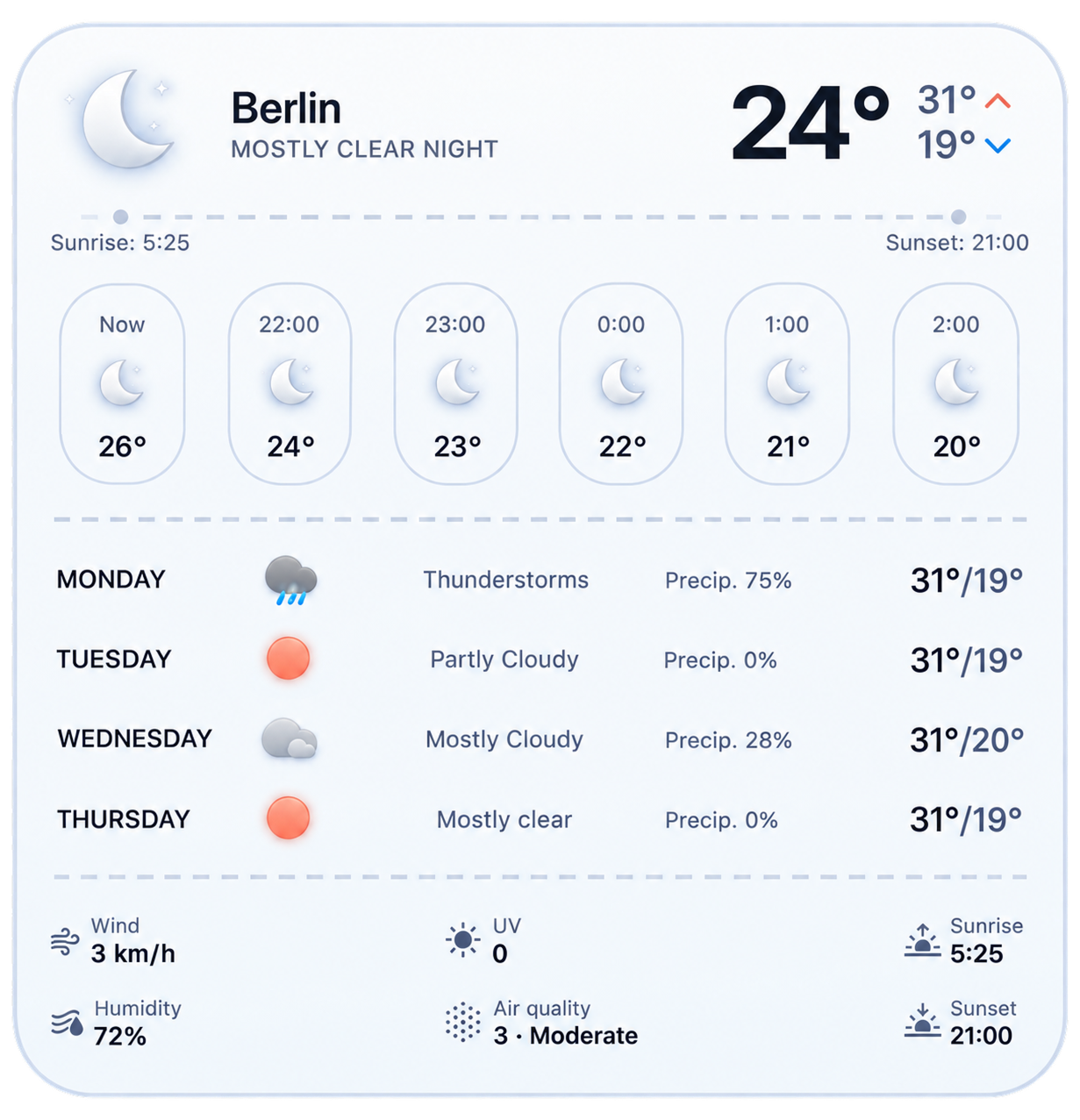
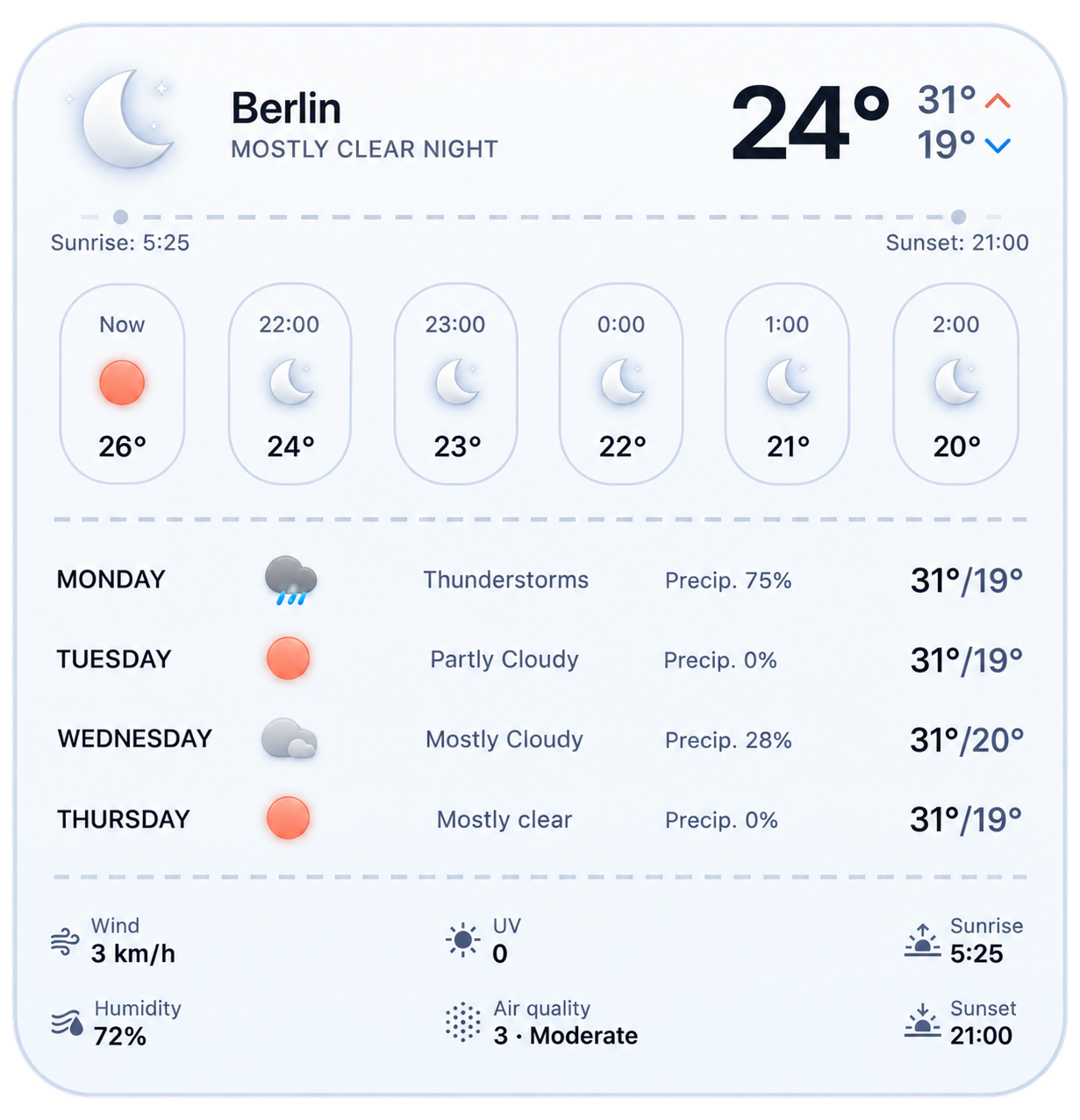
Search the gallery by app name. - Pick a size and styleSwipe left and right to see every size and style the app offers. The dots under the preview show how many there are.
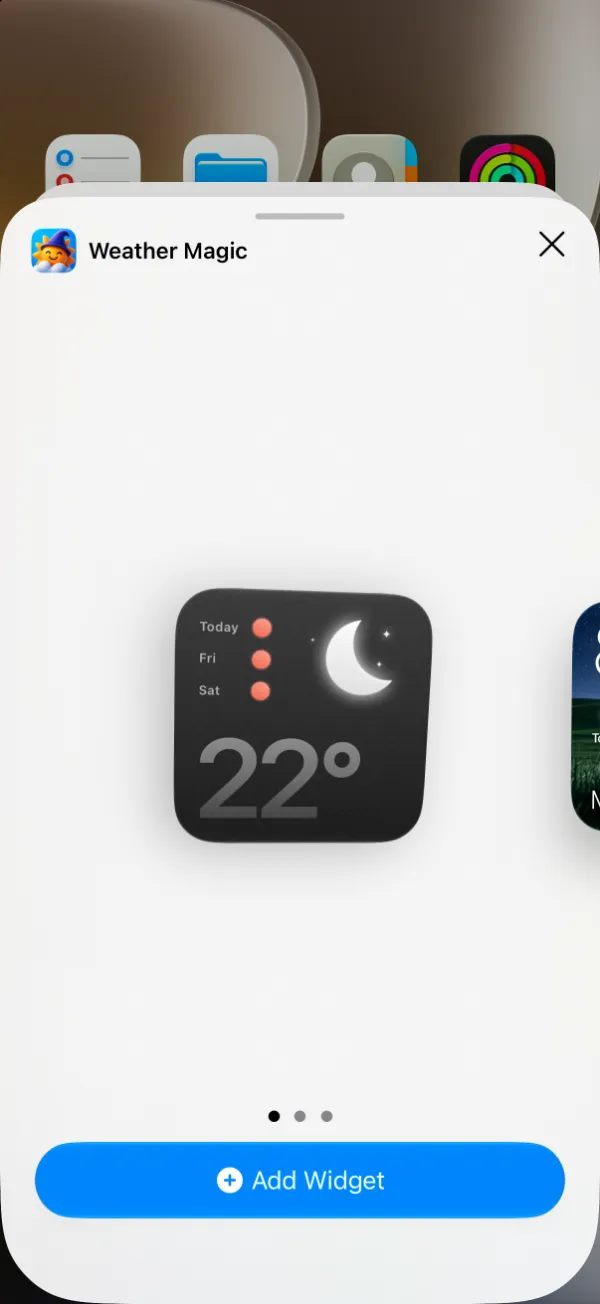
Swipe to compare sizes. - Tap Add Widget and place itThe widget lands at the top of the page. Drag it where you want it; the app icons move aside to make room. Drop it on another widget of the same size to make a stack.
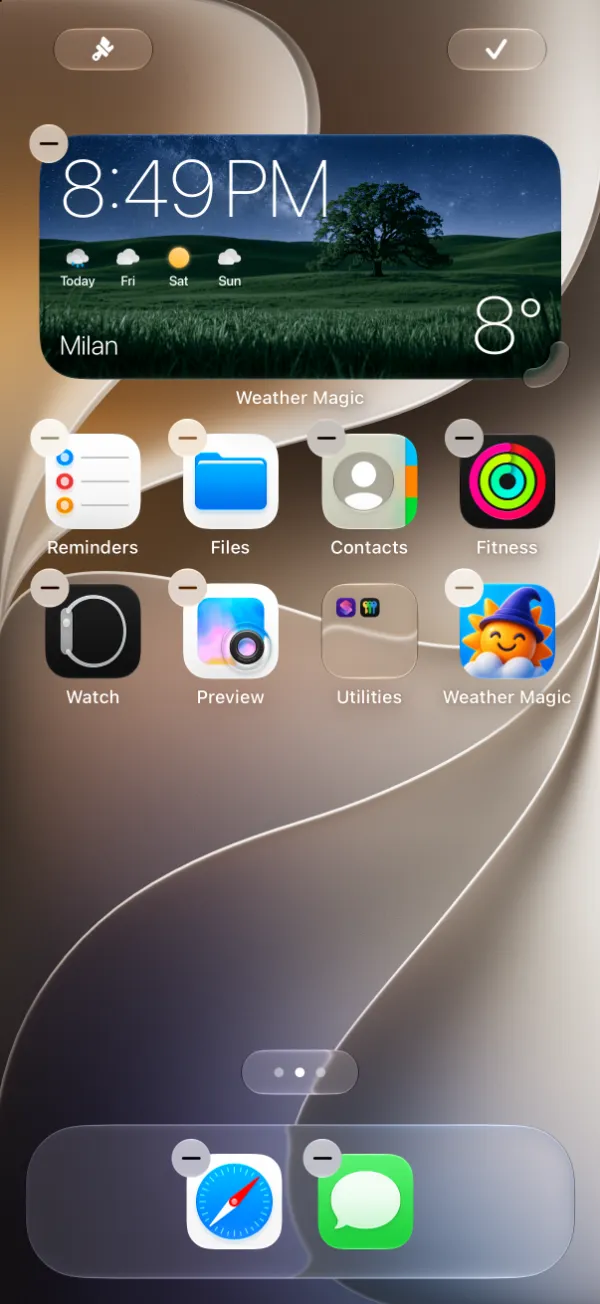
Drag the widget into place. - Tap the checkmarkTap the checkmark in the top-right corner, or an empty area of the wallpaper, to leave edit mode.
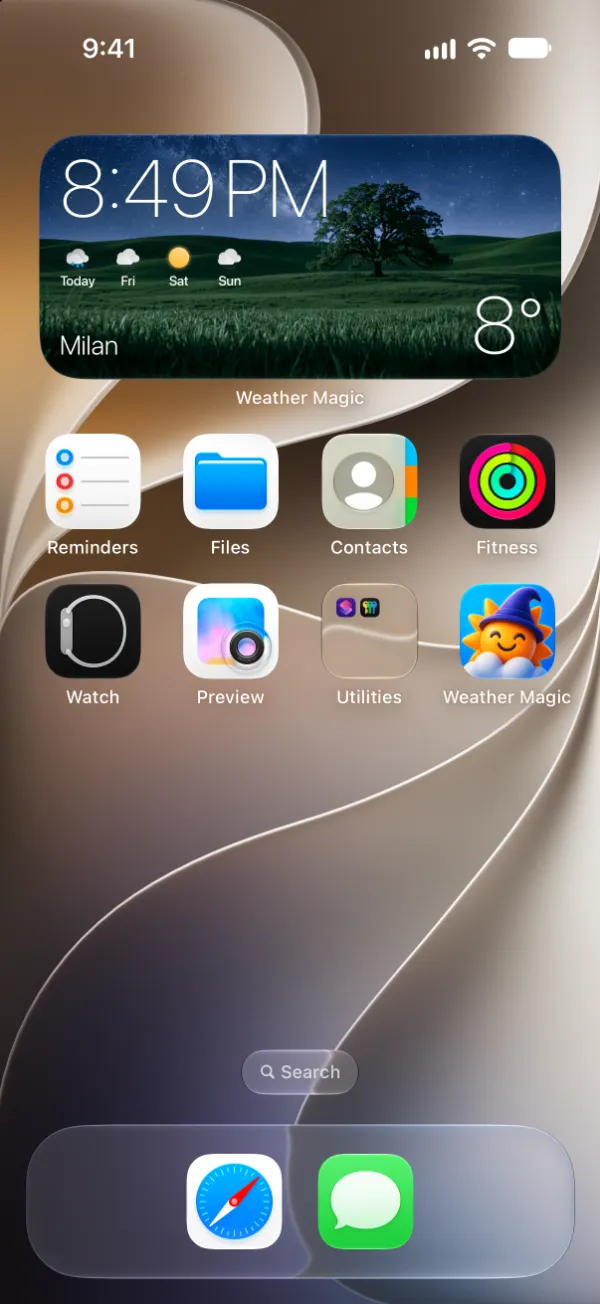
Tap a widget to open its app. To move it later, touch and hold it until it jiggles and drag it. Adding the weather specifically? The weather widget guide covers choosing the city and the best size for a forecast.
How to add widgets to the Lock Screen on iPhone
Lock Screen widgets show information at a glance without unlocking the iPhone. They need iOS 16 or later.
- Touch and hold the Lock ScreenUnlock with Face ID or Touch ID but stay on the Lock Screen, then press and hold until it zooms out.
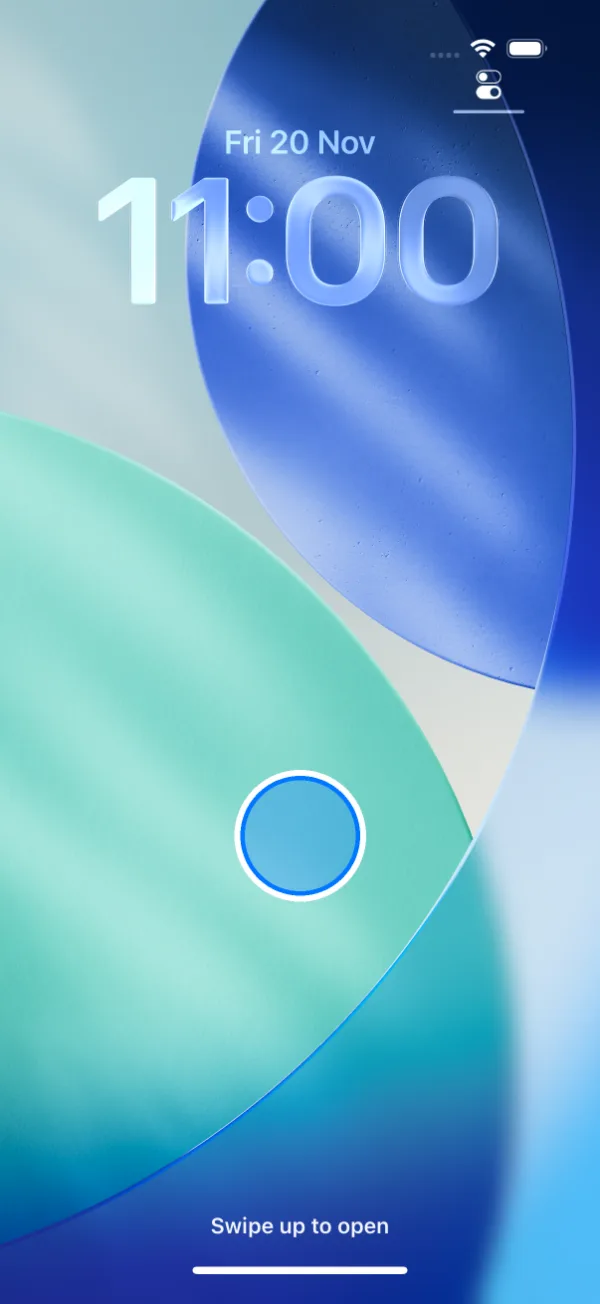
Hold until the Lock Screen zooms out. - Tap Customize, then Lock ScreenCustomize is under the current wallpaper. Choose the Lock Screen preview, not the Home Screen one.
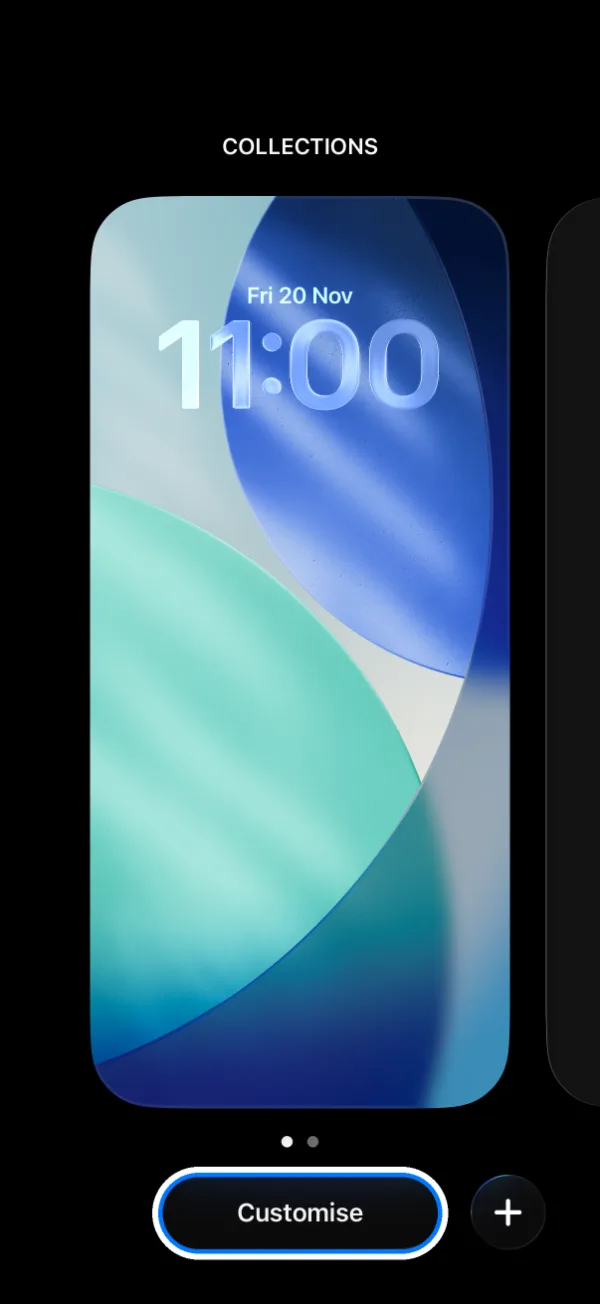
Customize opens the Lock Screen editor. - Tap Add Widgets below the clockThe widget area takes up to four small circular widgets or two rectangular ones. The date line above the clock takes one inline widget.
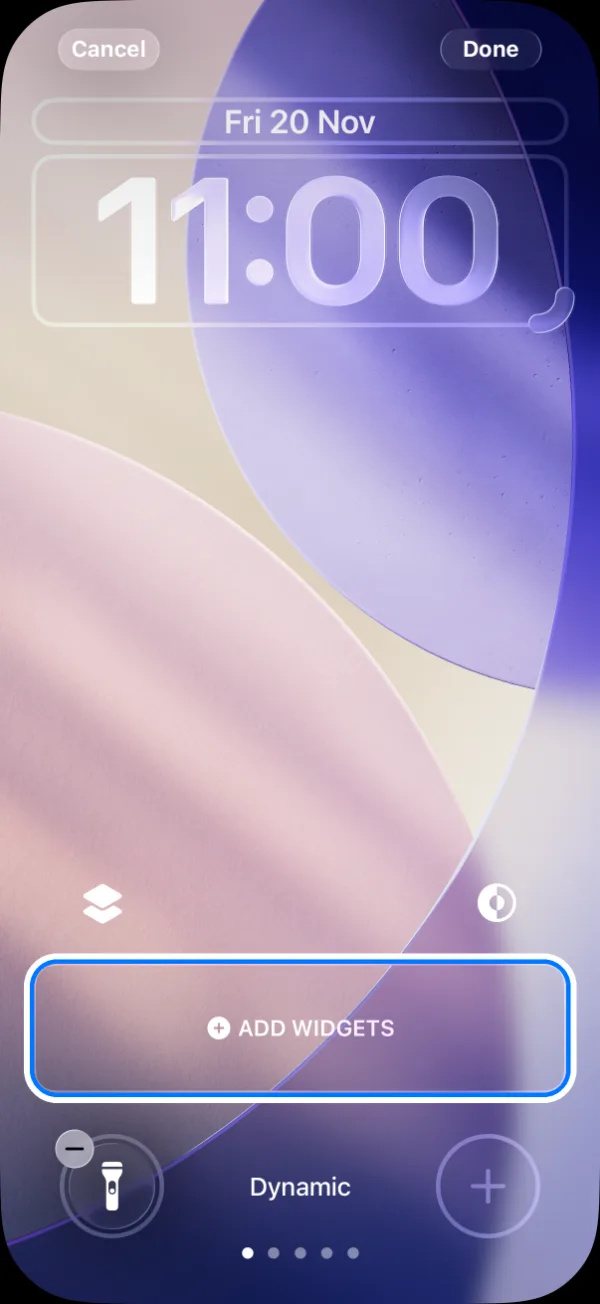
The widget area sits under the clock. - Tap or drag the widgets you wantPick from suggestions or scroll to an app. Tap a widget to drop it into the next free slot, or drag it to a specific one.
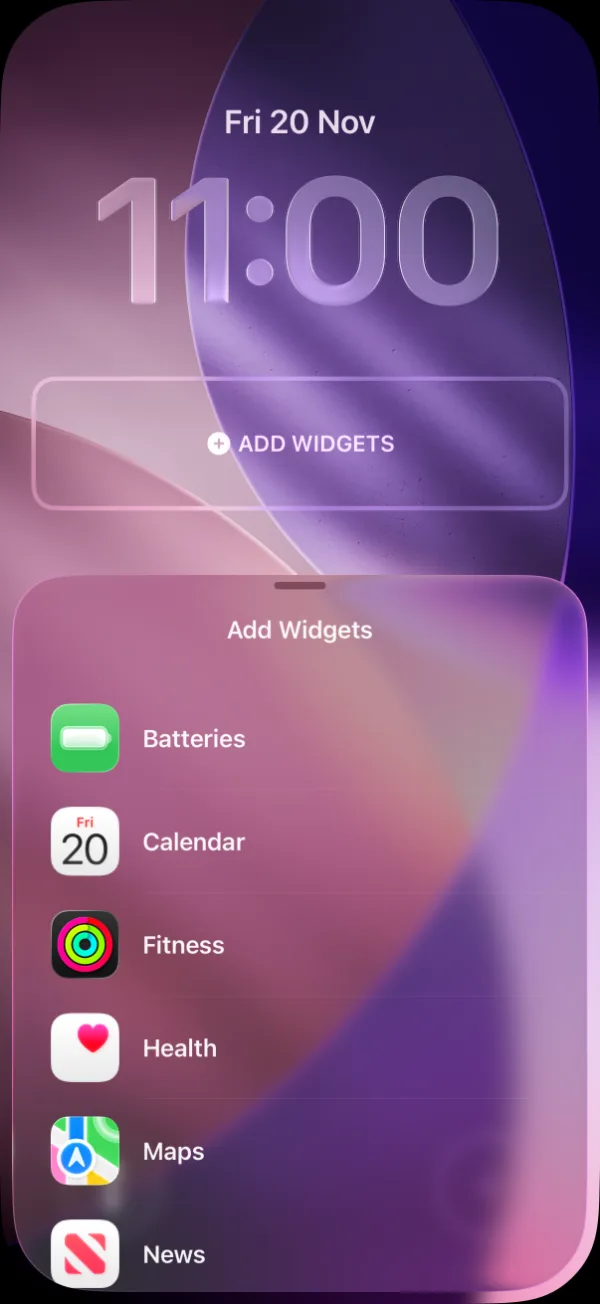
Lock Screen widgets come in three shapes. - Tap DoneClose the gallery, then tap Done in the top-right corner to save.
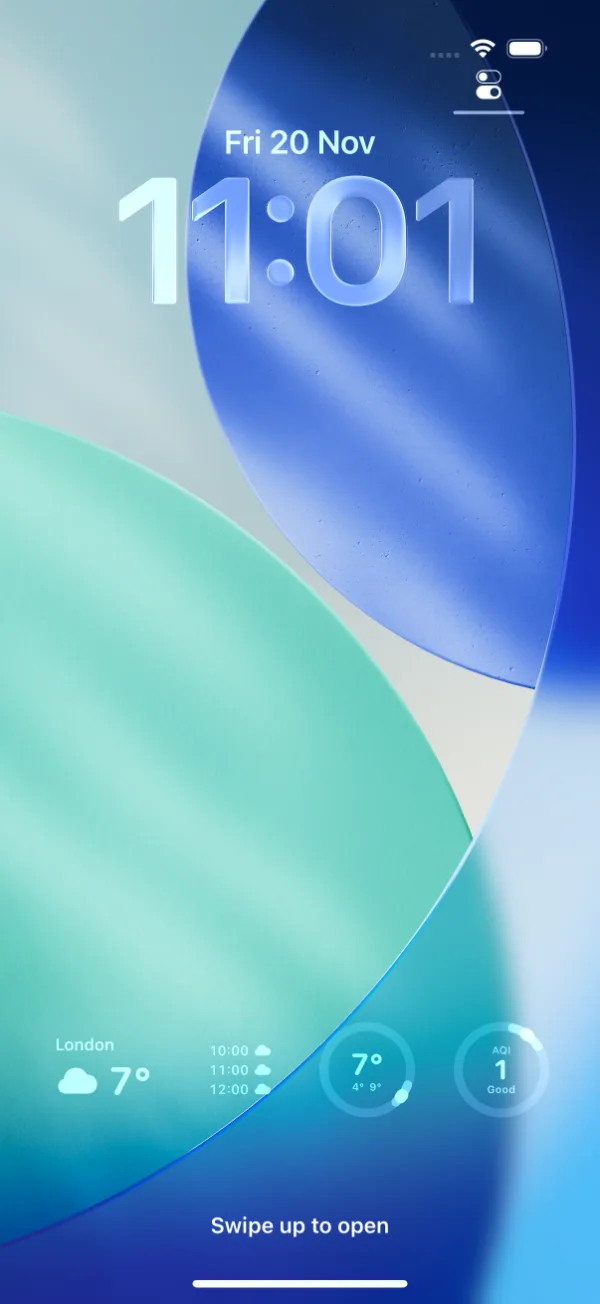
Each Lock Screen wallpaper keeps its own widgets, so switching wallpaper can switch your widgets too. For a weather setup with every screenshot, see how to add a weather widget to the iPhone Lock Screen.
How to add widgets to Today View
Swipe right on the first Home Screen page or on the Lock Screen to open Today View. Touch and hold an empty area until the widgets jiggle, tap the brush button, then Add Widget and follow steps 4 to 7 above. Widgets here stay reachable without unlocking the iPhone, which suits calendars, reminders and the weather.
How to edit a widget
Many widgets have settings: a city, a calendar, a photo album, a playlist. Touch and hold the widget and tap Edit Widget. The options depend on the app; in the example below a weather widget lets you pick the city.
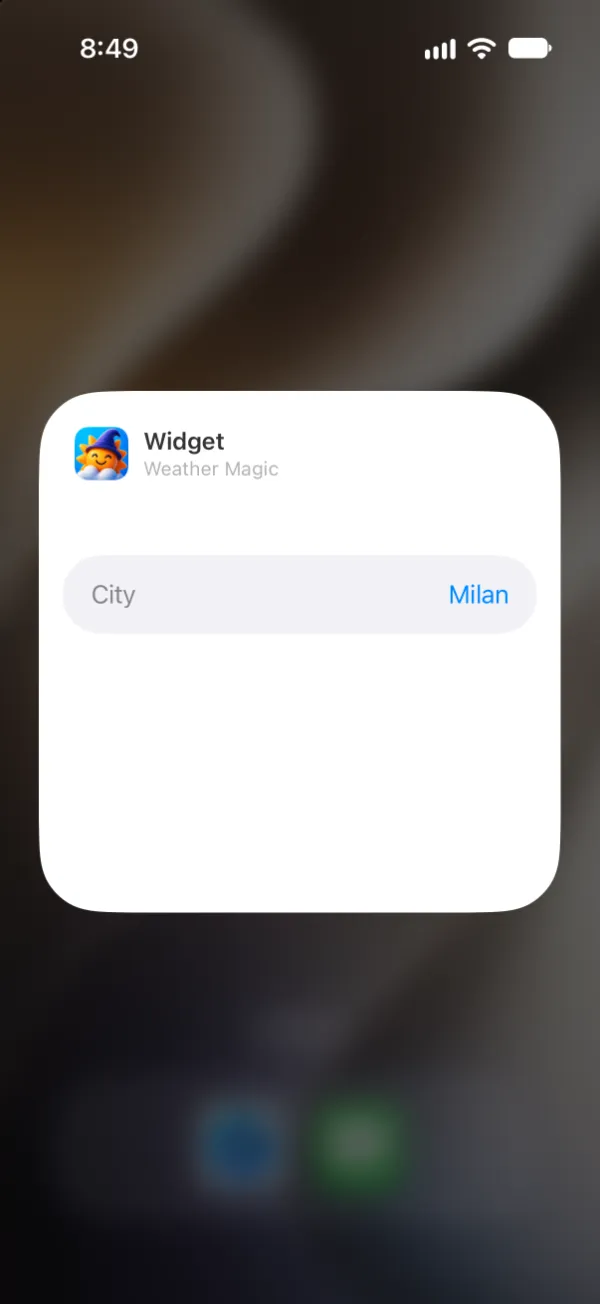
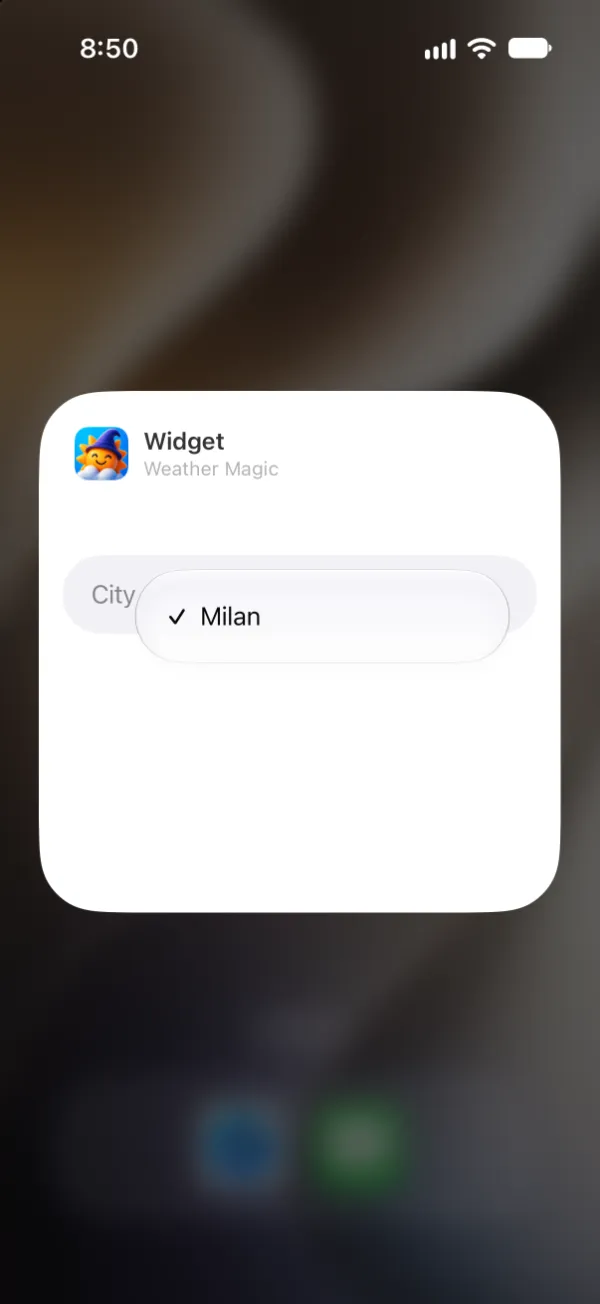
No Edit Widget option? That widget has no settings; change them in the app itself.
Widget sizes on iPhone
| Size | Space | Good for |
|---|---|---|
| Small | 2 × 2 icons | One number or status: temperature, battery, next event |
| Medium | 2 × 4 icons | A short list: the next few hours, today’s events, reminders |
| Large | 4 × 4 icons | A full overview: week forecast, month calendar, photos |
| Extra large | 4 × 8 icons | iPad only: dashboards and long lists |
| Lock Screen | Inline, circular or rectangular | Glanceable info above or below the clock |
On iOS 18 and later you can resize a widget without removing it: in jiggle mode, drag the handle in its bottom-right corner. The brush menu’s Customize option switches all widgets and app icons to Light, Dark, Tinted or, on iOS 26 and later, Clear (more in how to change app icon color). See how to make widgets transparent on iPhone for the glass look.
How to stack widgets on iPhone
A stack holds up to 10 widgets of the same size in one spot. In jiggle mode, drag a widget onto another of the same size to stack them, then swipe up and down on the stack to switch. To get a ready-made Smart Stack, search the widget gallery for it. With Smart Rotate on, iOS brings the most useful widget to the top at the right time of day.
To change a stack, touch and hold it and tap Edit Stack: reorder, remove widgets, or turn Smart Rotate and Widget Suggestions off.
Where are my widgets on iPhone?
If a widget seems to have vanished, it is almost always in one of these places:
- On another Home Screen page. Swipe through every page. Pages can be hidden: tap the brush button → Edit Pages and tick any page that is unchecked.
- In Today View. Swipe right on the first Home Screen page.
- Inside a stack. Swipe up or down on any stack to see the widgets behind the top one.
- Behind a Focus. A Focus can show only certain Home Screen pages. Turn it off in Control Center and check again.
- Gone with its app. Deleting or offloading an app removes its widgets. Reinstall it, open it once, and add the widget again.
To see every widget you could add, open the widget gallery: touch and hold the Home Screen, tap the brush button, then Add Widget.
How to make a widget on iPhone
iOS has no built-in widget designer, but there are three ways to get a widget that looks and works the way you want:
- Use a widget maker app. Apps like Widgetsmith let you design a widget’s layout, fonts and colours in the app, then add it from the gallery like any other widget.
- Use Photos or Shortcuts. The Photos widget can show an album you choose, and the Shortcuts widget runs your own shortcuts with one tap.
- For the weather, use a customizable weather app. Weather Widget Magic has 50+ widget styles and an editor for the data and look of each one. See how to make a custom weather widget and aesthetic weather widget ideas.
Widgets not working on iPhone?
- The app is missing from the widget gallery — open the app once, update it, then reopen the gallery. Still missing? Restart the iPhone. Some apps simply have no widgets.
- There is no Add Widget option — the iPhone runs iOS 13 or earlier, or you pressed an app icon instead of the wallpaper.
- The widget is blank or shows placeholders — open the app and grant the permissions it asks for, such as location or calendar access.
- The widget shows old information — iOS refreshes widgets on a budget. Turn on Background App Refresh for the app and switch off Low Power Mode.
- The widget will not go where you want — the page is full. Move a few apps to another page, or start a new empty page.
How to remove a widget
Home Screen or Today View: touch and hold the widget, tap Remove Widget and confirm with Remove. The app stays installed.
Lock Screen: touch and hold the Lock Screen, tap Customize → Lock Screen, tap the widget area and tap the minus on the widget, then Done.
Frequently asked questions
How do I add widgets on my iPhone?
Touch and hold an empty area of the Home Screen until the apps jiggle, tap the brush button in the top-left corner, then Add Widget. Pick an app, choose a size, tap Add Widget, drag it into place and tap the checkmark. It works on any iPhone running iOS 14 or later.
Where are my widgets on iPhone?
Widgets live in three places: on Home Screen pages, in Today View (swipe right on the first Home Screen page) and on the Lock Screen. To see every widget you can add, open the widget gallery: touch and hold the Home Screen, tap the brush button, then Add Widget. If a page with widgets disappeared, check Edit Pages for hidden pages.
How do I add widgets to the Lock Screen on iPhone?
Touch and hold the Lock Screen, tap Customize, choose Lock Screen, tap the area below the clock and pick widgets from the gallery, then tap Done. Lock Screen widgets need iOS 16 or later.
Why can't I find an app's widget in the gallery?
Most often the app has never been opened since it was installed or updated. Open it once, then reopen the gallery. If it is still missing, update the app, restart the iPhone, and check that the app actually offers widgets.
How do I make my own widget on iPhone?
iOS has no built-in widget designer. Use a widget maker app with its own editor, such as Widgetsmith for general widgets or Weather Widget Magic for weather, then add its widget from the gallery. The Photos widget can also show pictures you choose, and the Shortcuts widget runs your shortcuts with one tap.
How many widgets can I add on iPhone?
There is no fixed limit. Each Home Screen page holds as many widgets as fit, and a Smart Stack holds up to 10 widgets of the same size in a single spot. The Lock Screen takes one inline widget above the clock and up to four small widgets below it.
Can I add widgets on iPad?
Yes, with the same steps. iPad also offers an extra-large widget size, and on iPadOS 17 and later widgets can go on the Lock Screen too.