How to Change App Icon Color on iPhone
To change app icon color on iPhone, touch and hold the Home Screen, tap the brush button, then Customize and Tinted. Drag the sliders to pick a color, or take one from your wallpaper with the eyedropper. Every icon and widget changes together. It needs iOS 18 or later; light tints and Clear icons need iOS 26.
One app: make an Open App shortcut in Shortcuts with a colored picture as its icon.
The four icon styles
| Style | What it does | Needs |
|---|---|---|
| Default | The app’s normal colors | — |
| Dark | Dark icons and widgets; Auto switches at night | iOS 18 |
| Clear | See-through glass icons in light or dark | iOS 26 |
| Tinted | One color of your choice on every icon | iOS 18; Light tint on iOS 26 |
Tinted changed a lot between versions. On iOS 18 it put a colored symbol on a near-black icon. From iOS 26 there are two looks: Light, a full-color icon with a white symbol, and a redesigned Dark. If your tinted icons look different from a friend’s, you’re probably on different versions or Light and Dark settings.
How to change app icon color on iPhone
- Touch and hold an empty area of the Home ScreenWait until the icons jiggle.
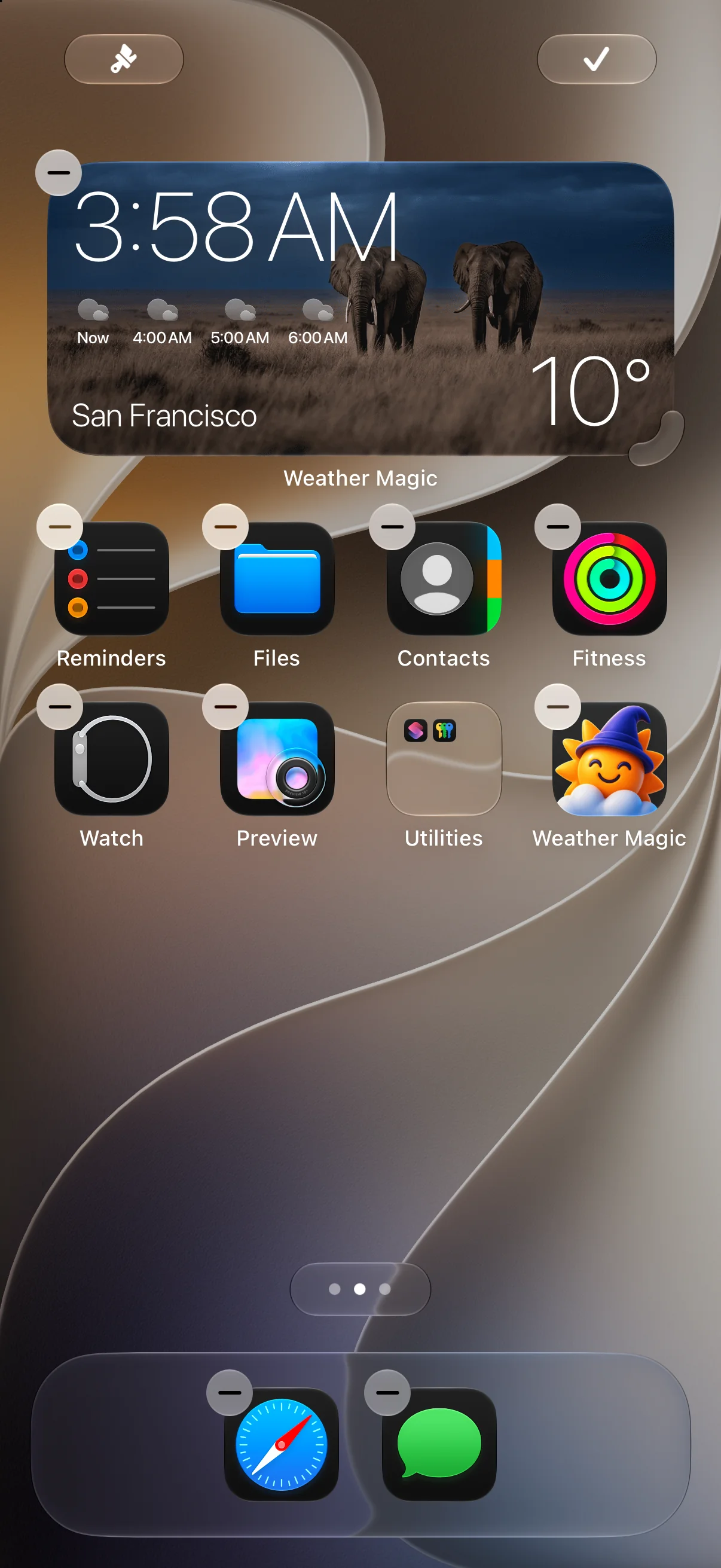
Hold the wallpaper, not an app. - Tap the brush button, then CustomizeTop-left corner. On iOS 18 to 26 it reads Edit.
- Tap TintedA color slider and a saturation slider appear at the bottom of the panel.
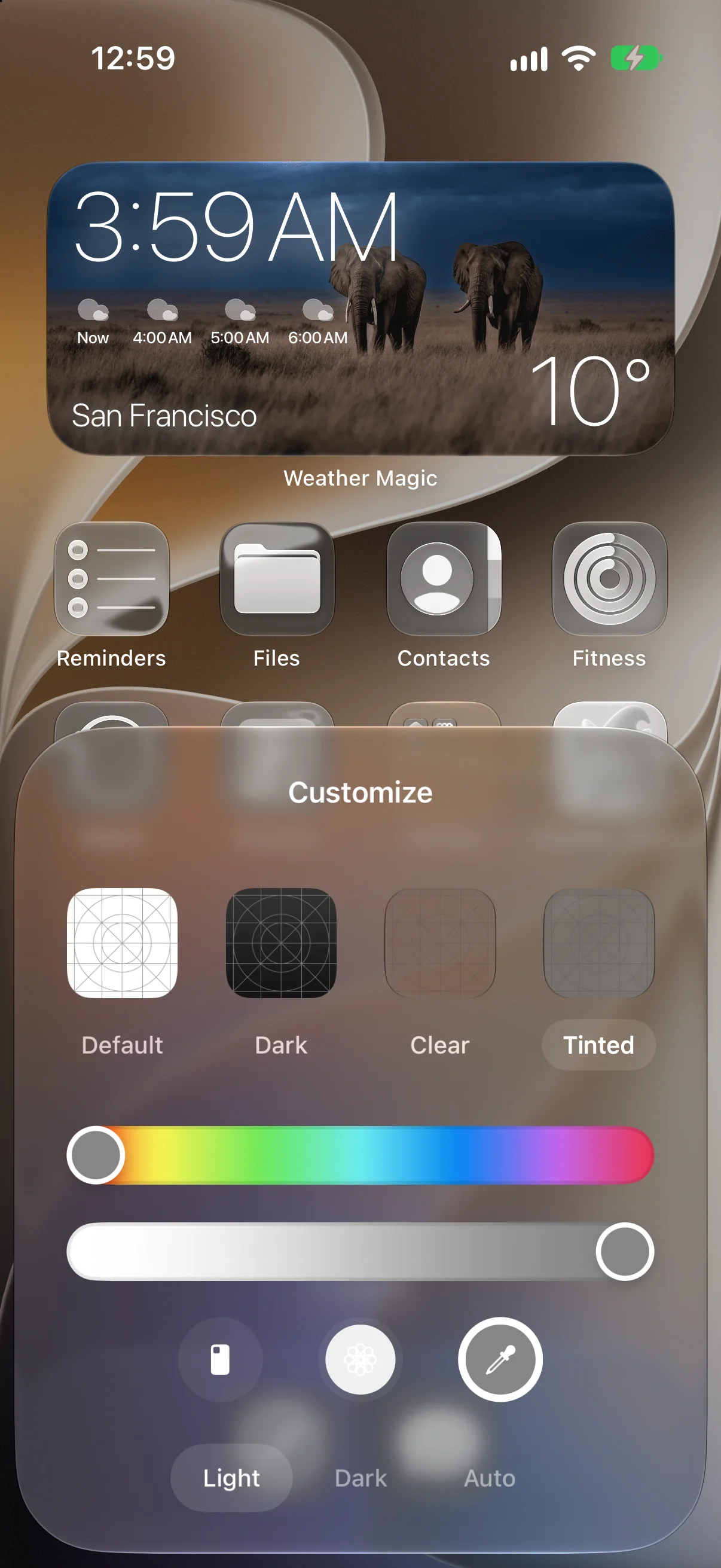
Tinted turns on the color controls. - Drag the sliders to pick a colorThe top slider sets the hue, the bottom one how strong it is. Below the sliders, three buttons do it for you: the iPhone button uses your iPhone’s color, the middle one suggests a color from the wallpaper, and the eyedropper lets you touch any spot of the wallpaper to sample it.
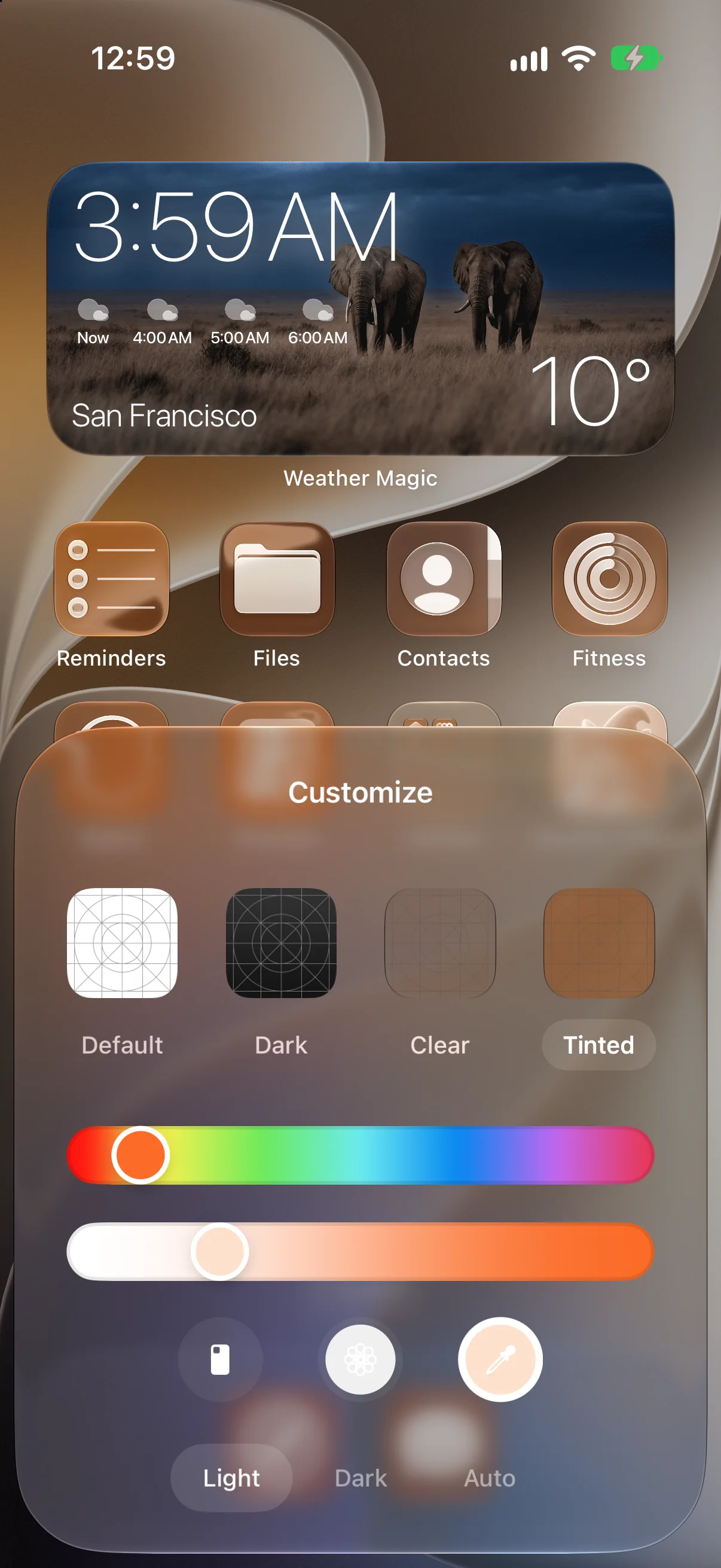
An orange tint: hue on top, strength below. 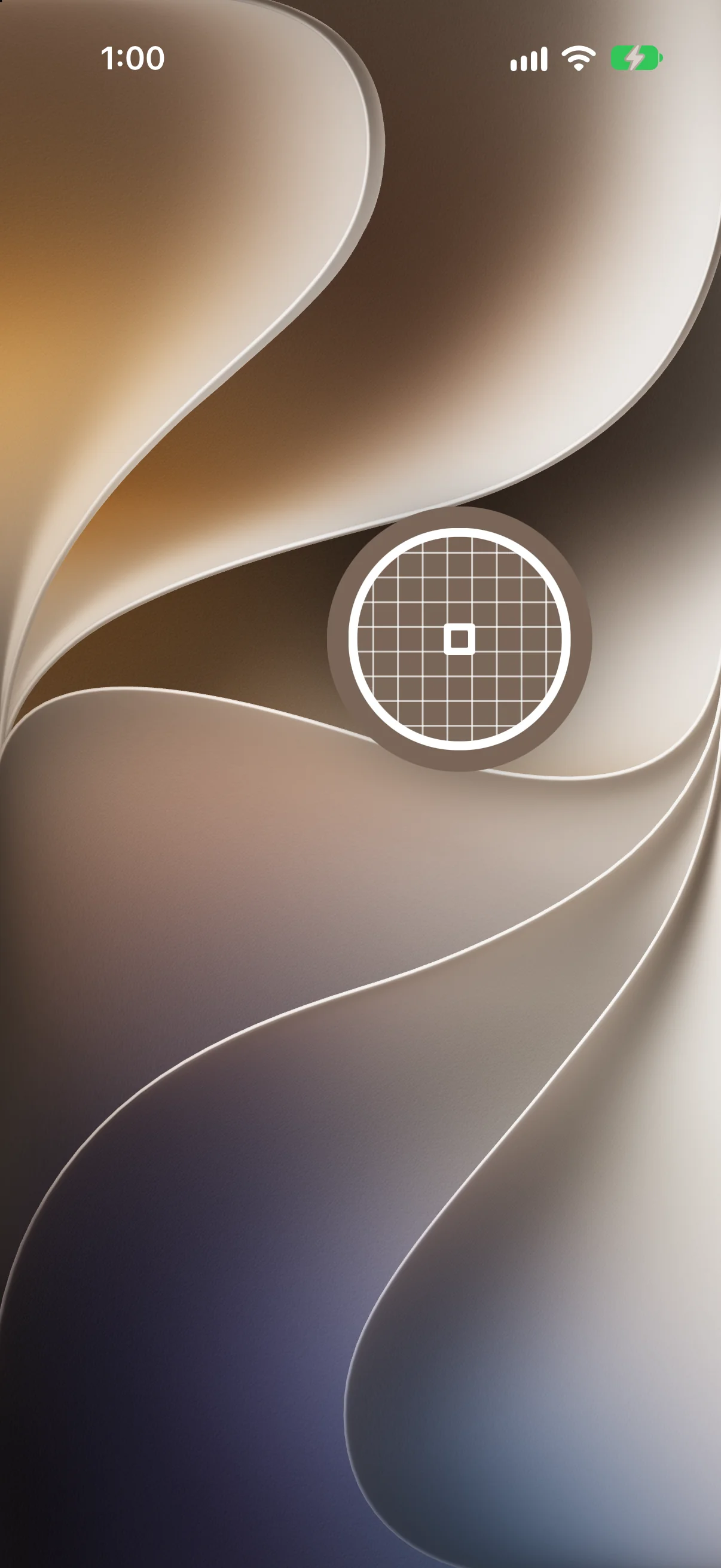
Drag the eyedropper over the wallpaper. - Choose Light, Dark or AutoLight gives colored icons with white symbols, Dark gives colored symbols on dark icons. Auto switches with Light and Dark Mode. Light and Auto need iOS 26 or later.
- Tap an empty area to saveAll icons and widgets take the new color.
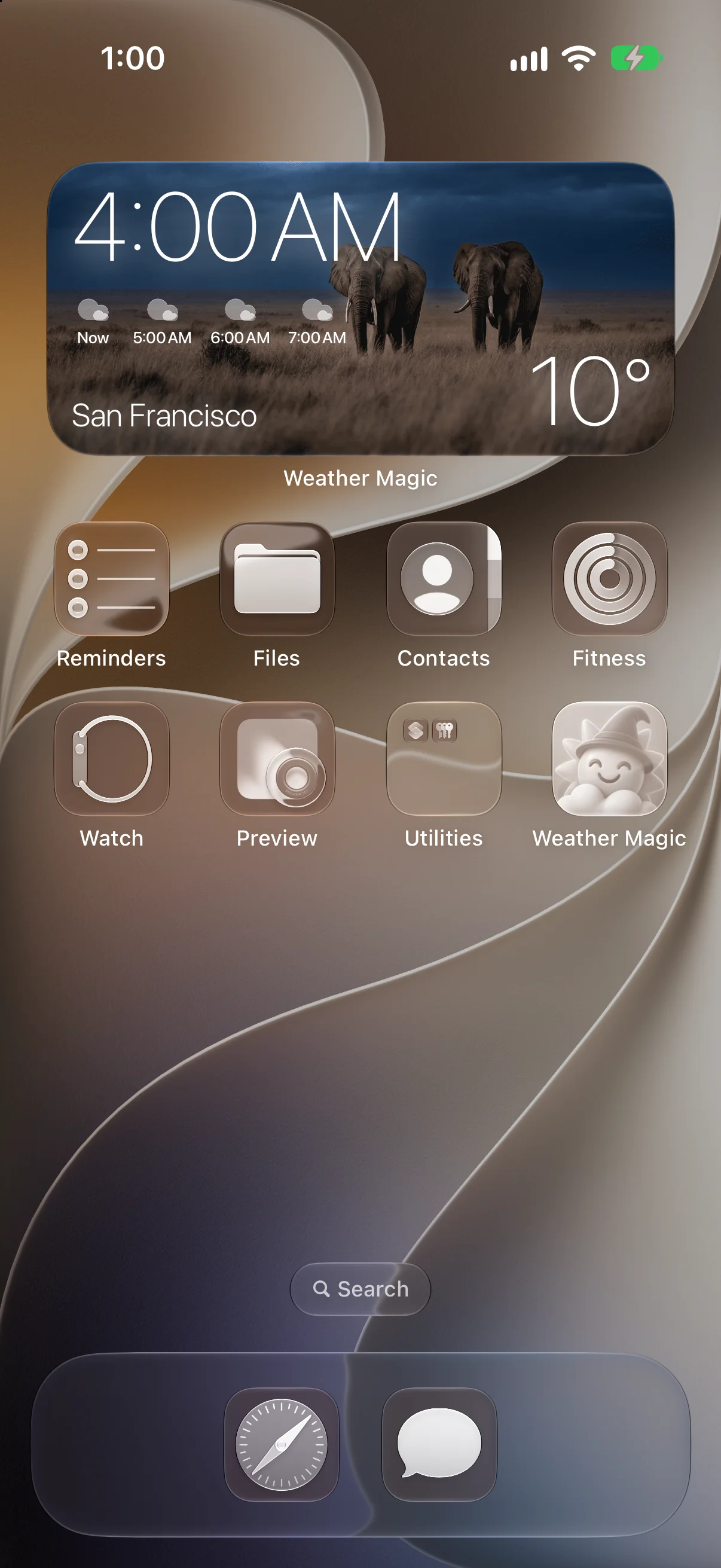
A neutral Light tint, widget included.
Match your icons to your wallpaper or iPhone
- Wallpaper: in Tinted, tap the eyedropper and touch any part of the wallpaper.
- iPhone color: on iOS 26 and later, the iPhone button under the sliders uses the color of your iPhone model.
- Case color: with a supported Apple case attached, the next button matches the case color.
If labels get hard to read, lower the saturation, or tap the sun button in the panel to dim the wallpaper.
How to make app icons dark (or light again)
In Customize, tap Dark for dark icons all the time. Tap Default, then Auto, for normal icons by day and dark icons when Dark Mode is on.
Icons turned dark after an update? The Home Screen is set to Dark or Auto. Tap Default to bring the colors back.
Clear, see-through icons
Clear turns icons and widgets into glass that shows the wallpaper through them, in a light or dark version. It needs iOS 26 or later. More in how to make widgets transparent on iPhone.
How to change the color of one app
Customize always colors every icon. To give one app its own color, make a square image in that color, then use it as the icon of an Open App shortcut. The steps are in how to change app icons with Shortcuts. Some apps also offer alternate icons in their own settings, under a name like App Icon.
Black and white app icons
Choose Tinted and drag the saturation slider all the way to the left for gray icons. To make the whole screen gray, including photos, go to Settings → Accessibility → Display & Text Size → Color Filters and choose Grayscale.
Tinted icons vs Color Filters
| Tinted (Customize) | Color Filters | |
|---|---|---|
| Changes | App icons and widgets | Everything on screen, photos too |
| Where | Home Screen → Customize | Settings → Accessibility |
| Best for | A styled Home Screen | Grayscale or color-vision needs |
Color ideas for a cool iPhone home screen
- One color from the wallpaper with the eyedropper, at low saturation, so the photo stays the star.
- Clear Dark on a bright photo for a glassy look that keeps labels readable.
- Tinted Light in a pastel with a plain matching wallpaper for a soft, minimal setup.
- Dark on Auto so the Home Screen calms down by itself at night.
Widgets take the same color, so pick ones that still read well tinted. Weather Widget Magic’s widgets follow the Home Screen style; see aesthetic weather widget ideas.
Icon colors not changing?
- No Tinted option — it needs iOS 18 or later. No Light tint or Clear? Those need iOS 26.
- Some apps look different — apps whose developers made tinted versions look best; others may not match the rest exactly.
- Shortcuts icons stay the same — Customize doesn’t recolor pictures you set yourself. Change the picture instead.
- The whole screen changed color — that’s a Color Filter, not Customize. Turn it off in Settings → Accessibility → Display & Text Size.
Frequently asked questions
How do I change the color of my app icons on iPhone?
Touch and hold the Home Screen, tap the brush button, then Customize and Tinted. Drag the color and saturation sliders, choose Light, Dark or Auto, and tap an empty area. It needs iOS 18 or later.
Can I change the color of just one app?
Not with Customize, which colors every icon. For one app, create an Open App shortcut in Shortcuts and use a picture in the color you want as its icon.
Why are my iPhone app icons dark?
The Home Screen is set to Dark, or to Auto while Dark Mode is on. Open Customize and tap Default for the normal icons.
How do I make app icons black and white?
Choose Tinted and drag the saturation slider all the way down for gray icons. To turn the whole screen black and white, use Settings → Accessibility → Display & Text Size → Color Filters → Grayscale.
Do widgets change color too?
Yes. Dark, Clear and Tinted apply to app icons and widgets together.
Can I match my icons to my iPhone’s color?
Yes, on iOS 26 and later. In Tinted, tap the iPhone button under the sliders to use the color of your iPhone model.
How do I reset the icon colors?
Open Customize and tap Default.
Why do my tinted icons look different from iOS 18?
From iOS 26, Tinted has Light and Dark versions. Light gives full-color icons with white symbols; Dark is closer to the old iOS 18 look. Switch between them at the bottom of the Customize panel.
How do I change the iPhone theme color?
Pick a wallpaper, then open Customize → Tinted and take its color with the eyedropper. Icons and widgets follow; for the whole system accent, there is no separate setting.