Weather Widgets for iPhone: What They Are & How to Add One
A weather widget puts the live forecast right on your Home Screen — no app to open. This guide explains what weather widgets are, why they're useful, and the exact steps to add and customize one on your iPhone.
What is a weather widget?
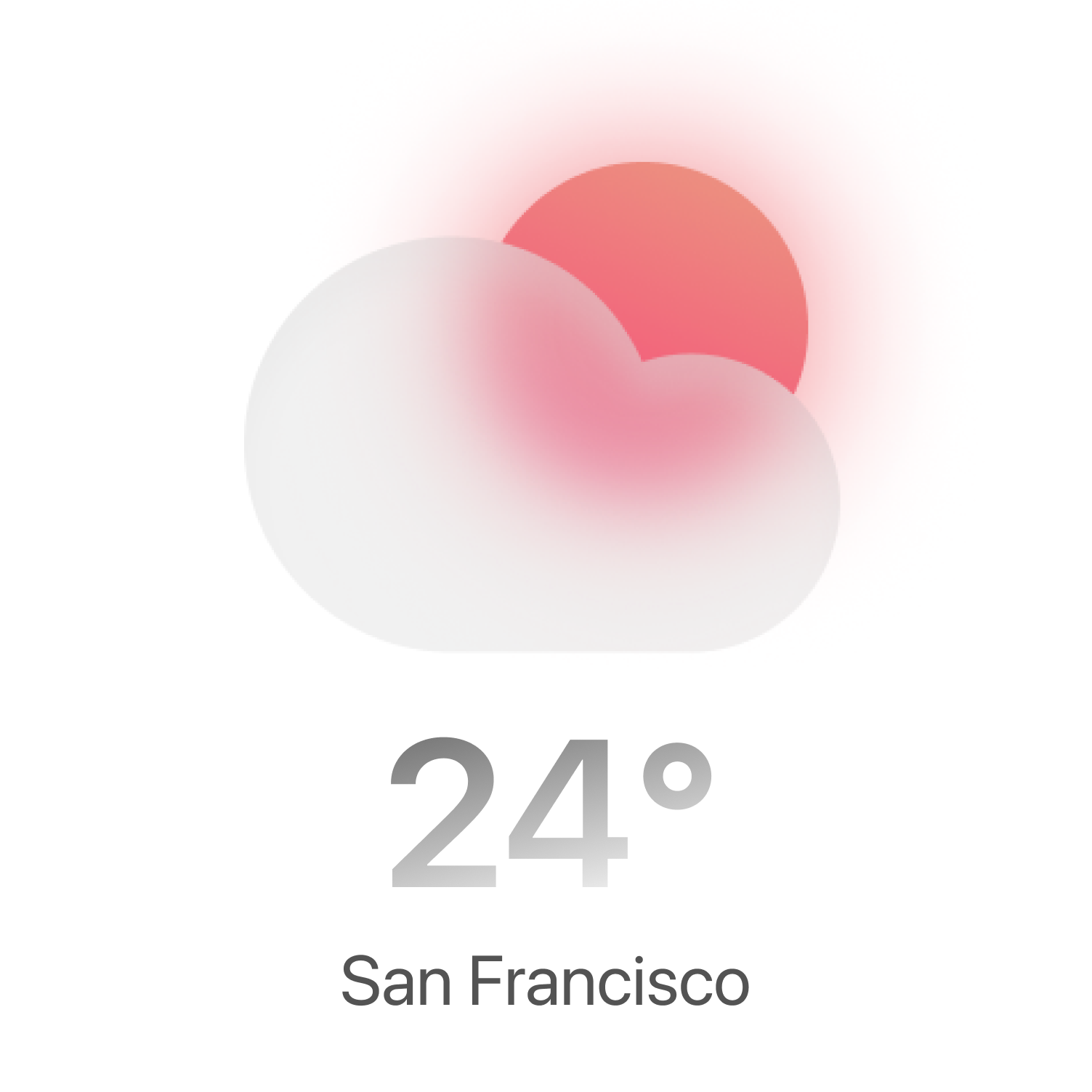
A weather widget is a small, glanceable panel that lives on your iPhone Home Screen, Lock Screen, or Today View and displays current weather conditions in real time. Instead of opening a full weather app, you see the temperature, conditions, and forecast the moment you look at your phone.
Most weather widgets show the essentials at a glance: the current temperature, a condition icon (sunny, cloudy, rain), the high and low for the day, and often an hourly or multi-day outlook. Premium widgets add live radar, air quality, sunrise and sunset times, and dynamic backgrounds that change with the weather and time of day.
What is a weather widget used for?
Weather widgets exist to save you time and keep you prepared. Because the information is always visible, you make faster decisions about your day without tapping through an app.
- Instant forecasts — check the temperature and conditions without unlocking an app.
- Plan your day — decide what to wear, whether to carry an umbrella, or when to head out.
- Severe-weather awareness — spot incoming rain, storms, or hail before they reach you.
- Personalize your Home Screen — a beautiful widget makes your iPhone feel more your own.
- Travel and commuting — keep an eye on conditions in multiple locations at once.
Types of weather widgets on iPhone
iOS supports widgets in several places and sizes, so you can pick the level of detail you want.
Home Screen widgets
Placed among your app icons in small, medium, or large sizes. The large size can show an hourly timeline plus a multi-day forecast.
Lock Screen widgets
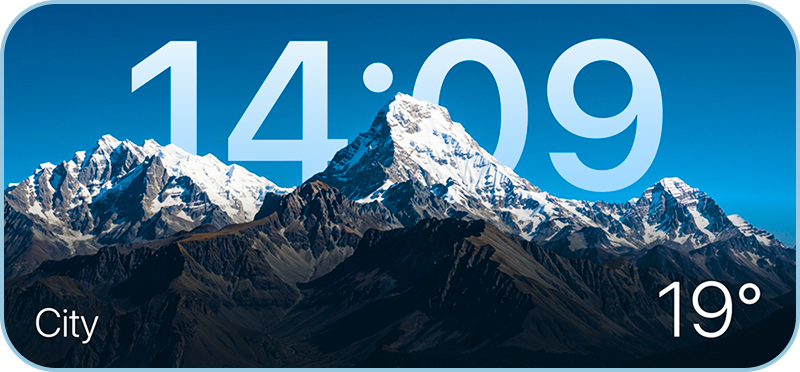
Compact widgets that sit above or below the clock, ideal for a quick temperature or condition check the instant you pick up your phone.
Today View widgets
Swipe right from the Home or Lock Screen to see a scrollable column of widgets, including weather, with room for more detail.
How to add a weather widget on iPhone (step by step)
Adding a weather widget to your Home Screen takes less than a minute. Here's exactly how:
- Touch and hold the Home ScreenPress and hold any empty area until the apps start to jiggle.
- Tap the “+” buttonIt appears in the top-left corner and opens the widget gallery.
- Search for the weather widgetType the name of your weather app, or browse to it in the list.
- Pick a size and add itSwipe between small, medium, and large, then tap “Add Widget.”
- Position it and tap DoneDrag the widget where you want it, then tap Done (or press the Home/side button).
Adding a weather widget to the Lock Screen
Touch and hold the Lock Screen, tap Customize, choose Lock Screen, then tap a widget slot above or below the clock and select your weather widget.
How to customize your weather widget
Once a widget is on your screen, touch and hold it and tap Edit Widget to change its options — for example the location it tracks or the units it displays. Many widgets let you choose between Celsius and Fahrenheit, switch locations, or pick a visual style. For every style type, see custom weather widgets for iPhone.
- Set your location — use your current location automatically, or pin a specific city.
- Choose units — °C or °F, km/h or mph.
- Stack widgets — drag one widget onto another to create a Smart Stack you can swipe through.
- Pick a style — some widgets offer themes or dynamic backgrounds that change with the weather.
Best weather widget app for iPhone
A great weather widget needs to be accurate, beautiful, and genuinely glanceable. Weather Widget Magic combines a clean, precise weather app with dynamic, innovative widgets that adapt to conditions and the time of day — complete with live radar and one-hour rain and hail alerts. For the full comparison, read Best weather widgets for iPhone in 2026.
Frequently asked questions
Why is my weather widget not updating?
Make sure Background App Refresh and Location Services are enabled for your weather app in Settings, and that you have an internet connection. Widgets update periodically to save battery, so brief delays are normal.
Are weather widgets free?
Many weather widgets are free, including Weather Widget Magic. Some apps offer optional premium features such as advanced radar or extra widget styles.
Can I add a weather widget to the Lock Screen?
Yes. Touch and hold the Lock Screen, tap Customize, select a widget slot, and choose your weather widget — available on iOS 16 and later.
How do I show a different city on my widget?
Touch and hold the widget, tap Edit Widget, and change the location to any city you like instead of your current location.