How to Add a Weather Widget to Your iPhone Lock Screen
To add a weather widget to your iPhone Lock Screen, touch and hold the Lock Screen, tap Customize, choose Lock Screen, tap the widget area below the clock and pick a weather widget. It takes about thirty seconds on any iPhone running iOS 16 or later. Below: every step, the three widget shapes, and what to do when the widget does not show up.
Before you start
- iOS 16 or later — Lock Screen widgets arrived with iOS 16, so any iPhone 8 or newer can use them. The steps are the same on iOS 26.
- An unlocked iPhone — the Customize button only appears after Face ID or your passcode has unlocked the phone.
- For a third-party widget, open the app once — iOS lists an app in the widget gallery only after its first launch.
How to add a weather widget to the Lock Screen, step by step
- Wake your iPhone and stay on the Lock ScreenRaise or tap the iPhone and let Face ID unlock it (the padlock opens), but do not swipe up to the Home Screen.
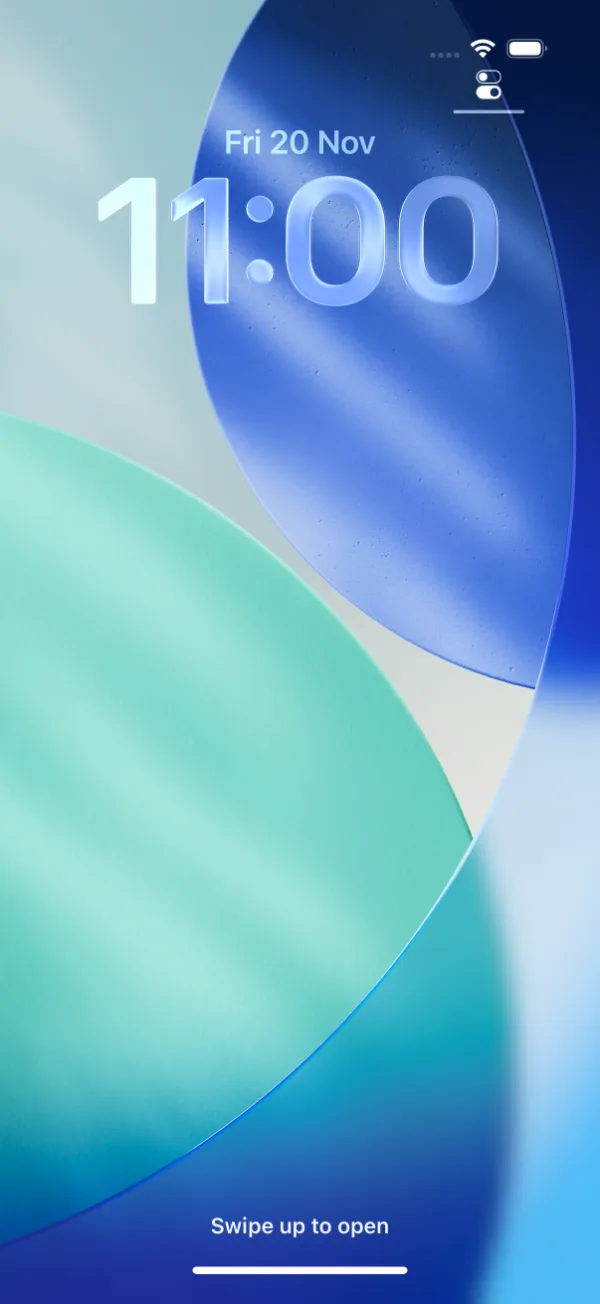
The Lock Screen before: no widgets yet. - Touch and hold the Lock ScreenPress an empty area of the wallpaper until the Customize button appears at the bottom.
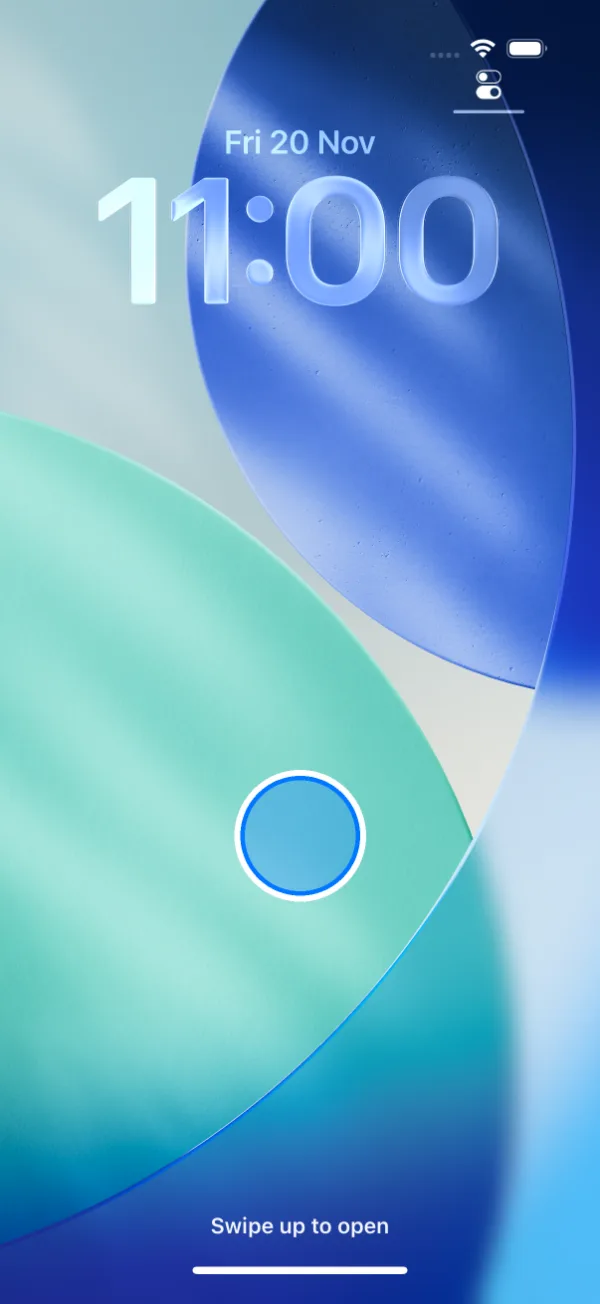
Touch and hold an empty area of the wallpaper. 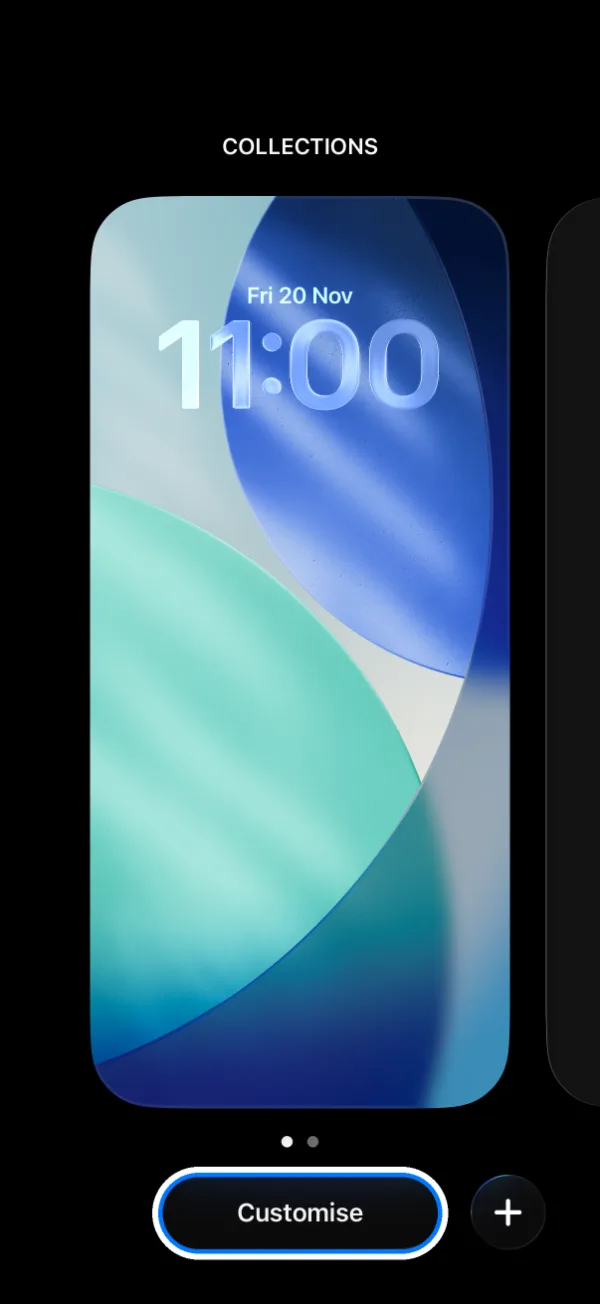
The Customize button appears. - Tap Customize, then Lock ScreenIf iOS asks which screen you want to edit, choose Lock Screen, the preview on the left.
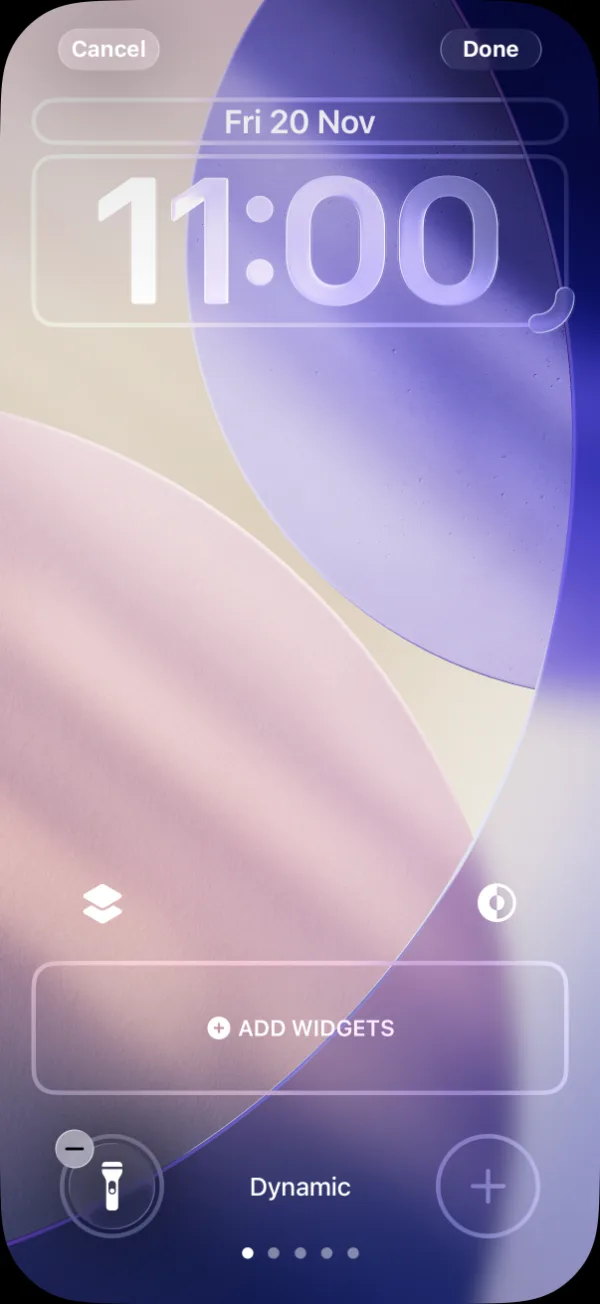
The Lock Screen editor opens. - Tap the widget area below the clockWhen the row is empty it reads Add Widgets. Tapping it opens the widget gallery.
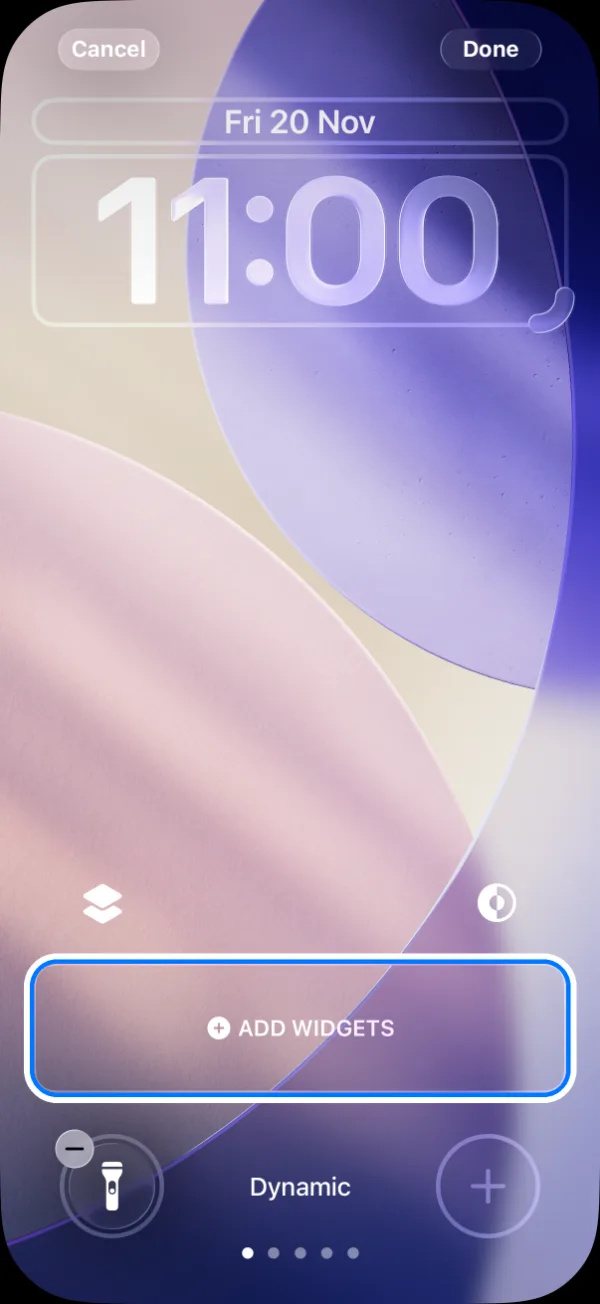
Tap the Add Widgets row. 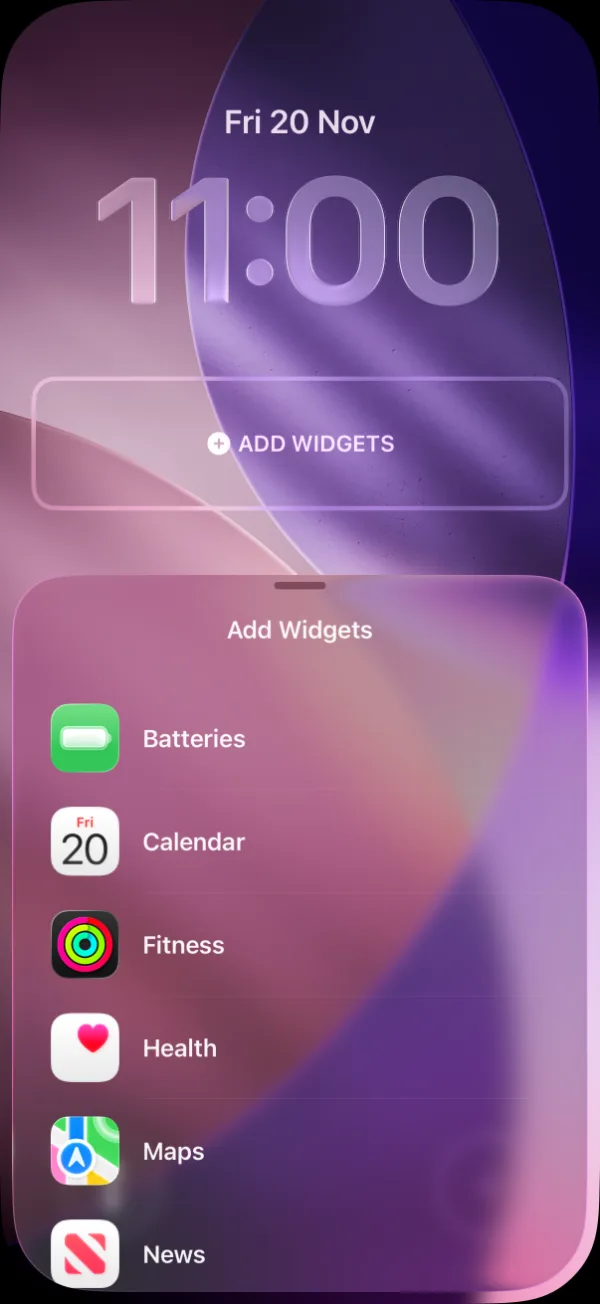
The widget gallery lists every app with Lock Screen widgets. - Choose a weather widgetScroll to Weather or to your weather app, then tap a widget or drag it into the row. Tap it again to set its options, if it has any.
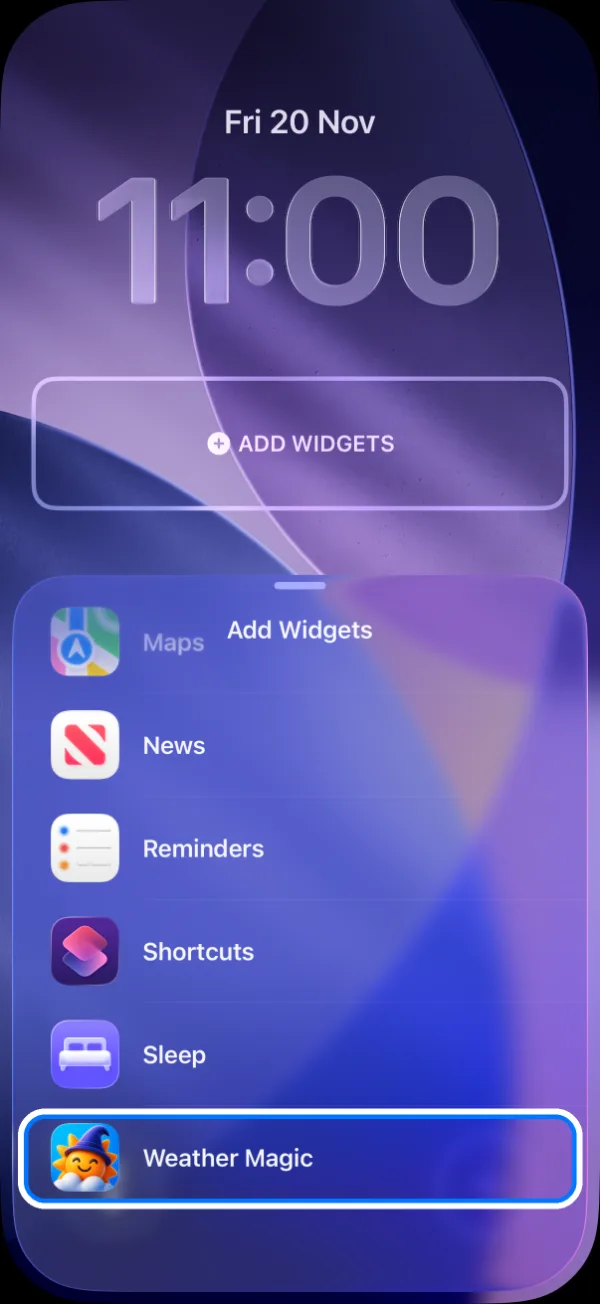
Scroll to your weather app. 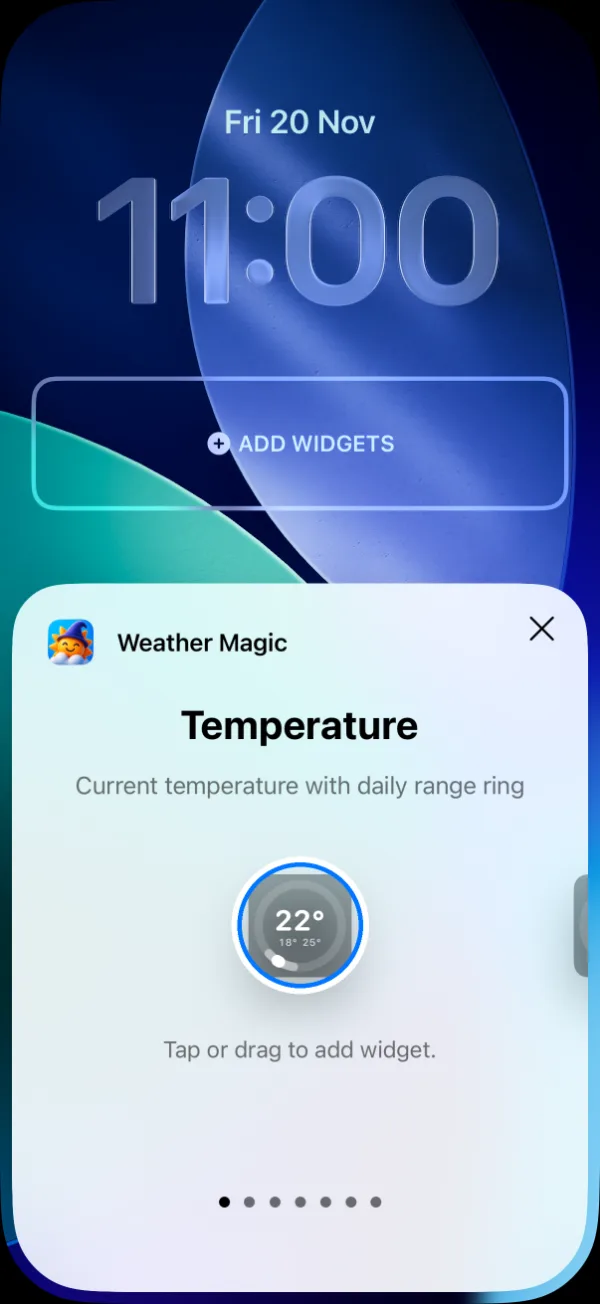
Tap or drag a widget, like Temperature. 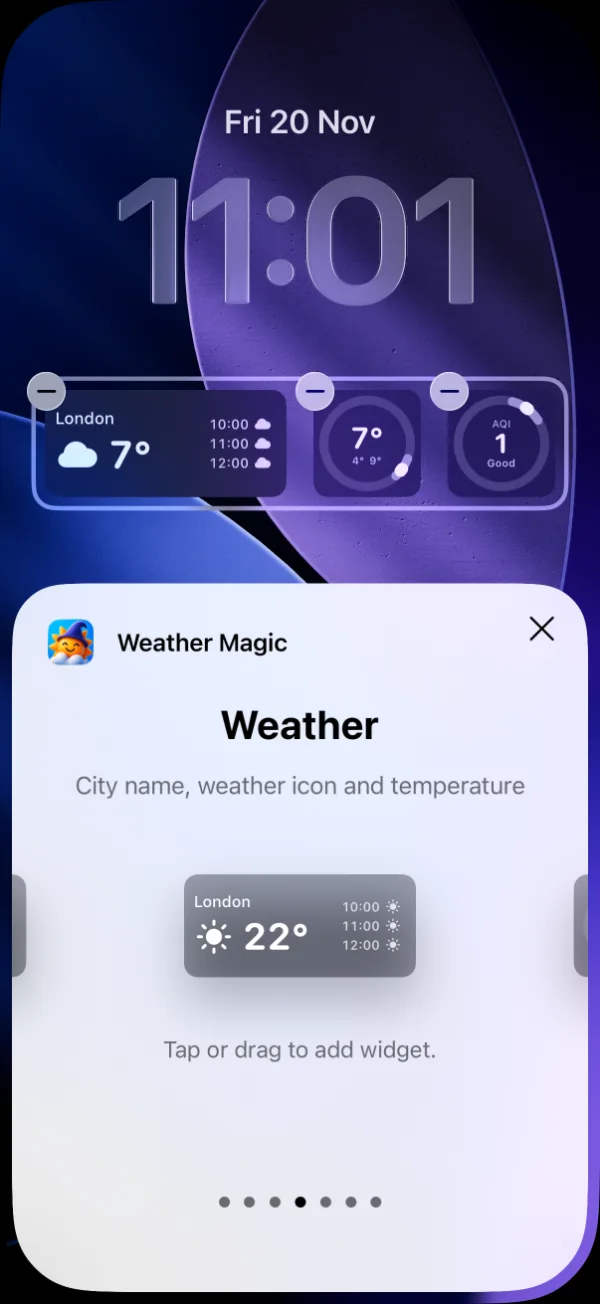
Add up to four slots of widgets. - Tap DoneClose the gallery, tap Done in the top-right corner, then tap the Lock Screen to leave edit mode.
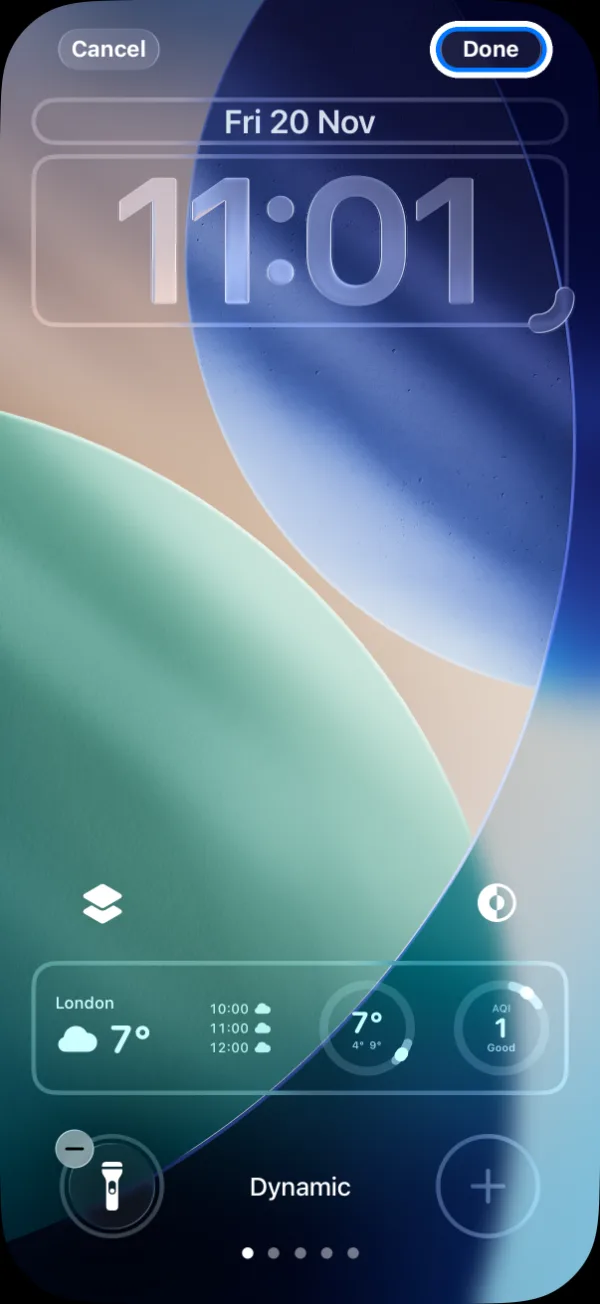
Tap Done to save.
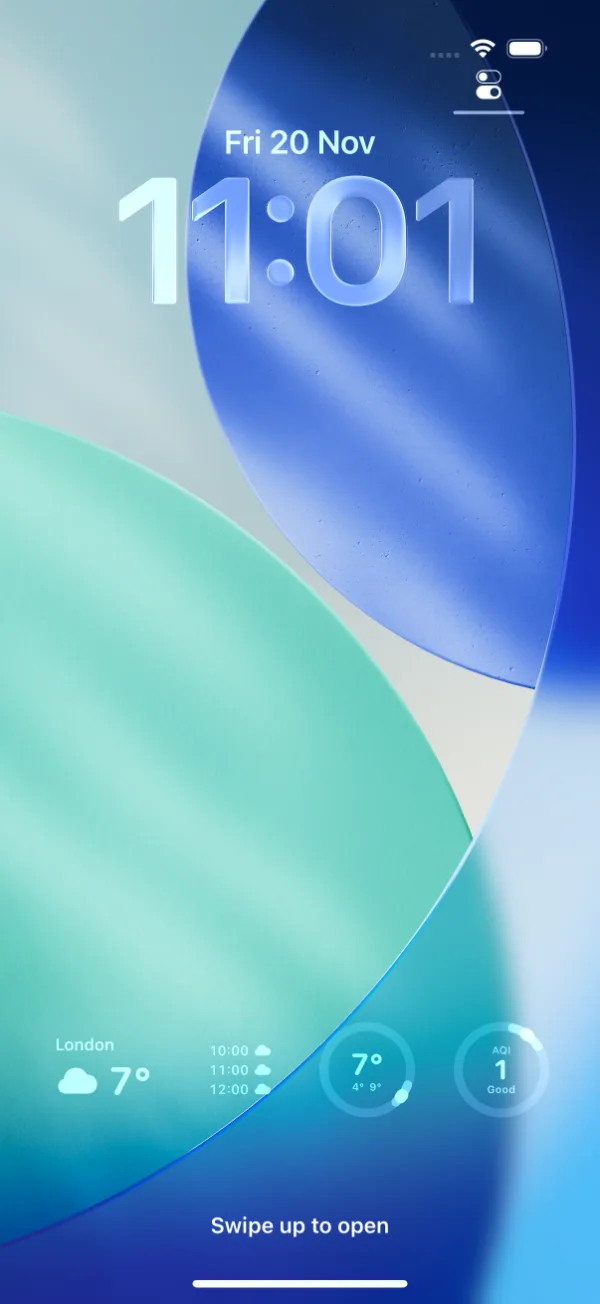
Lock your iPhone and wake it again: the weather now sits under the clock. Tapping the widget opens the weather app it belongs to.
Add the weather above the clock
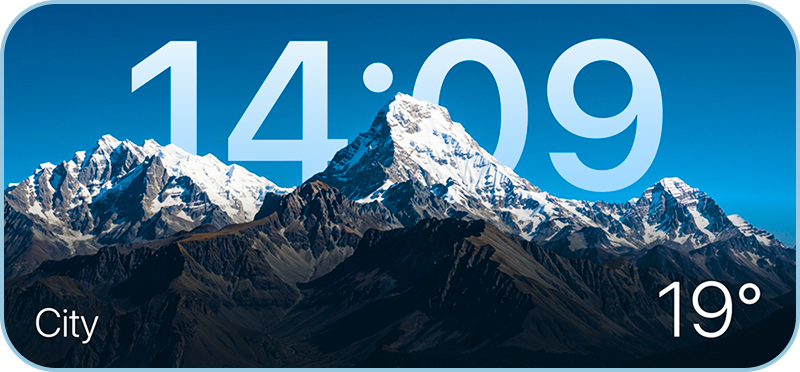
The line above the clock, where the date sits, is a widget too. It is the smallest slot on the Lock Screen and the easiest to read, because nothing competes with it.
Only one inline widget fits there, and it shares the line with the date. If you want a single number on your Lock Screen, the current temperature in this slot is the one to pick.
The three Lock Screen widget shapes
Lock Screen widgets come in three shapes, and every weather app builds its widgets from them. Knowing which shape holds what saves a lot of trial and error in the gallery.
| Shape | Where | Room for | Best weather use |
|---|---|---|---|
| Inline | Above the clock, next to the date | One line of text | Current temperature and condition |
| Circular | Below the clock, one slot of four | One value | Temperature, UV index or air quality |
| Rectangular | Below the clock, two slots of four | Two or three short lines | Conditions with high and low, or the next rain |
The row below the clock holds four slots: up to four circular widgets, two rectangular ones, or one rectangular and two circular. On iOS 26 the row can also be moved to the bottom of the Lock Screen, which keeps it clear of a tall clock.
Give the Lock Screen one job: what is happening now, or what is about to happen. The shape of the whole day belongs on the Home Screen. More on that split in our guide to custom weather widgets for iPhone.
How to add a third-party weather widget
Apple’s Weather app ships its own Lock Screen widgets. A third-party weather widget goes through exactly the same gallery, with one extra step at the start. Here is the flow with Weather Widget Magic:
- Install the app and open it once, so iOS registers its widgets.
- Allow location access “While Using the App or Widgets”, so the widget can show your local forecast.
- Repeat the six steps above and choose Weather Widget Magic in the gallery instead of Weather.
Weather Widget Magic offers inline and circular Lock Screen widgets for temperature and conditions, and pairs them with Home Screen widgets whose background changes with the sky. For how it compares with Apple Weather and the other options, read the best weather widgets for iPhone.
How to add a weather widget to the iPhone Home Screen
Touch and hold an empty area of the Home Screen until the icons jiggle, tap Edit (or + on older iOS versions) in the top-left corner, choose Add Widget, search for your weather app, pick the small, medium or large size and tap Add Widget. The full walkthrough with screenshots, changing the city and Smart Stacks is in how to add a weather widget to your iPhone.
How to add a weather widget to your Mac desktop
On macOS Sonoma or later, Control-click the desktop, choose Edit Widgets, search for Weather and drag a widget onto the desktop. Widgets from your iPhone apps appear in the same gallery when the iPhone uses the same Apple Account and is nearby or on the same Wi-Fi network, so an iPhone weather widget can sit on your Mac without a Mac app.
On Windows 11, weather lives in the Widgets board instead: press the Windows key and W.
Weather widget not showing on the Lock Screen?
- The app is missing from the gallery — open the app once, then reopen the gallery. If it is still missing, restart the iPhone.
- Customize never appears — the iPhone is still locked. Let Face ID unlock it or enter the passcode, then touch and hold the wallpaper again, away from any notification.
- You cannot drop the widget in — the row is full. Tap the minus button on a widget to free a slot.
- The widget is blank or shows dashes — go to Settings → Privacy & Security → Location Services → your weather app and choose While Using the App or Widgets.
- The numbers look old — turn on Background App Refresh for the app and switch off Low Power Mode, which pauses most widget updates.
- The widget vanishes at certain times — widgets belong to one Lock Screen. If a Focus switches to a different Lock Screen, add the widget there too.
How to remove or replace a Lock Screen widget
Touch and hold the Lock Screen, tap Customize, tap the widget row, then tap the minus button on the widget you want gone. Pick a replacement from the gallery or leave the slot empty, and tap Done.
Not sure which app to put on your Lock Screen? See the best iOS weather apps, tested side by side on iOS 27.
Frequently asked questions
How do I add a weather widget to my iPhone Lock Screen?
Touch and hold the Lock Screen, tap Customize, choose Lock Screen, tap the widget area below the clock, pick a weather widget and tap Done. It works on every iPhone running iOS 16 or later.
Why can’t I add widgets to my Lock Screen?
The usual causes are an iPhone on iOS 15 or earlier, a phone that is still locked when you touch and hold, or a widget row that is already full. Update iOS, unlock with Face ID first, and remove one widget to free a slot.
How many widgets fit on the iPhone Lock Screen?
One inline widget above the clock, plus a row below it that holds up to four circular widgets, two rectangular ones, or one rectangular and two circular.
Can the Lock Screen widget show the weather for another city?
Yes, if the widget supports it. While customizing the Lock Screen, tap the weather widget itself: widgets with options open a location picker where you can pin a city instead of your current location.
Do Lock Screen weather widgets drain the battery?
Not noticeably. iOS refreshes widgets on a fixed budget instead of running them continuously, and Lock Screen widgets are the lightest kind because they show one or two values.
Does the weather widget stay visible on the Always-On display?
Yes. On iPhones with an Always-On display, Lock Screen widgets stay on screen in a dimmed state, so the temperature is readable without touching the phone.