Best Weather Widgets for iPhone in 2026
Almost every weather app ships a widget, and almost all of them make the same mistake: shrinking a dashboard onto your Home Screen. We build iOS widgets for a living, so we judged these six on one thing — whether a half-second glance actually changes a decision. Free picks included.
Disclosure: Weather Widget Magic is our own app. That is exactly why the sections below say plainly where someone else's widget is the better buy.
How we judged them
We ran all six on the same iPhone for three weeks on iOS 26, side by side on one Home Screen page, using the free tier first and only then the paid one. The test was not a feature count. It was four questions, in this order of importance:
- Glanceability — after half a second, do you know something you didn't? Six numbers in a small widget fail this test no matter how accurate they are.
- Lead time — how early does it tell you rain is coming? An alert that arrives with the first drops is a notification, not a warning.
- Refresh honesty — iOS budgets widget updates. A good widget shows its timestamp instead of pretending to be live.
- Restraint — does it stay readable over a real wallpaper, at small size, in one line on the Lock Screen?
Nothing here is scored on prettiness alone. A widget that looks superb and makes you open the app anyway has failed at its only job.
1. Weather Widget Magic — best overall
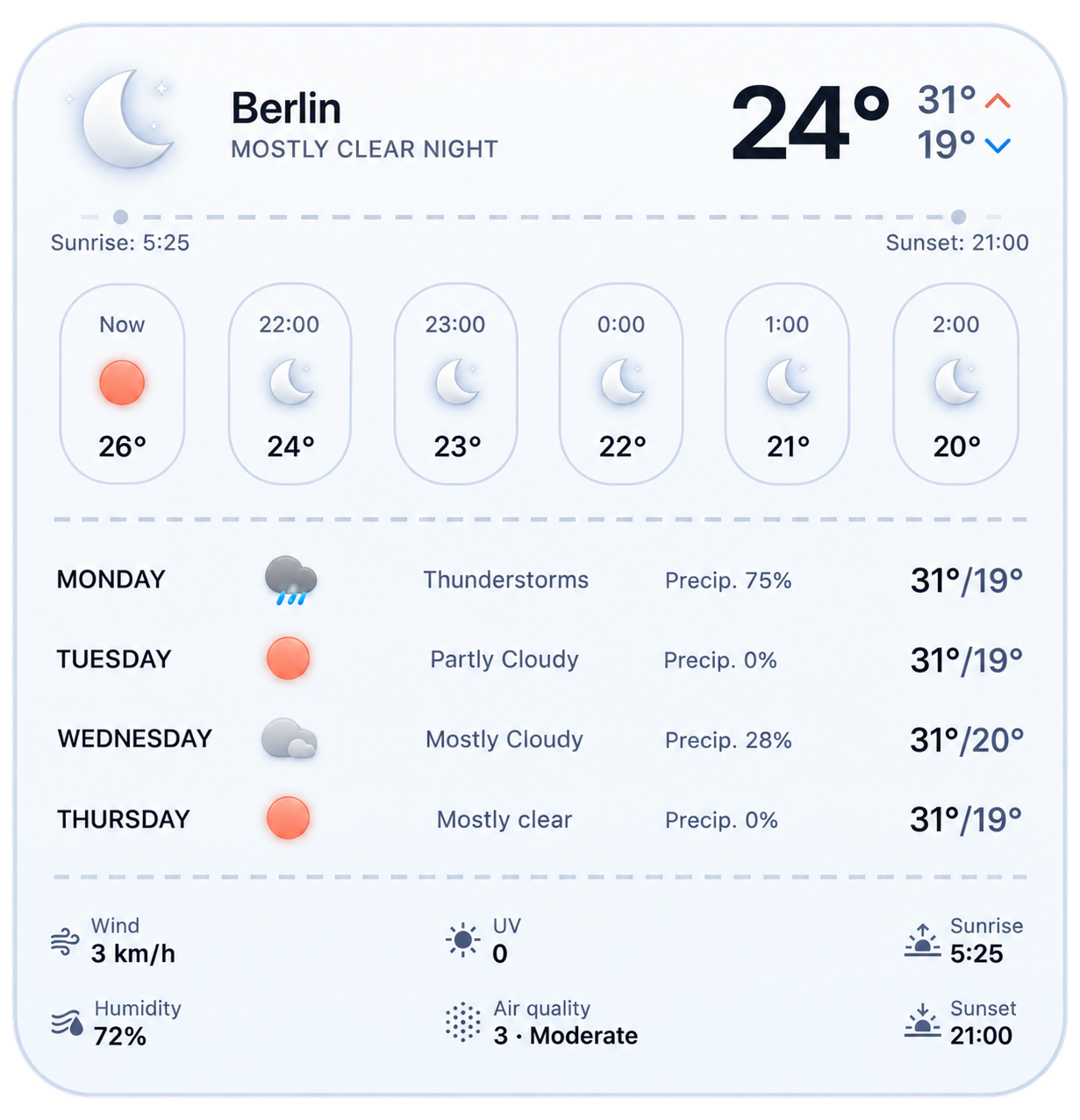
The widget changes with the weather and with the hour, so the background itself carries information before you read a single digit — clear evening, incoming front and midday storm never look alike. Underneath sits nowcasting radar with rain and hail alerts up to an hour ahead, computed from radar reflectivity together with CAPE and the temperature gap between cloud level and the ground.
Sizes: small, medium and large on the Home Screen, plus Lock Screen. If you install one widget from this page, install this one — then judge it the first time it warns you about hail before the sky changes.
2. Apple Weather — best with zero setup
Nothing to download, nothing to configure, and genuinely good typography — Apple's own widget is the honest default and the right answer for a lot of people. It covers both Lock Screen and Home Screen and never feels bolted on.
3. Carrot Weather — most customizable
The only app on this list where you effectively design the widget yourself: pick the data, the layout and the personality. If you have opinions about which four values belong on your Home Screen, this is the toolkit.
4. Windy — best for wind and pro data
Sailing, flying, paragliding, working on a roof: when the decision depends on wind, gusts, stations or which model you trust, a friendly daily summary is useless and Windy is the only sensible pick.
5. RainViewer — best radar-only widget
One question, one answer: is precipitation heading here. Radar-first, few numbers, and easier to read at a glance than most full weather apps precisely because it refuses to show you everything.
6. Hello Weather — best minimal widget
Big type, few values, calm colours. The right choice if your Home Screen is a deliberate design and a busy widget would ruin it.
The short version
| Widget | Pick it if | Free tier |
|---|---|---|
| Weather Widget Magic | You want one widget for glance, day and storms | Yes |
| Apple Weather | You want it to just work, today | Built in |
| Carrot Weather | You want to choose every value shown | Limited |
| Windy | Wind, gusts, stations or models decide your day | Core features |
| RainViewer | Rain timing is the only question you ask | Core features |
| Hello Weather | Your Home Screen is a design, not a console | Limited |
Free versus paid: what you actually give up
Free tiers in this category are generous, so read the paywall carefully before subscribing. In practice, what sits behind it is nearly always one of four things:
- Extra widget styles — the design you saw in the screenshots is often the premium one.
- Saved locations — free tiers frequently allow one, which is a problem for commuters.
- Radar history and resolution — longer loops and finer detail cost money.
- Alert types — hail, lightning and severe-weather alerts are common upsells.
Install the free version, keep it for a week, and only pay once you know which of the four you actually missed.
Where to put which widget
The most common setup mistake is not choosing the wrong app — it is showing the same temperature in four places. Give each surface one job:
| Surface | One job |
|---|---|
| Lock Screen | Right now, or the next precipitation |
| Home Screen (medium) | Hourly temperature and rain chance for today |
| Today View | The multi-day outlook you check twice a week |
| Inside the app | Animated radar — the thing no widget can show live |
How to get an aesthetic Home Screen without losing information
“Aesthetic weather widget” is one of the most searched phrases in this category, and the answer is mostly restraint rather than a specific app. Three things that work (more in our aesthetic weather widgets guide):
- One medium widget beats three small ones. More space per value means bigger type and less noise.
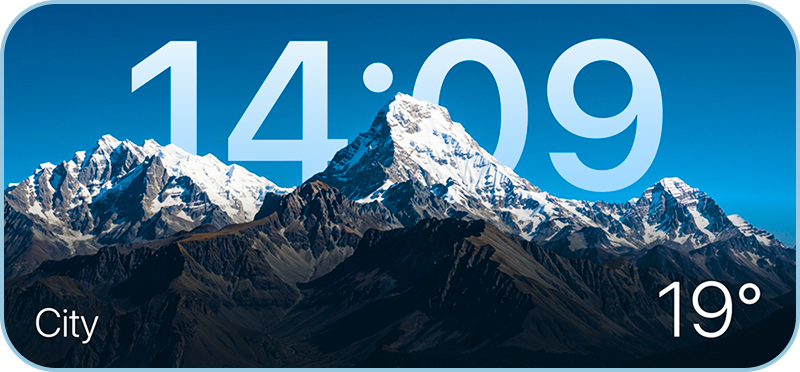
- Match the widget's tone to your wallpaper. iOS does not allow genuinely transparent widgets; apps approximate it with tinted backgrounds, so pick the tint closest to the darkest area of your wallpaper.
- Leave the row above it empty. A widget reads as designed when it has air around it, not when it is wedged between app icons.
Do weather widgets drain your battery?
Not in any way you will notice. Widgets do not run continuously — iOS wakes them on a budget and throttles the ones that ask for too much. When people do see battery drain, it is usually the app's location-based alerting rather than the widget, and turning off the alert types you don't need fixes it.
Adding one takes under a minute
Touch and hold an empty area of the Home Screen until the icons jiggle, tap + in the top-left corner, search for the app, swipe between small, medium and large, then tap Add Widget and Done. For the Lock Screen: touch and hold it, tap Customize, then choose a slot above or below the clock. The full walkthrough is in our companion guide: weather widgets for iPhone, explained.
Frequently asked questions
What is the best weather widget for iPhone?
The one that answers your most frequent question in a glance. If that question is “will it rain on me soon”, pick a widget backed by nowcasting radar and hail alerts, such as Weather Widget Magic. If it is “roughly how warm today”, Apple Weather is already on your phone and enough.
What is the best free weather widget for iPhone?
Apple Weather, because there is nothing to install and it covers both screens. Among third-party apps, Weather Widget Magic and RainViewer both ship usable widgets on their free tier.
How do I get an aesthetic weather widget?
Use one medium widget instead of three small ones, match its tint to the darkest part of your wallpaper, and leave space above it. iOS widgets cannot be truly transparent, so any “transparent” look is a tinted background approximating your wallpaper.
Can a weather widget show live radar?
It can show a recent radar snapshot, not a continuously animated map — iOS decides how often widgets refresh. The animated radar lives one tap away, in the app.
Do weather widgets drain battery?
Not meaningfully. Widgets are woken on an iOS-controlled budget. Frequent location-based alerts are the usual culprit, and those can be reduced in the app's settings.
Why is my weather widget not updating?
Enable Background App Refresh and Location Services for the app, turn off Low Power Mode, and check your connection. If it is still stale, remove and re-add the widget to force a fresh timeline.
How many weather widgets should I have?
Two: one on the Lock Screen for the next hour, one medium widget on the Home Screen for the day. A third almost always repeats what you already know.
Verdict
If you want a single widget to carry glance, day and severe weather, Weather Widget Magic is our pick — and the hail alerts are the reason, not the design. If you want nothing to install, Apple Weather is a perfectly respectable answer. If you already know exactly which values you want to see, Carrot; if wind decides your day, Windy; if rain is the only question, RainViewer.
Tested on iPhone with iOS 26 in August 2026. Feature claims were checked against each app's current App Store listing; we re-test this page every quarter, and we say clearly that Weather Widget Magic is ours.